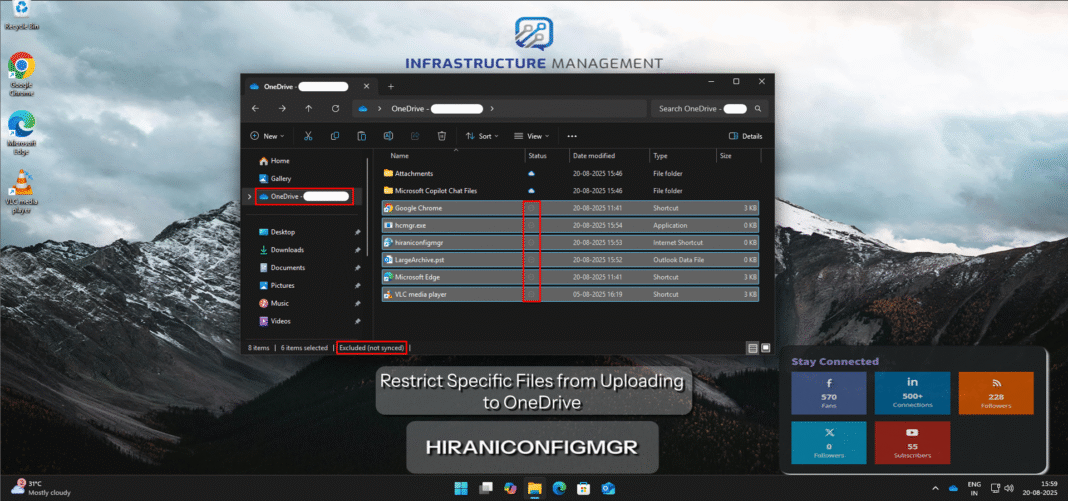
OneDrive is fantastic for seamless file syncing but If you’ve ever dealt with OneDrive sync issues like those desktop shortcuts multiplying across devices or large unnecessary files clogging up your cloud storage you know how frustrating it can be. You can stop the OneDrive sync client from uploading certain files (by name or extension) using a built-in OneDrive policy surfaced in Intune’s Settings Catalog to keep things efficient and secure.
Typical use cases include blocking shortcuts (*.lnk, *.url ), archives, executables, or large mail archives like *.pst. This post walks you through the why, the how, and how to verify, plus useful tips so the rollout is smooth for your users.
Why Restrict Files from Uploading to OneDrive?
OneDrive’s Known Folder Move (KFM) feature automatically backs up folders like Desktop, Documents, and Pictures, which is great for data protection. But not every file belongs in the cloud:
- Security and Compliance: You might want to block sensitive file types (e.g., executables like *.exe) to reduce risks of malware spread or data leaks.
- Storage Optimization: Exclude large or temporary files (e.g., *.tmp or *.bak) to save on storage costs and bandwidth.
- User Experience Fixes: Shortcuts (*.lnk or *.url files) often cause duplicates or broken links when synced, leading to confusion. Restricting them keeps desktops clean across devices.
- Custom Needs: In regulated industries, you could exclude certain extensions to enforce policies.
Microsoft exposes an admin policy called Exclude specific kinds of files from being uploaded. It matches keywords you define full filenames like setup.exe or wildcards like *.pst and the OneDrive sync client simply skips uploading those files. There’s no error for the user; those files just stay local with an “Excluded from sync” status.
Note: These restrictions apply to the OneDrive sync client on Windows devices users can still upload files manually via the web interface, so this isn’t a full lockdown but a smart sync filter.
Prerequisites: What You’ll Need to Get Started
- An active Microsoft Intune subscription with admin access to the Microsoft Intune admin center.
- Windows 10 or later devices enrolled in Intune running the OneDrive sync client (current builds recommended).
- Entra ID groups set up for targeting users or devices (e.g., a test group to pilot this before rolling it out company-wide).
Strategy: pick your keywords
Decide what to block up front. Common patterns:
- Shortcuts: *.lnk, *.url (great for keeping user desktops tidy across machines).
- Executables & installers: *.exe, *.msi, *.bat
- Mail archives: *.pst
- App cache/temp files produced by line-of-business tools
Matching rules: You can use complete names (setup.exe) or wildcards (*.pst). Matching is case-insensitive.
Step-by-step: Create the policy in Intune
We’ll use the Settings Catalog (recommended). The underlying setting name is EnableODIgnoreListFromGPO and it writes a list under
HKLM\SOFTWARE\Policies\Microsoft\OneDrive\EnableODIgnoreListFromGPO
- Open the Intune admin center and go to Devices → Windows → Configuration profiles → Create profile.
Platform: Windows 10 and later,
Profile type: Settings catalog.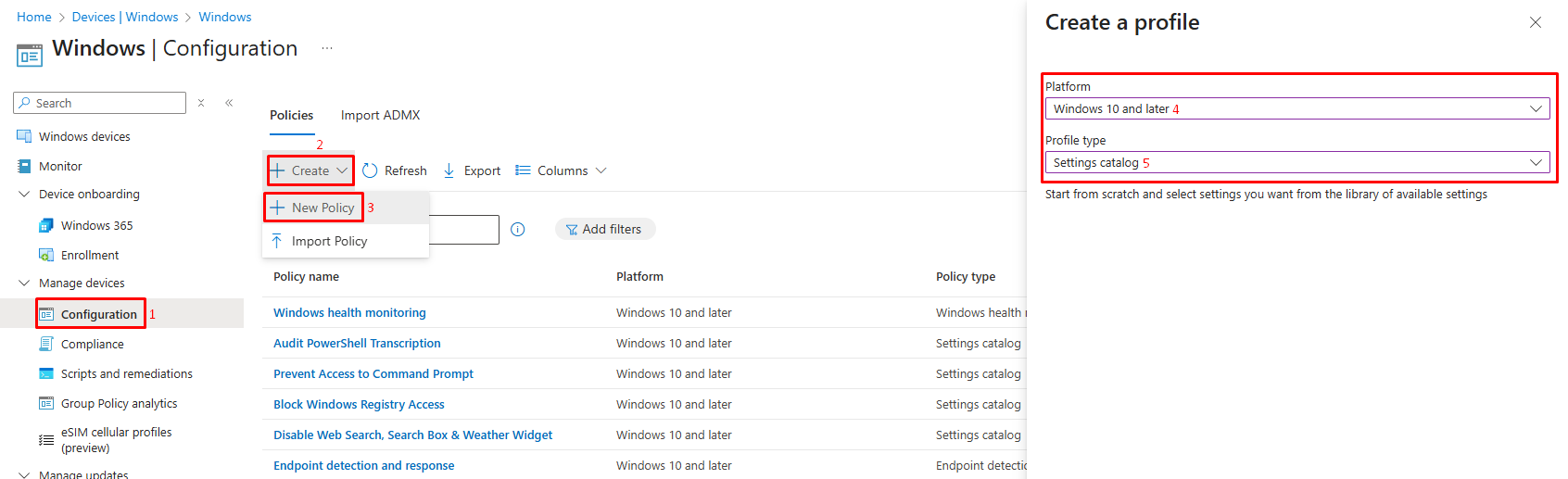
- Basics: Give the profile a clear name and description,
e.g.,
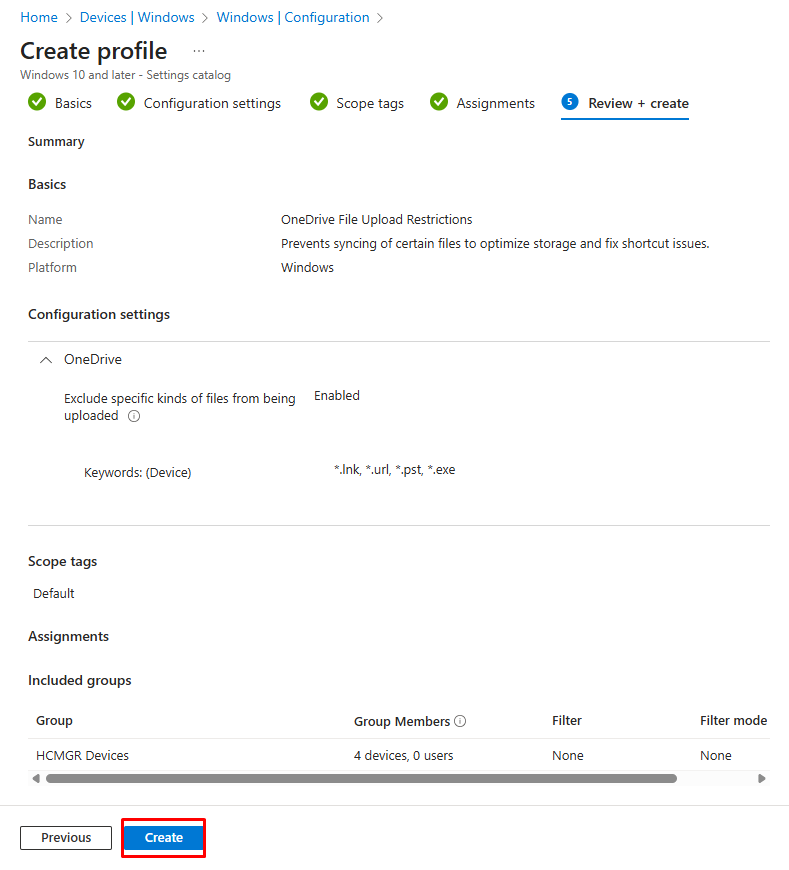
Name: “OneDrive File Upload Restrictions”.
Description: “Prevents syncing of certain files to optimize storage and fix shortcut issues.”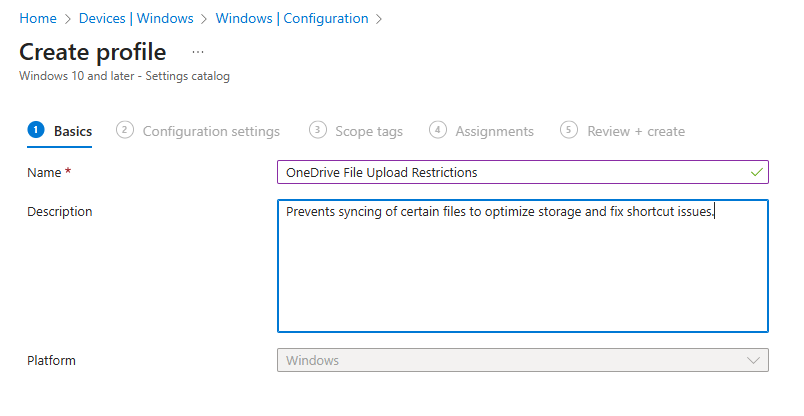
- Configuration settings → Add settings.
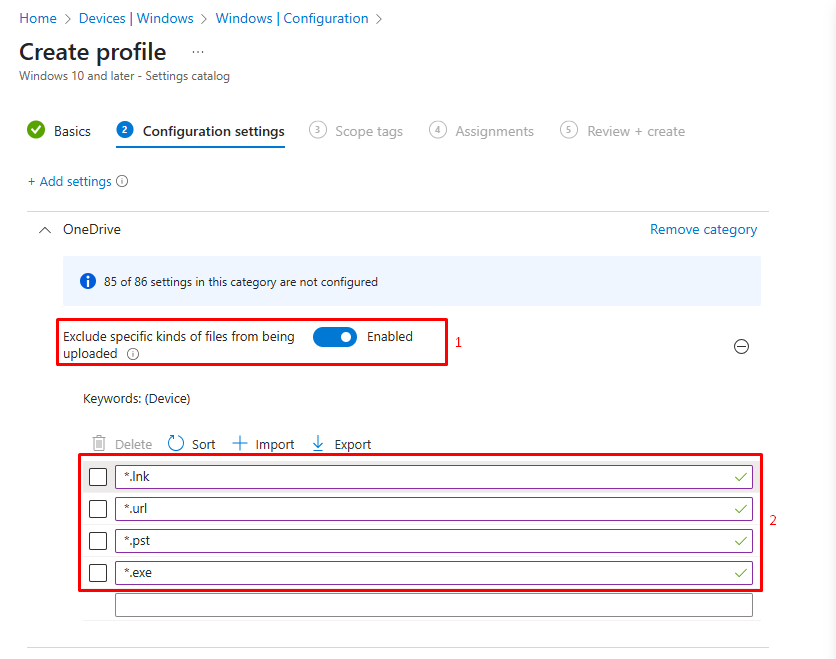
Search for OneDrive, then add Exclude specific kinds of files from being uploaded (EnableODIgnoreListFromGPO).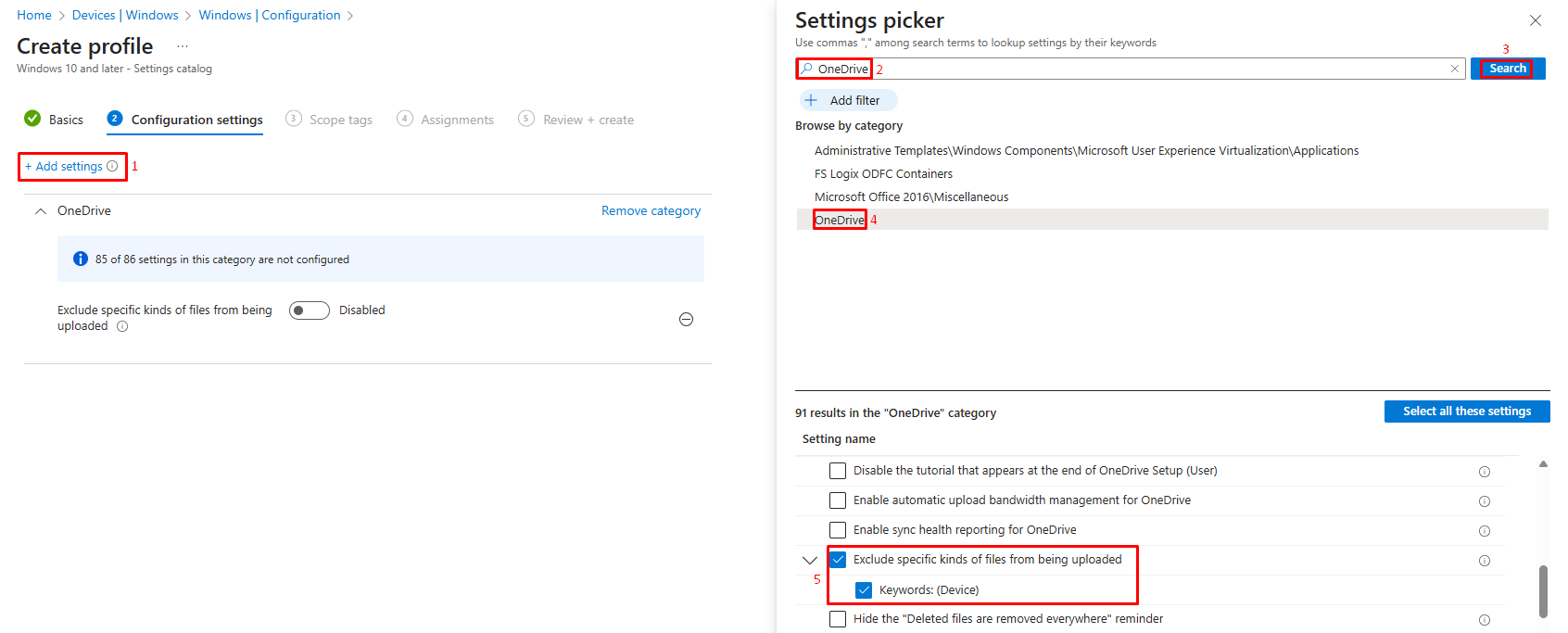
- Enable the setting and add your keywords (one per line), for example:
<strong><span style="color: #2271b1;">*.lnk </span></strong>
<strong><span style="color: #2271b1;">*.url </span></strong>
<strong><span style="color: #2271b1;">*.pst </span></strong>
<strong><span style="color: #2271b1;">*.exe</span></strong>
Tip: start with shortcuts (*.lnk, *.url) as a safe, high-value baseline.
5. On the Scope tags tab, add any relevant tags if your organization uses them for role-based access (e.g., tag it for the IT security team).
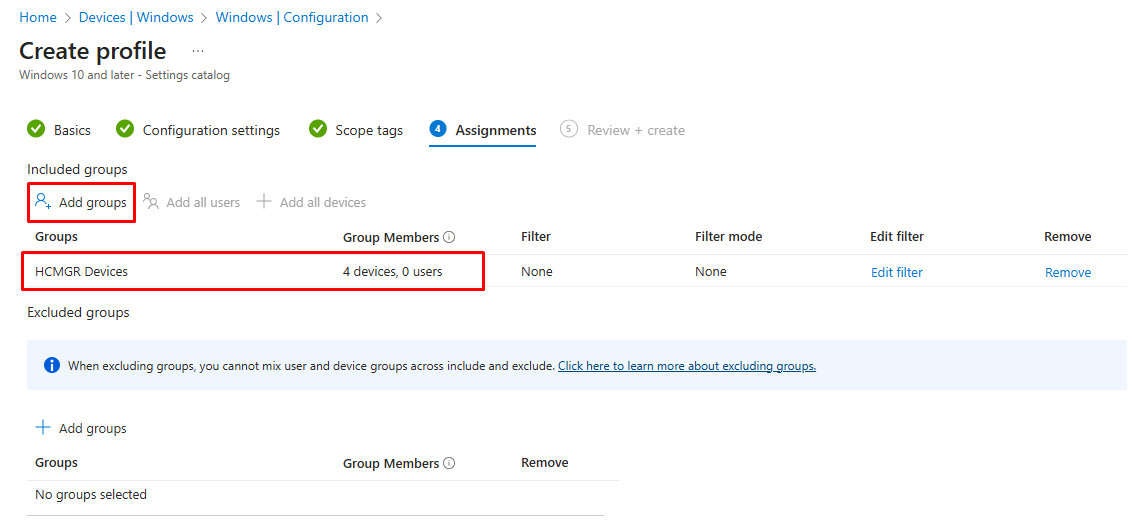
6. Assignments: Target a pilot group (devices or users). This policy is machine-level in the registry, so device targeting is common, but group targeting either way works fine.
7. Review + Create the profile.
Verifying Your Setup
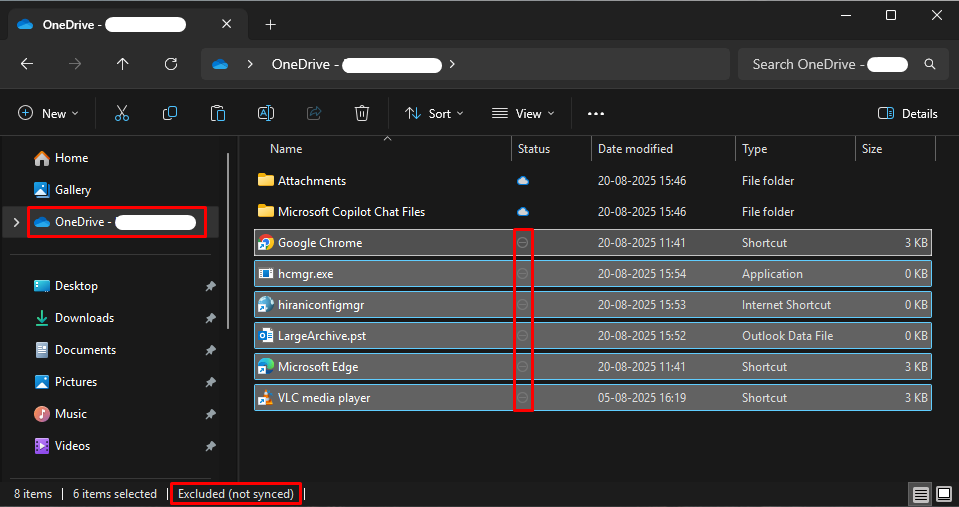
- Wait for OneDrive to sync (or force it by right-clicking the OneDrive icon > Sync).
- In File Explorer, the excluded file should show a gray “Θ” icon or say “Excluded (not synced)” in the status column.
- Check the OneDrive activity center (click the cloud icon in the taskbar) for any messages about excluded files.
- For deeper verification, open Registry Editor (regedit) and navigate to HKCU\Software\Microsoft\OneDrive. Look for the “IgnoreList” key—it should list your exclusions.
- If needed, restart the OneDrive app (exit and relaunch) to apply changes immediately.
Tips, Best Practices, and Limitations
To make this even more effective:
- Start with Common Exclusions: Beyond shortcuts, consider .tmp, .bak, or .log files that bloat storage without value.
- User Communication: Notify your team about changes—explain why certain files won’t sync to avoid support tickets.
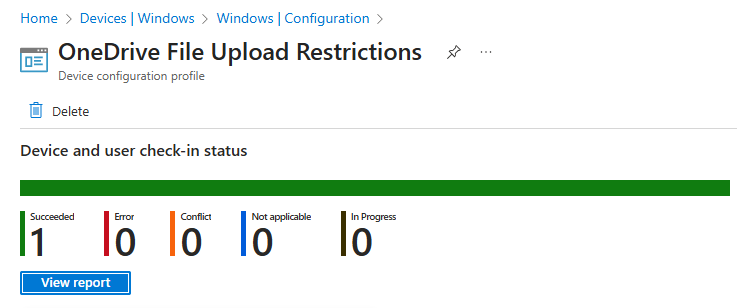
- Monitor and Iterate: Use Intune’s reporting to track policy success. Adjust exclusions based on feedback.
- Limitations to Know: This only affects the sync client; web uploads are still possible. For stricter controls, combine with Data Loss Prevention (DLP) policies in Microsoft 365.
- Scaling Up: Test on a few devices, then expand. If you’re in a hybrid AD environment, ensure no conflicting GPOs override Intune.
Wrap-up
Using Intune to set Exclude specific kinds of files from being uploaded gives you a low-friction, admin-friendly way to prevent noisy or risky files from leaving endpoints via OneDrive sync—without confusing end users. Start with shortcuts, add other extensions as needed, and validate with a small pilot before rolling out broadly.
If you’ve tried this or have questions, drop a comment below—I’d love to hear your experiences! Stay tuned for more Intune tips, and happy administrating.