Managing Apple devices in an organization requires keeping your Volume Purchase Program (VPP) and Automated Device Enrollment (ADE) tokens up to date in Jamf Now. These tokens, managed through Apple Business Manager (ABM) or Apple School Manager (ASM), are essential for distributing apps and enrolling devices seamlessly. This guide provides detailed, step-by-step instructions for renewing both VPP and ADE tokens in Jamf Now to ensure uninterrupted management of your Apple ecosystem.
Understanding VPP and ADE Tokens
-
Volume Purchase Program (VPP) Token: Allows organizations to purchase and distribute apps and books to managed devices via Jamf Now. VPP tokens typically expire annually and must be renewed to maintain access to the VPP store.
-
Automated Device Enrollment (ADE) Token: Facilitates zero-touch enrollment of Apple devices into Jamf Now, ensuring devices are automatically configured during setup. ADE tokens also require periodic renewal to maintain connectivity with ABM or ASM.
Failing to renew these tokens can disrupt app distribution and device enrollment, so it’s critical to stay proactive. Let’s dive into the renewal process for each.
Prerequisites
Before starting, ensure you have:
-
Administrator access to Jamf Now.
-
Access to your organization’s Apple Business Manager or Apple School Manager account.
-
The Apple ID used for ABM/ASM with appropriate permissions (Content Manager or Device Manager roles for VPP, Device Manager for ADE).
-
An active Jamf Now account with existing VPP and ADE integrations.
Step-by-Step Instructions for Renewing VPP Tokens in Jamf Now
Step 1: Check VPP Token Expiration
-
Log in to your Jamf Now account at https://login.jamfnow.com/.
-
Navigate to Apps in the Jamf Now dashboard.
-
Check for notifications about expiring or invalid VPP tokens. Alternatively:
-
Go to Settings > Volume Purchase Program.
-
Review the listed VPP token’s expiration date under the account name.
-
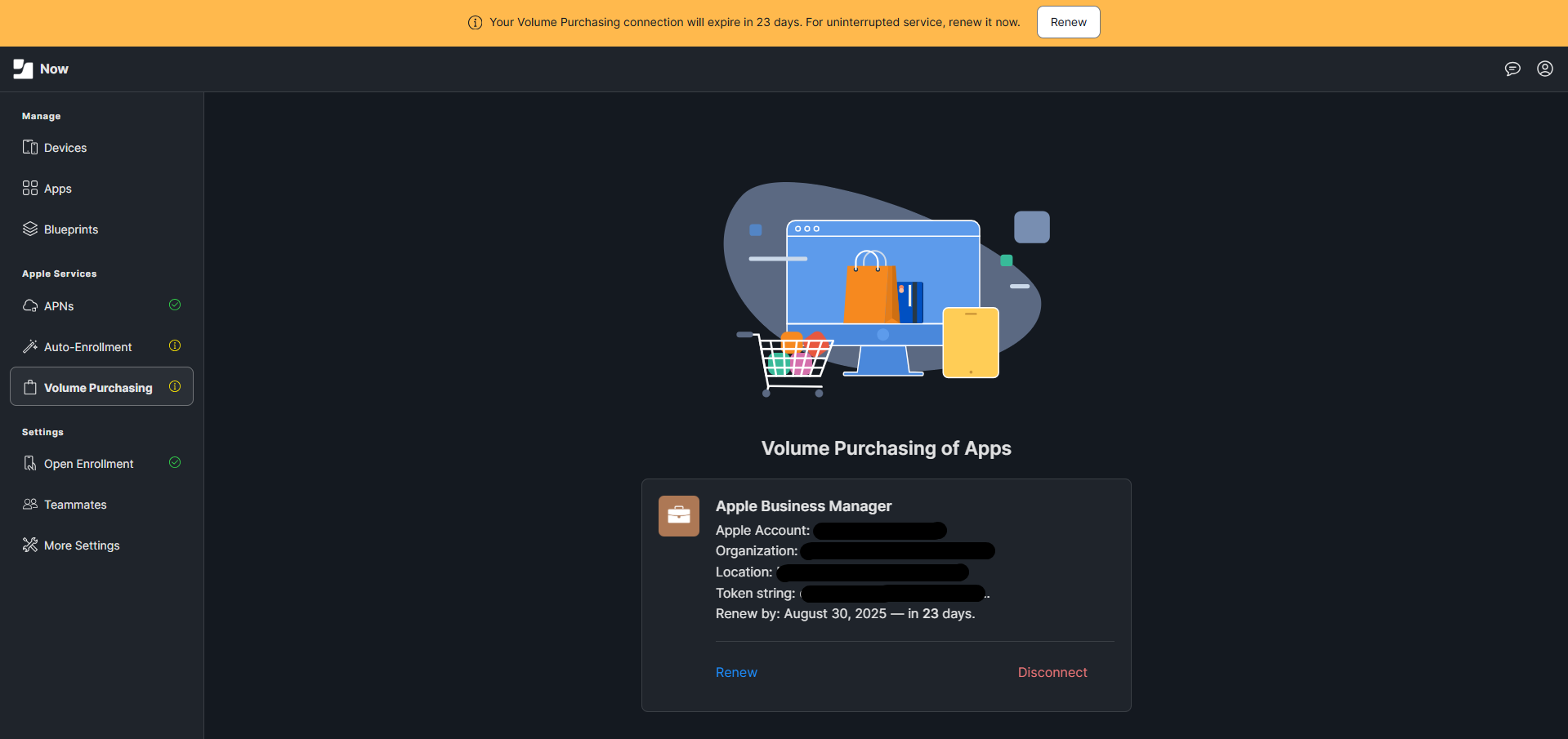
Note: Renew tokens well before their expiration (at least 30 days) to avoid disruptions. Expired tokens gray out in Jamf Now, preventing app downloads or distribution until renewed.
Step 2: Log in to Apple Business Manager or Apple School Manager
-
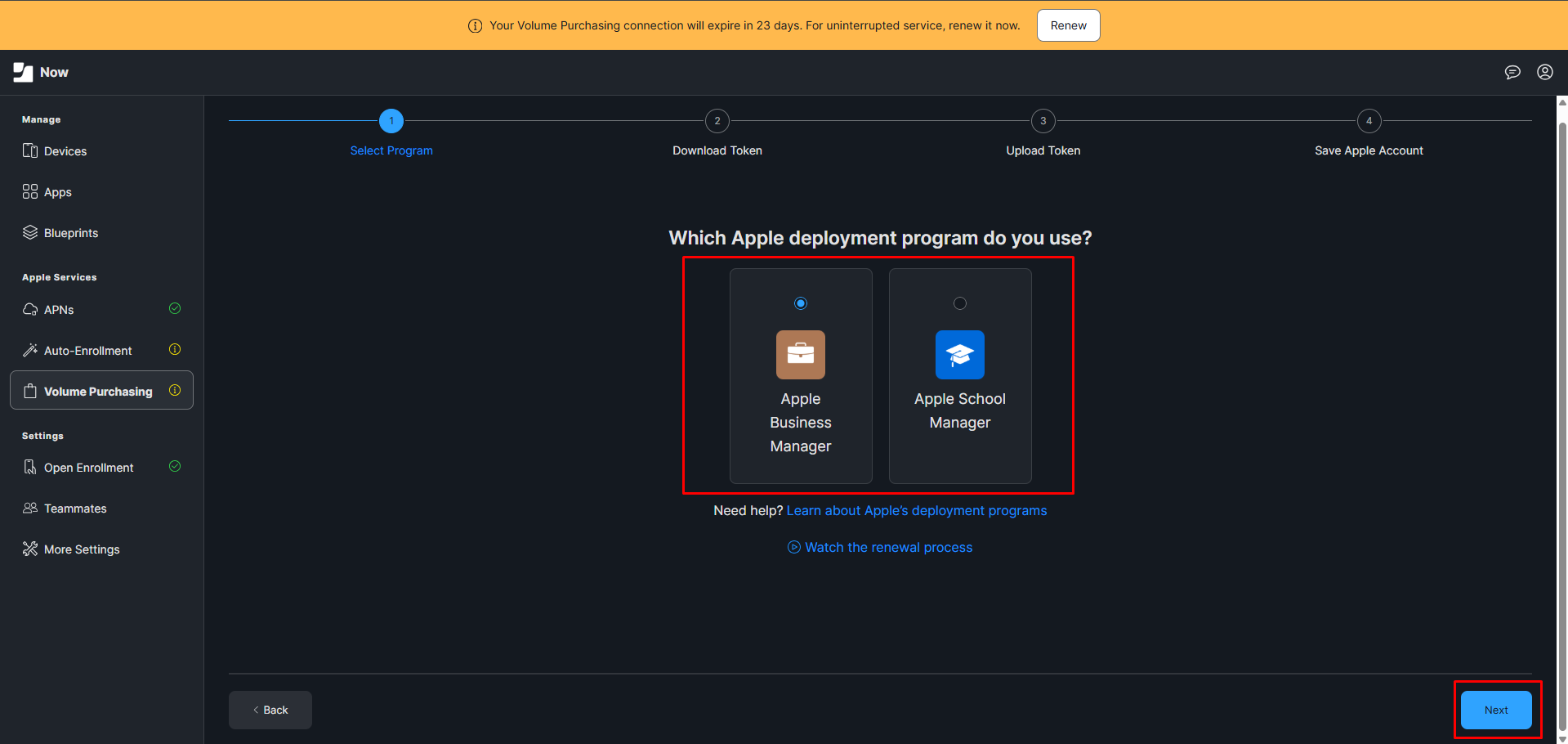
Open a browser and go to Apple Bussiness Manager or Apple School Manager.
-
Sign in with your Apple ID that has Content Manager or Administrator permissions.
Step 3: Download the VPP Token
-
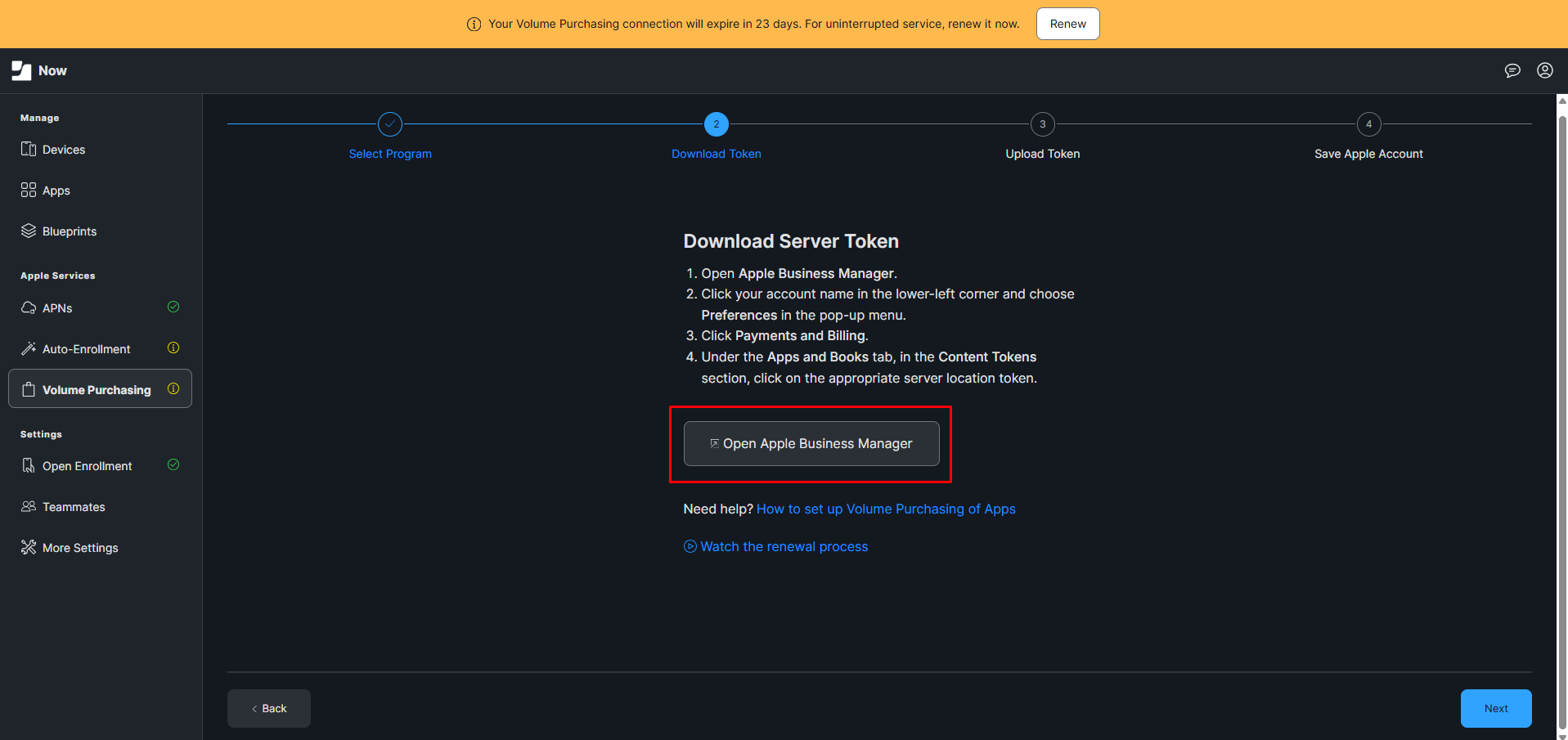
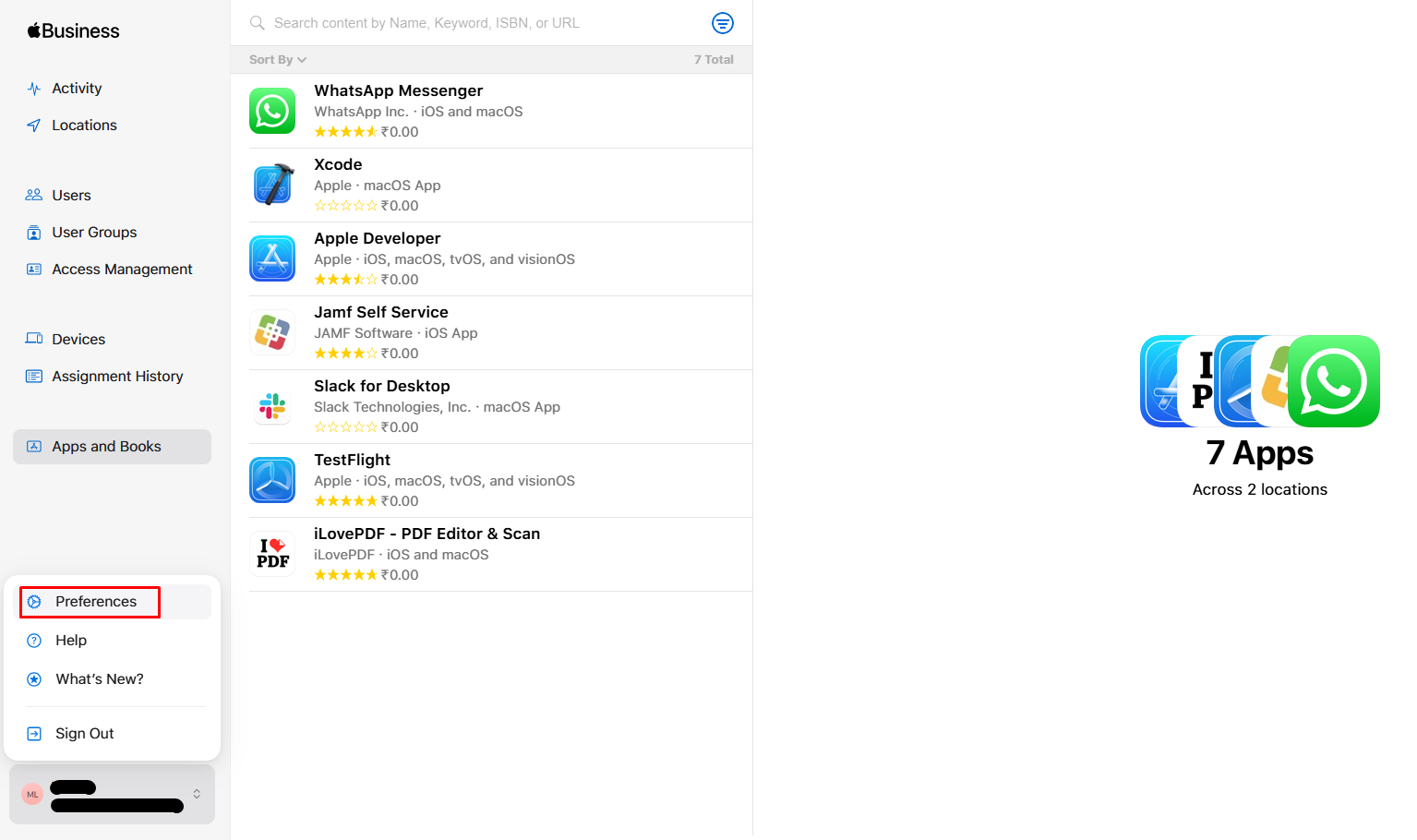
In ABM/ASM, click your username in the bottom-left corner of the sidebar.
-
Select Preferences from the menu.
-
Locate the Your MDM Servers section. If it’s missing, verify your Apple ID has the necessary permissions.
-
Naviagate to the Payments and Billing Section and search for Content Tokens under Apps and Books tab.
-
Under Content Tokens, select Download Token for the location associated with your MDM Server to download the new VPP token (a .vpptoken file).

-
Save the file to an accessible location on your computer.
Warning: Do not reassign all app licenses to a new token if you’re managing devices across multiple MDMs, as this can revoke licenses from existing devices. Create a new location in ABM/ASM for additional MDMs if needed.
Step 4: Upload the VPP Token to Jamf Now
-
Return to your Jamf Now dashboard.
-
Navigate to Settings > Volume Purchase Program.
-
Click Upload Service Token and select the .vpptoken file you downloaded.
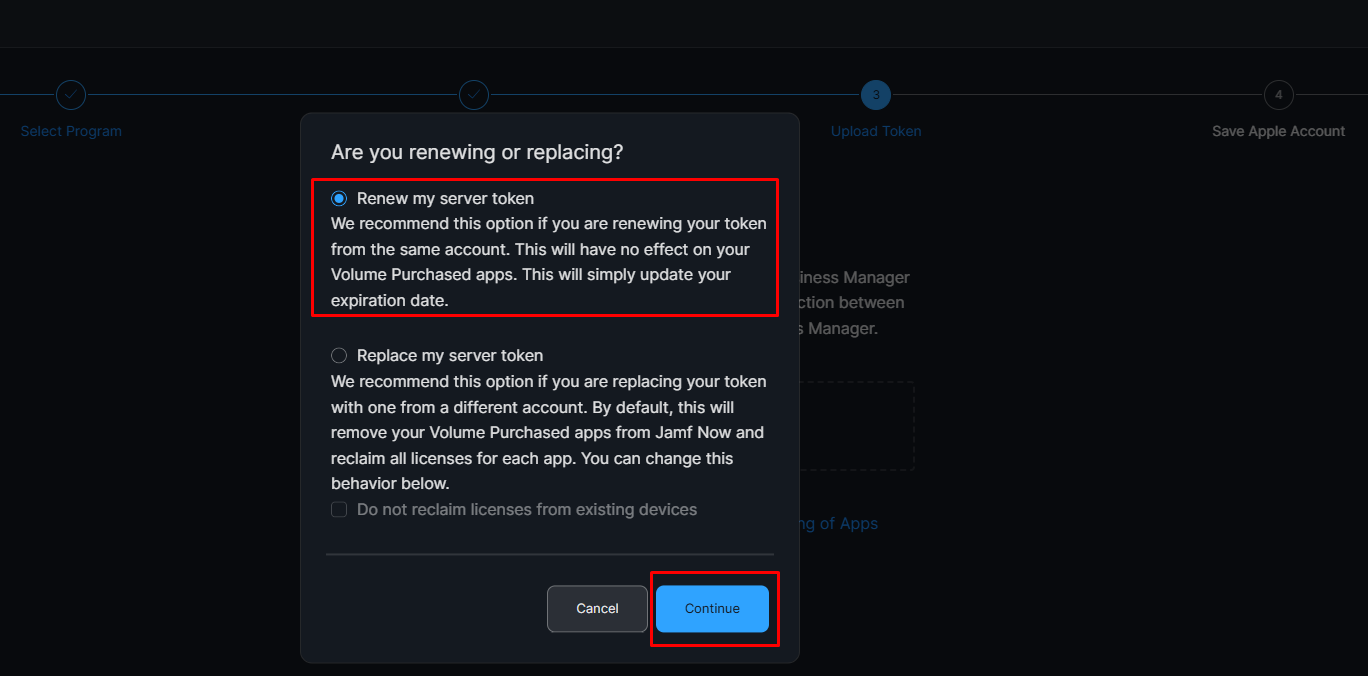
- When prompted with a popup, select the option to renew my server token and click continue.
5. At last, enter the managed apple-id used to download the VPP Token from ABM or ASM and click continue.
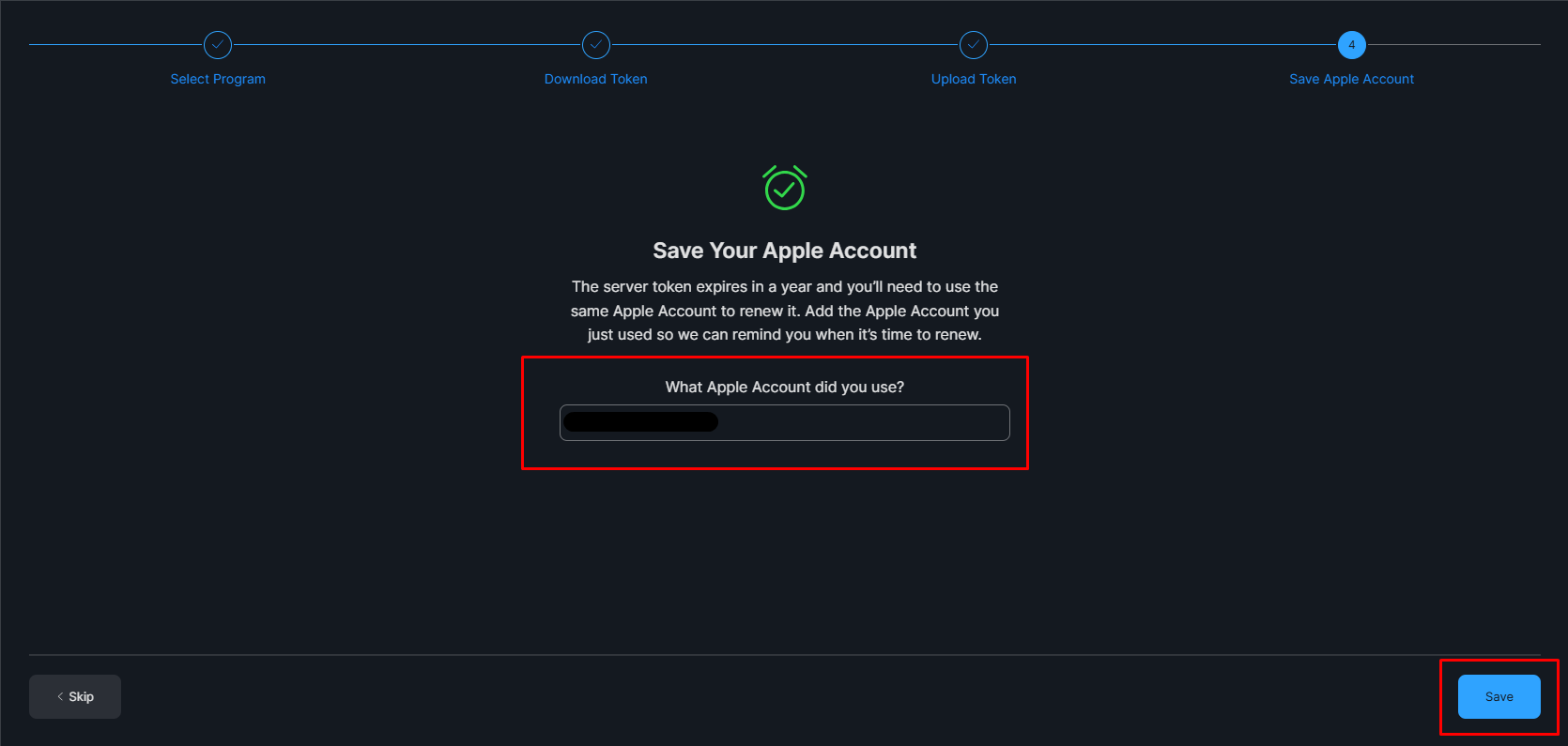
6. Click Save to upload the token.
7. Jamf Now will sync with ABM/ASM, updating the VPP token and restoring app distribution functionality.
Step 5: Verify the Sync
-
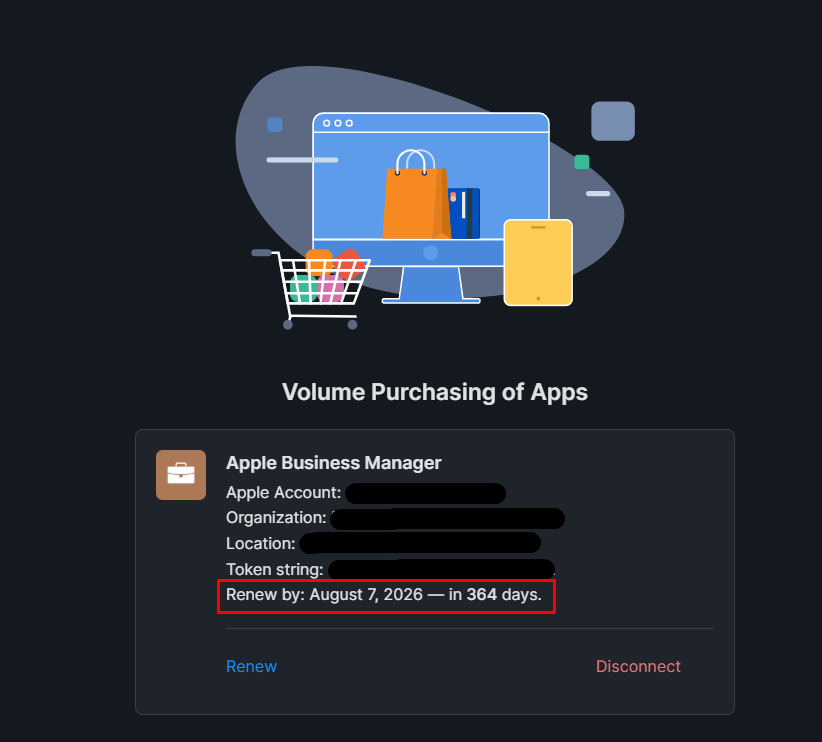
Go to Volume Purchasing in Jamf Now.
-
Confirm that the VPP token is active (no longer grayed out) and apps are available for distribution.
Note: If issues persist, ensure the token wasn’t already in use in another MDM (e.g., Apple’s Profile Manager) and delete it from conflicting systems before uploading to Jamf Now.
Step-by-Step Instructions for Renewing ADE Tokens in Jamf Now
Step 1: Check ADE Token Expiration
-
Log in to Jamf Now at https://login.jamfnow.com/.
-
Navigate to Auto-Enrollment > View Devices.
-
Check for any warnings about an expired or soon-to-expire ADE token. Alternatively, go to Settings > Automated Device Enrollment to view the token’s status.
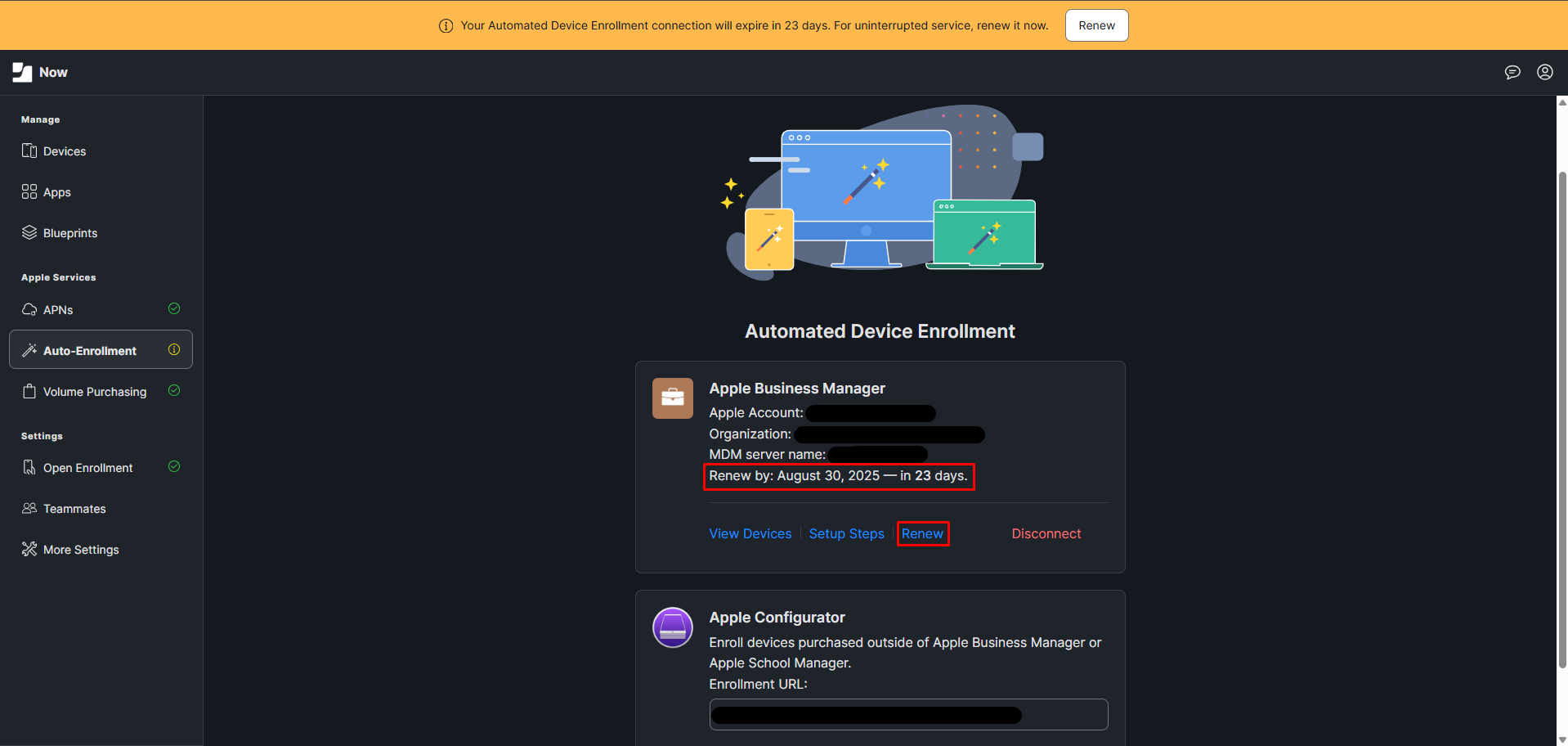
Note: An expired ADE token can cause devices to get stuck on the Remote Management screen during enrollment. Renew promptly to avoid this.
Step 2: Log in to Apple Business Manager or Apple School Manager
-
Access Apple Business Manager or Apple School Manager.
-
Sign in with an Apple ID that has Device Manager or Administrator permissions.
Step 3: Download the ADE Token
-
In ABM/ASM, click your username in the bottom-left corner and select Preferences.
-
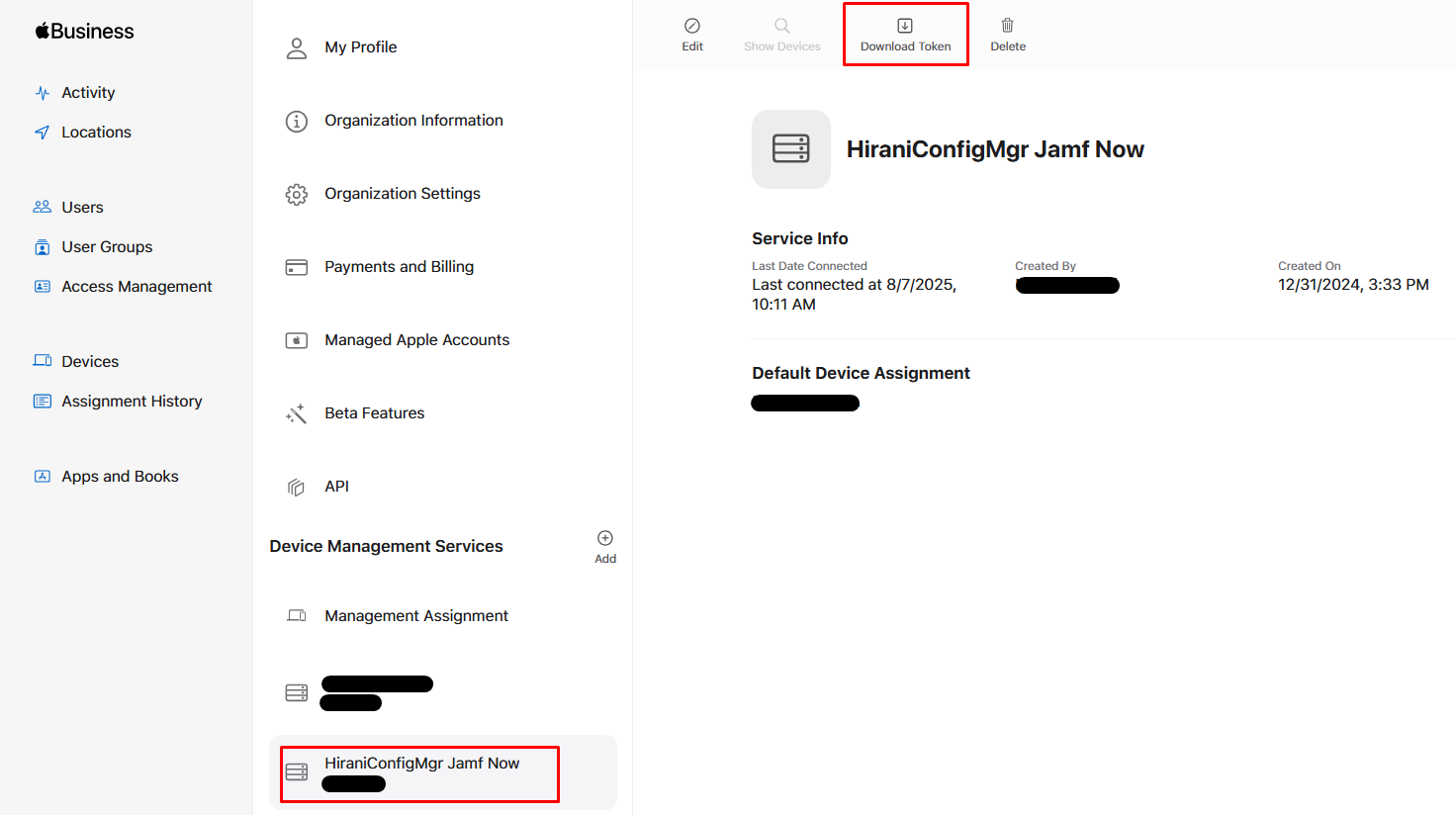
In the Your MDM Servers section, locate the MDM server linked to your Jamf Now instance (e.g., “Jamf Now ADE”).
-
Under MDM Server Settings, click Download Token to download the new ADE token (a .p7m file).
-
Save the file to your computer.
Step 4: Upload the ADE Token to Jamf Now
-
In Jamf Now, go to Auto-Enrollment section.
-
Select Upload Server Token File and choose the .p7m file downloaded from ABM/ASM.
-
Click Upload and then Save.
-
Jamf Now will re-establish the connection with ABM/ASM, updating the ADE token.
Step 5: Verify the Sync
-
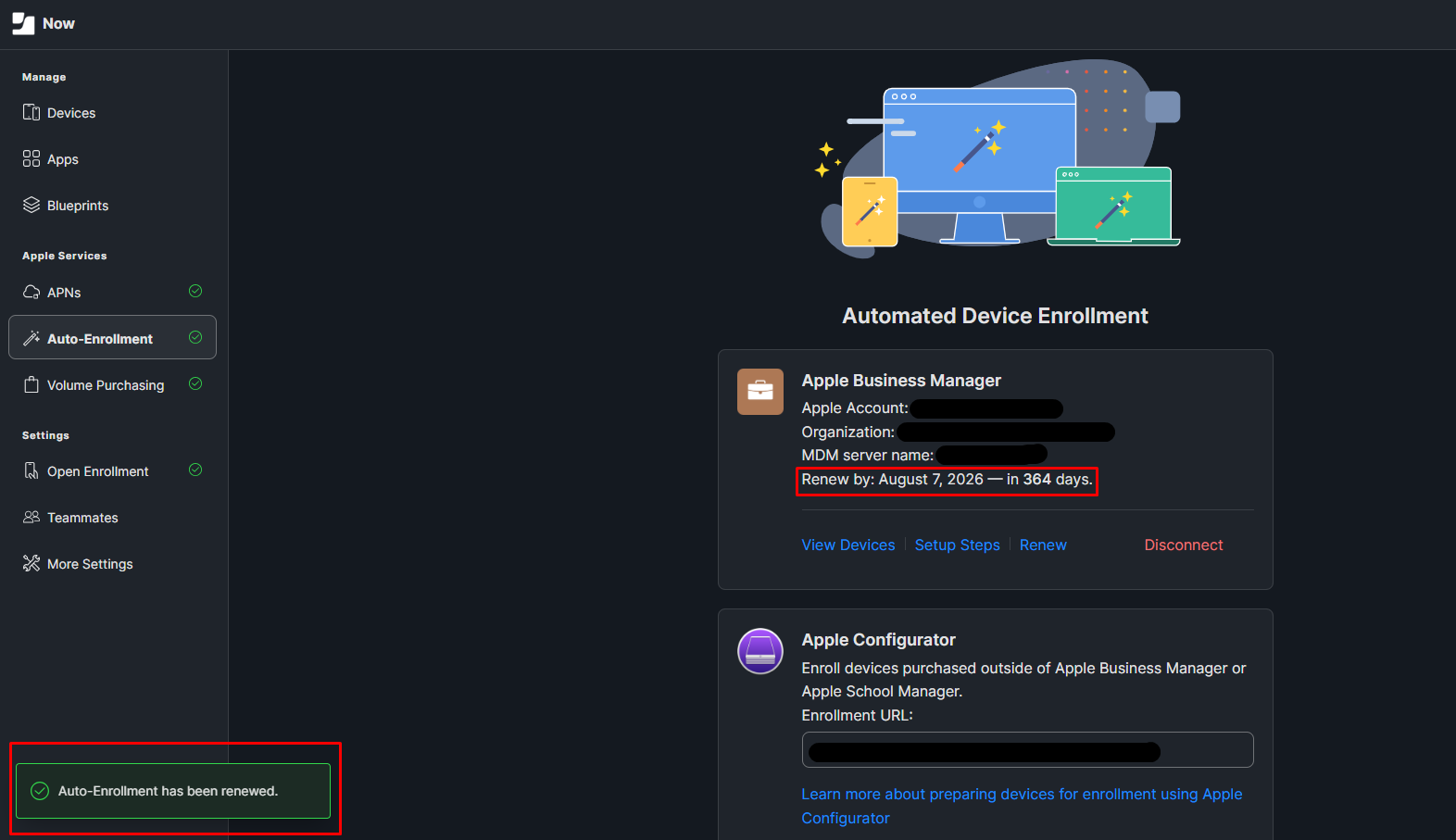
Navigate to Auto-Enrollment Section.
-
Ensure devices are syncing correctly with ABM/ASM and no errors appear.
Note: If a device is stuck on the Remote Management screen, try switching to another Wi-Fi network or clearing the device record from your network’s firewall, as SSL decryption can interfere with enrollment.
Best Practices and Troubleshooting
-
Monitor Expiration Dates: Set calendar reminders 30–60 days before token expiration to avoid disruptions. VPP and ADE tokens typically expire annually.
-
Use a Single MDM per Token: Ensure each VPP and ADE token is used in only one MDM at a time to prevent conflicts.
-
Permissions Matter: Verify that the Apple ID used in ABM/ASM has the correct roles (Content Manager for VPP, Device Manager for ADE).
-
Sync Regularly: Jamf Now syncs with ABM/ASM upon login, but manual syncs may be needed after token renewal.
-
Contact Support if Needed: If tokens fail to sync or devices don’t enroll, contact Jamf Support or AppleCare for assistance with ABM/ASM configurations.
-
Backup Apple IDs: Use a shared, organizational Apple ID for ABM/ASM to avoid issues if an individual’s account becomes inaccessible.
Conclusion
Renewing VPP and ADE tokens in Jamf Now is a straightforward process when you follow these steps. By keeping your tokens current, you ensure seamless app distribution and device enrollment, maintaining a secure and efficient Apple device management environment. For additional resources, check the Jamf Support Portal or Jamf Learning Hub for tutorials and videos on token management.
Stay proactive, keep your tokens updated, and leverage Jamf Now to simplify your Apple device management!