
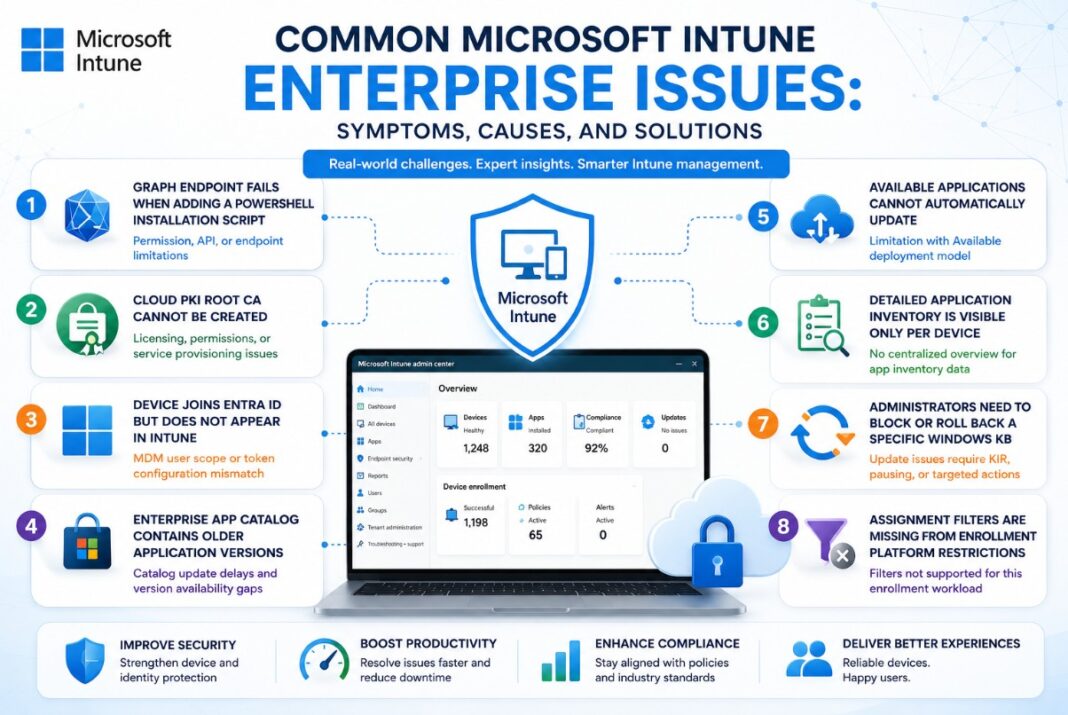
Microsoft Intune environments often involve multiple services working together, including Microsoft Entra ID, Windows Configuration Designer, Microsoft Graph, Windows Update, Cloud PKI, Enterprise App Management, and Conditional Access.
A configuration can therefore appear successful in one service while silently failing in another. For example, a Windows device might successfully join Microsoft Entra ID but never complete Intune enrollment.
The following issues are based on real-world Intune administrator and engineering scenarios documented in the source material.
Issue 1: Microsoft Graph Endpoint Fails When Adding a PowerShell Installation Script
Symptoms
Administrators attempt to create a PowerShell installation script for a Win32 application by using the following Microsoft Graph beta endpoint:
POST /deviceAppManagement/mobileApps/{mobileAppId}/contentVersions/{mobileAppContentId}/scripts
The application registration has the documented application permissions, but the request is blocked or rejected.
Typical symptoms include:
- 403 Forbidden
- 400 Bad Request
- The request works with delegated permissions but not application permissions.
- The script can be uploaded through the Intune admin center but not through automation.
- Intune support redirects the case to Microsoft Graph support.
Cause
The win32LobAppInstallPowerShellScript resource is exposed through the Microsoft Graph beta API. Microsoft states that beta APIs can change more frequently and recommends using a v1.0 endpoint where one is available.
The API documentation lists permissions such as:
- ReadWrite.All
- ReadWrite.All
However, documented permissions do not always guarantee that every backend Intune operation supports every authentication model consistently. The failure may therefore be caused by:
- Missing administrator consent.
- Incorrect Graph access token audience.
- Unsupported or inconsistent application-only behaviour.
- An invalid mobile app content version.
- The app not being in the expected creation state.
- A backend service restriction or regression.
Microsoft Graph currently documents both delegated and application permissions for this resource, but it remains a beta API.
Solution
Step 1: Validate the access token
Confirm that the token contains one of the required application roles:
DeviceManagementApps.ReadWrite.All
DeviceManagementConfiguration.ReadWrite.All
Verify that tenant-wide administrator consent has been granted.
Step 2: Confirm that the correct endpoint is being used
Use:
https://graph.microsoft.com/beta/
Do not assume that the endpoint is available under Graph v1.0.
Step 3: Validate the object sequence
Before uploading the script, confirm that:
- The Win32 application exists.
- A valid content version exists.
- The content-version ID belongs to the specified application.
- The application has not already completed a conflicting content-commit operation.
- The script payload meets the required schema and size limits.
Step 4: Test delegated authentication
Test the same request with an Intune Administrator using delegated authentication.
When delegated authentication works but application authentication fails, the result provides strong evidence of an application-only API or service-side limitation.
Step 5: Capture diagnostic information
Record:
- HTTP status code.
- Complete response body.
- request-id.
- client-request-id.
- UTC timestamp.
- Tenant ID.
- Application ID.
Submit these details through a Microsoft support case that includes both the Intune and Microsoft Graph components.
Step 6: Use a supported operational workaround
Until the endpoint behaves consistently:
- Upload the script through the Intune admin center.
- Create a standard Win32 .intunewin
- Use a command-line installer rather than a script-based installer.
- Avoid making a beta endpoint a critical dependency in a production packaging pipeline.
Enterprise Recommendation
Treat Microsoft Graph beta automation as a controlled integration.
Production automation should include:
- API version validation.
- Schema validation.
- Retry and error handling.
- Logging of Graph request IDs.
- A manual packaging fallback.
- Testing in a non-production tenant.
Issue 2: Cloud PKI Root CA Cannot Be Created
Symptoms
An administrator attempts to create a root certification authority in Microsoft Cloud PKI and receives an error such as:
CA failed to be created.
Root CA couldn’t be created.
The error may appear immediately after selecting Create, or the CA may remain in a failed state.
Cause
The most common causes are:
- The tenant does not have the required Cloud PKI entitlement.
- Only a standard Intune trial is active.
- The trial or add-on licence has not completed backend provisioning.
- The administrator lacks the Create certificate authorities
- Cloud PKI has not been enabled correctly for the tenant.
- A temporary Microsoft service-side provisioning failure has occurred.
Cloud PKI requires an additional subscription beyond Microsoft Intune Plan 1 or Plan 2. Microsoft also exposes separate permissions for reading, creating and managing certification authorities.
Solution
Step 1: Verify licensing
Confirm that the tenant has one of the applicable Cloud PKI entitlements, such as:
- Microsoft Intune Suite.
- Microsoft Cloud PKI add-on.
- Another Microsoft subscription that explicitly includes Cloud PKI.
A basic Intune trial alone might not provide the required feature entitlement.
Step 2: Confirm licence activation
After activating a trial or purchasing a licence:
- Confirm that the licence appears in the Microsoft 365 admin center.
- Assign the licence where required.
- Confirm that Cloud PKI appears in the Intune admin center.
- Allow backend service provisioning to complete before recreating the CA.
Step 3: Validate RBAC permissions
The administrator must have a role containing:
Create certificate authorities
For ongoing administration, consider also assigning:
Read certification authorities
Revoke issued leaf certificates
Step 4: Review tenant and service health
Check:
- Microsoft 365 service health.
- Intune tenant status.
- Cloud PKI notifications.
- Failed CA objects already present in the tenant.
Step 5: Retry with a controlled configuration
Create a basic two-tier hierarchy:
Cloud Root CA
|
└── Cloud Issuing CA
Start with Microsoft-recommended RSA key sizes and default certificate-validity settings. Introduce custom settings only after the baseline CA has been created successfully.
Enterprise Recommendation
Design Cloud PKI as an enterprise security service rather than a standalone Intune configuration.
Document:
- CA ownership.
- Root and issuing CA hierarchy.
- Certificate validity periods.
- SCEP profile ownership.
- Renewal procedures.
- Revocation procedures.
- Emergency certificate-rotation plans.
Cloud PKI supports certificate scenarios including Wi-Fi, VPN, email, web authentication and device identity.
Issue 3: Device Joins Microsoft Entra ID but Does Not Appear in Intune
Symptoms
A provisioning package created with Windows Configuration Designer is applied successfully.
The device:
- Accepts the PPKG.
- Restarts successfully.
- Appears in Microsoft Entra ID.
- Does not appear in Microsoft Intune.
- Does not receive configuration profiles, applications or compliance policies.
When the MDM user scope is temporarily changed to All, the same provisioning package works.
Cause
The account used to retrieve the bulk provisioning token was not included in the Intune MDM user scope.
This is not the same as the automatically created:
package_{GUID}
account.
The identities have different functions:
| Identity | Function |
| Token-generation administrator | Retrieves the bulk token through Windows Configuration Designer |
| package_{GUID} account | Represents the generated provisioning package |
| Device identity | Represents the Microsoft Entra joined Windows device |
Microsoft specifically requires the account used to request the bulk enrollment token to be included in the MDM user scope.
Solution
Step 1: Create a dedicated security group
For example:
SG-Intune-Bulk-Enrollment-Operators
Step 2: Add the token-generation account
Add the administrator or service account used in Windows Configuration Designer to the group.
Step 3: Configure automatic enrollment
In the Intune admin center:
Devices
> Device onboarding
> Enrollment
> Windows
> Automatic Enrollment
Configure:
MDM user scope: Some
Group: SG-Intune-Bulk-Enrollment-Operators
Step 4: Validate the token-generation account
The account should have a supported role, such as:
- Cloud Device Administrator.
- Intune Administrator.
- Password Administrator.
It must not be restricted to a Microsoft Entra administrative unit for this operation.
Step 5: Generate a new token
After correcting the scope:
- Open Windows Configuration Designer.
- Create a new provisioning project.
- Select Get Bulk Token.
- Sign in with the authorised account.
- Select No, sign in to this app only.
- Export a new password-protected PPKG.
Step 6: Verify the default enrollment restriction
Bulk provisioning is a userless enrollment method. Therefore, the Default enrollment restriction must allow Windows enrollment.
Step 7: Validate enrollment
Run:
dsregcmd /status
Confirm:
AzureAdJoined : YES
Then verify that the device appears in:
Intune admin center
> Devices
> All devices
Enterprise Recommendation
Do not permanently change the MDM scope to All as a troubleshooting workaround.
Use:
- A dedicated token-generation identity.
- A dedicated MDM scope group.
- Privileged Identity Management.
- Token-expiry tracking.
- Controlled Conditional Access exclusions.
- Lab, pilot and production deployment rings.
Issue 4: Enterprise App Catalog Contains Older Application Versions
Symptoms
Administrators notice that the Enterprise App Catalog contains an older application version than the version published by the software vendor.
Examples may include:
- An older security client.
- An earlier Notepad++ build.
- An outdated archive utility.
- Different versions for MSI and EXE installers.
Administrators may also struggle to determine when a new catalog version becomes available.
Cause
Enterprise App Catalog packages are curated and processed before being published.
A vendor releasing a new version does not necessarily mean that the corresponding catalog package becomes available immediately.
Additional causes include:
- Different release channels.
- MSI and EXE packages having different versions.
- Vendor metadata changes.
- Package validation delays.
- Architecture-specific releases.
- A newer version still being tested by the catalog provider.
The application version can be displayed in the Intune All Apps view by enabling the Version column.
Solution
Step 1: Display the application version
Navigate to:
Apps
> All Apps
> Columns
> Version
Step 2: Compare with the vendor release
Before deployment, verify:
- Vendor-supported version.
- Installer type.
- Release date.
- Known vulnerabilities.
- Auto-update behaviour.
- Required restart or application closure.
Step 3: Use guided update supersedence
Where a newer catalog version is available, use Guided Update Supersedence to:
- Create the updated application.
- Configure the supersedence relationship.
- Test the upgrade.
- Replace the previous application in controlled rings.
Guided update supersedence allows administrators to create a new catalog application with prepopulated details and a relationship to the previous version.
Step 4: Package urgent versions independently
When a security-critical version is missing from the catalog:
- Download the installer directly from the approved vendor source.
- Package it as a standard Win32 application.
- Add detection and requirement rules.
- Test uninstall and upgrade behaviour.
- Replace it with the catalog-managed version later where appropriate.
Enterprise Recommendation
Do not assume that “catalog managed” means “immediately current.”
Maintain an application lifecycle process containing:
| Control | Purpose |
| Vendor release monitoring | Identifies new versions |
| Vulnerability intelligence | Prioritises security updates |
| Pilot deployment ring | Detects compatibility problems |
| Production deadline | Prevents indefinite delay |
| Rollback package | Supports rapid recovery |
| Application owner | Approves major updates |
Issue 5: Available Applications Cannot Automatically Update
Symptoms
An organisation wants the following experience:
- The application is optional.
- A user installs it from Company Portal.
- Intune automatically keeps it updated.
- IT does not have to recreate every application version manually.
However, enabling Enterprise App Catalog automatic updates requires a Required assignment.
Cause
Enterprise App Catalog automatic update is currently associated with Required assignments.
Microsoft documents the following behaviour:
- Required: Intune installs the application and can automatically update it.
- Available for enrolled devices: The user installs the application from Company Portal.
- Uninstall: Intune removes the application.
The automatic-update option is documented for Required assignments.
Solution
Option 1: Use Required with automatic update
Use this model for mandatory enterprise applications such as:
- Security agents.
- VPN clients.
- Managed browsers.
- Collaboration software.
- AV hardware control software.
Option 2: Use Available with guided supersedence
For optional applications:
- Publish the original application as Available.
- Create the newer version.
- Configure supersedence.
- Publish the new version through Company Portal.
- Communicate the update requirement to users.
Option 3: Use separate installation and maintenance groups
Use two groups:
APP-Optional-Application-Available
APP-Optional-Application-Installed
The first group receives the Available assignment.
Devices or users that have installed the application can be moved into the second management scope, which receives required update assignments.
This design requires careful group automation and assignment-conflict testing.
Option 4: Use the vendor’s native updater
A vendor updater can be used when it:
- Supports silent updates.
- Runs securely in system context.
- Uses signed packages.
- Supports enterprise proxy controls.
- Provides update-ring or deferral controls.
- Does not allow uncontrolled consumer features.
Enterprise Recommendation
Classify applications before choosing an update model:
| Application type | Recommended deployment |
| Security-critical | Required with automatic update |
| Business mandatory | Required with controlled deadline |
| User optional | Available with supersedence |
| Frequently updated utility | Vendor updater or managed automation |
| High-risk application | Required with staged testing |
Issue 6: Detailed Application Inventory Is Visible Only Per Device
Symptoms
An administrator configures an App Inventory Properties Catalog policy.
Detailed application information appears under an individual device, but management wants an estate-wide answer to questions such as:
- Which devices have a prohibited application?
- Which versions of an application are installed?
- Where is a specific application installed?
- Which devices contain outdated software?
- When was an application last detected?
Cause
Enhanced App Inventory and Discovered Apps have different reporting models.
Enhanced App Inventory provides richer information, including:
- Installation path.
- Install date.
- Estimated size.
- Uninstall command.
- Installation scope.
- Last checked date.
However, Microsoft currently documents the primary App Inventory view under each individual Windows device. It is intended as the long-term replacement for Discovered Apps, but both features currently operate in parallel.
Solution
Step 1: Configure App Inventory collection
Create a policy using:
Platform: Windows 10 and later
Profile: Properties catalog
Property: ApplicationProperties
Assign the policy to the required Windows device groups.
Step 2: Use Discovered Apps for central counts
Continue using:
Apps
> Monitor
> Discovered apps
for broader application and device-count visibility where the required information is available.
Step 3: Use App Inventory for detailed investigation
Navigate to:
Devices
> All devices
> Select device
> All Apps
> App Inventory
Use this view when detailed metadata is required.
Step 4: Build a reporting layer where necessary
For large enterprises, consider consolidating application data into:
- Microsoft Sentinel.
- Log Analytics.
- Microsoft Defender for Endpoint.
- An approved CMDB.
- A data warehouse.
- A scheduled supported API export.
The reporting solution should use application-only authentication where supported, pagination and long-running export jobs instead of relying on an administrator’s short-lived PIM session.
Enterprise Recommendation
Define the reporting requirement before selecting the data source.
“Application inventory” can mean different things:
| Requirement | Appropriate capability |
| Installed application name | Discovered Apps |
| Detailed install metadata | Enhanced App Inventory |
| Application usage | Separate usage telemetry |
| Security exposure | Defender Vulnerability Management |
| Licence optimisation | Inventory plus approved usage data |
| Prohibited software detection | Inventory, Defender or custom compliance |
Issue 7: Administrators Need to Block or Roll Back a Specific Windows KB
Symptoms
A Windows quality update introduces a business-impacting problem such as:
- Application crashes.
- Printing failure.
- Authentication problems.
- VPN connectivity failure.
- Driver incompatibility.
- Kiosk instability.
- AV hardware malfunction.
Administrators want to block only the problematic KB without stopping all Windows updates.
Cause
Windows Update for Business is designed around update policies, deployment rings, deferrals, deadlines and release servicing.
It is not designed as a direct equivalent of traditional WSUS individual-update approval and decline controls.
For supported regressions, Microsoft may provide a Known Issue Rollback, which disables the problematic code change without removing the complete cumulative update.
Solution
Step 1: Confirm that the KB is the cause
Validate:
- Affected Windows version.
- OS build.
- Installation date.
- Device model.
- Driver and firmware versions.
- Application version.
- Windows Release Health information.
Step 2: Pause the affected deployment ring
Temporarily pause the quality update deployment for rings that have not yet received the update.
Do not pause every enterprise device unless the issue affects the entire estate.
Step 3: Check for a Known Issue Rollback
When Microsoft publishes a KIR(Known Issue Rollback):
- Download the corresponding KIR policy package.
- Confirm that it matches the correct Windows version.
- Extract or install the provided ADMX files.
- Create an Intune policy using ADMX ingestion or the supported Administrative Template method.
- Assign it to the affected pilot group.
- Restart the devices where required.
- Validate the application or service.
Microsoft documents the use of Intune Administrative Templates and ADMX ingestion for deploying KIR policies to managed Windows devices.
Step 4: Use targeted uninstall only when necessary
When no KIR exists and the business impact is severe:
- Test update removal on a small device group.
- Use an approved remediation or recovery process.
- Prevent immediate reinstallation through temporary update controls.
- Document the associated security exposure.
- Restore normal servicing as soon as a permanent fix becomes available.
Enterprise Recommendation
Create a Windows update incident process containing:
- Detect
- Validate
- Contain
- Pilot rollback
- Production mitigation
- Monitor
- Restore normal servicing
A KIR is generally preferable to removing the complete cumulative update because it targets the specific known regression while retaining other security and reliability fixes.
Issue 8: Assignment Filters Are Missing from Enrollment Platform Restrictions
Symptoms
Administrators previously expected to add an Intune assignment filter to an enrollment platform restriction.
However:
- The assignment page does not show a filter option.
- The ellipsis menu contains no filter controls.
- The behaviour is the same for default and custom restrictions.
- The behaviour appears across multiple tenants.
Cause
Assignment filters are supported only for defined Intune workloads.
Microsoft’s supported-workloads documentation includes areas such as:
- Compliance policies.
- Device configuration profiles.
- App configuration policies.
Enrollment platform restrictions are not listed as a supported assignment-filter workload.
This is therefore more likely a workload-support limitation than a problem with a particular browser, role or tenant.
Solution
Option 1: Use custom enrollment restrictions
Create separate restrictions and assign them to Microsoft Entra user groups.
For example:
| Priority | Group | Restriction |
| 1 | Approved BYOD users | Allow supported personal devices |
| 2 | Corporate enrollment users | Allow corporate platforms |
| 3 | Contractors | Restrict personal enrollment |
| Default | Everyone else | Most restrictive baseline |
Option 2: Use built-in platform properties
Where supported, configure:
- Minimum OS version.
- Maximum OS version.
- Blocked manufacturer.
- Blocked SKU.
- Personal-device enrollment restriction.
- Windows Home edition restriction.
Enrollment restrictions are designed to control platform, version, ownership and related enrollment characteristics.
Option 3: Apply filters after enrollment
Use assignment filters for supported post-enrollment controls such as:
- Compliance policies.
- Device configuration.
- Security baselines.
- Update policies.
Option 4: Add Conditional Access controls
Prevent unsupported or noncompliant devices from accessing corporate resources by requiring:
- A compliant device.
- An approved client application.
- Appropriate authentication strength.
- Supported device platforms.
Enterprise Recommendation
Use enrollment restrictions as the first gate, not the only security control.
A layered architecture should include:
Enrollment restriction
|
v
Device configuration
|
v
Compliance evaluation
|
v
Conditional Access
|
v
Corporate resource access
Key Takeaways
- Structure each Intune problem around Symptoms, Cause and Solution so administrators can quickly map observed behaviour to corrective action.
- A successful Microsoft Entra join does not prove that Intune enrollment completed.
- The administrator who retrieves a bulk provisioning token must be included in the MDM user scope.
- Cloud PKI requires the correct add-on entitlement and certificate-authority permissions.
- Microsoft Graph beta endpoints should not become critical production dependencies without logging, validation and fallback processes.
- Enterprise App Catalog automatic updates and optional Company Portal installations require different assignment strategies.
- Enhanced App Inventory provides richer information, but organisations may still need a central reporting layer.
- Known Issue Rollback should be evaluated before removing an entire cumulative update.
- Assignment filters cannot be assumed to work across every Intune workload.
- Enterprise Intune architecture should combine enrollment controls, device configuration, compliance, Conditional Access, monitoring and controlled deployment rings.
Looking for consulting Lets connect
https://www.linkedin.com/in/hiraniconfigmgr/
Success Story : https://www.linkedin.com/in/hiraniconfigmgr/details/recommendations/