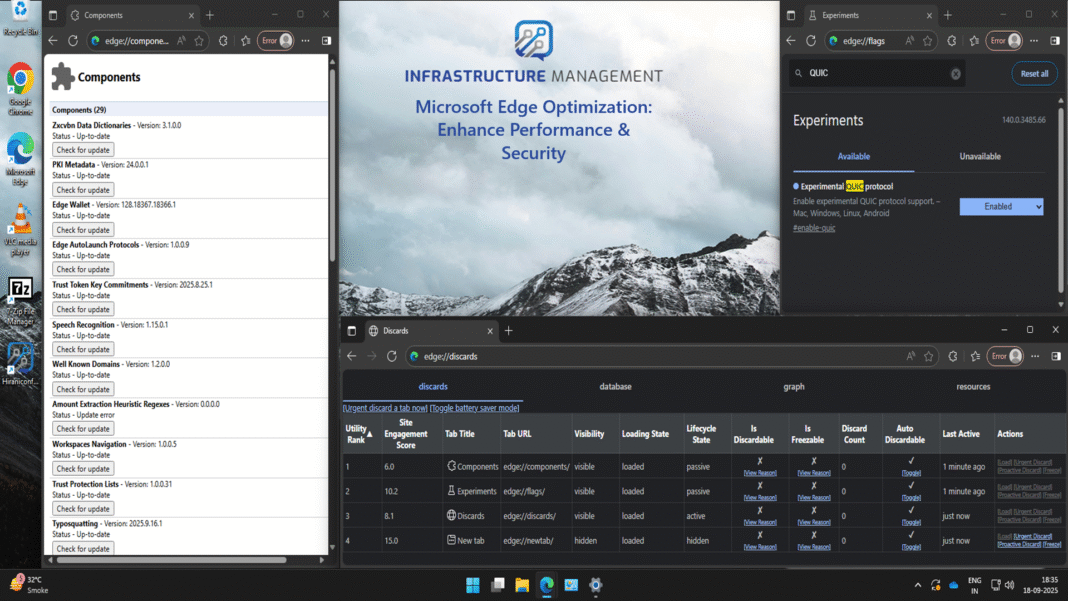
Optimizing your web browser is crucial for maintaining productivity, security, and efficiency across organizational devices. Microsoft Edge, when managed through Microsoft Intune, offers powerful policy configurations that allow administrators to fine-tune browser behavior.
This post explains how to configure three key Edge features via Intune:
- Enabling Component Updates — to ensure internal, security-critical Edge components are always up to date.
- Enabling Tab Lifecycles — to optimize performance by suspending or unloading idle tabs.
- Enabling the QUIC Protocol — for faster, more reliable web connections.
We’ll walk through each policy with step-by-step instructions in the Intune portal, show you how to assign them, verify their application, and monitor status.
1. Enable Component Updates in MS Edge (Enhance Browser Security)
What this does & why you need it:
Component Updates allow Microsoft Edge to update individual browser components independently of the main browser update cycle. This feature ensures critical security patches and feature improvements are deployed rapidly without waiting for full browser updates, significantly reducing your organization’s vulnerability window.
Step-by-Step Configuration:
- Sign in to the Microsoft Intune admin center at https://intune.microsoft.com/.
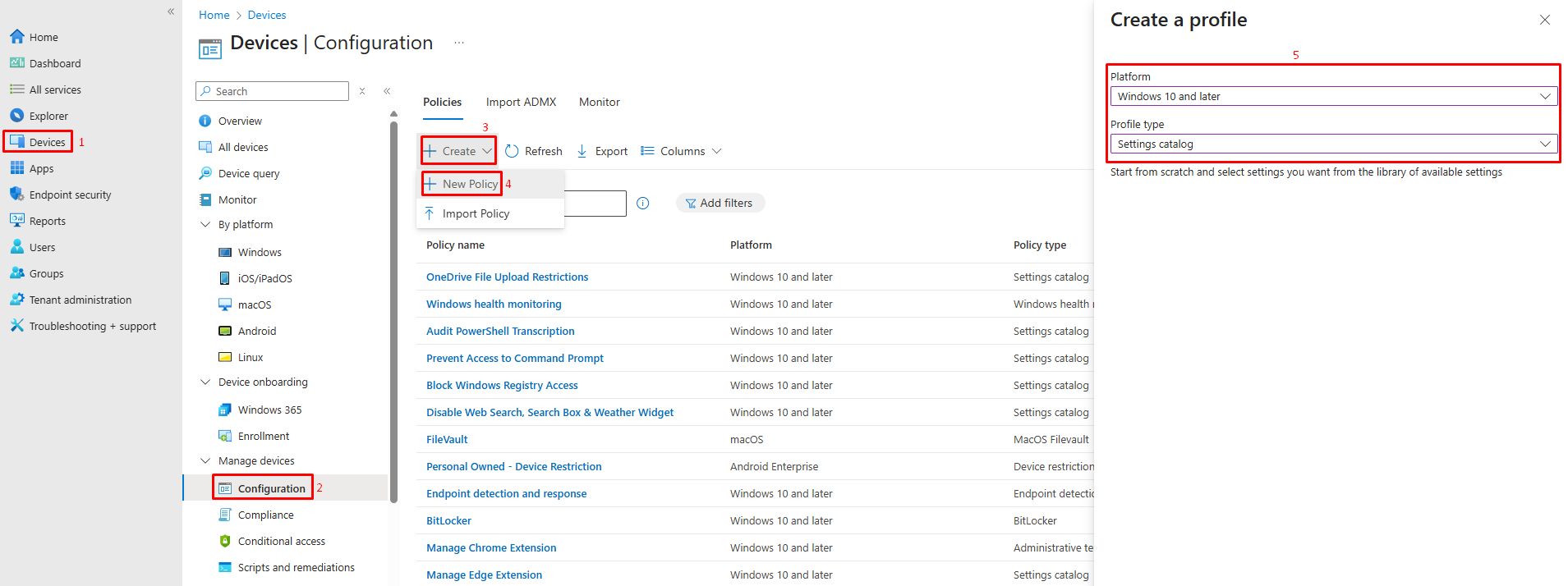
- Navigate to Devices > Configuration > + Create > New policy.
- Select Windows 10 and later as the platform and Settings catalog as the profile type, then click Create.
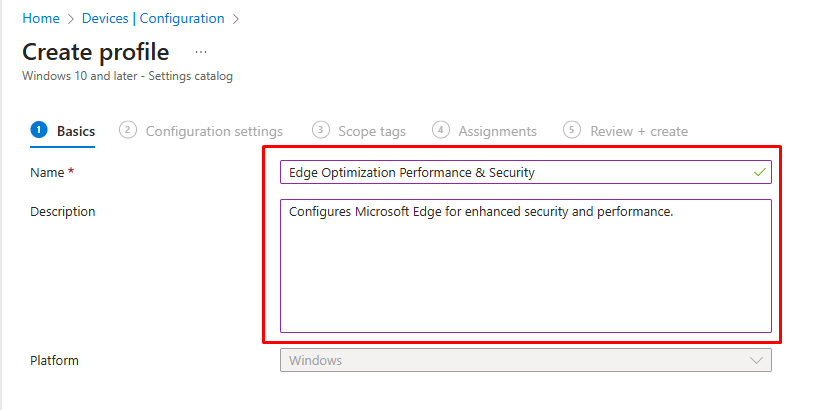
- On the Basics tab, enter a name like “Edge Optimization: Performance & Security” and an optional description. Click Next.
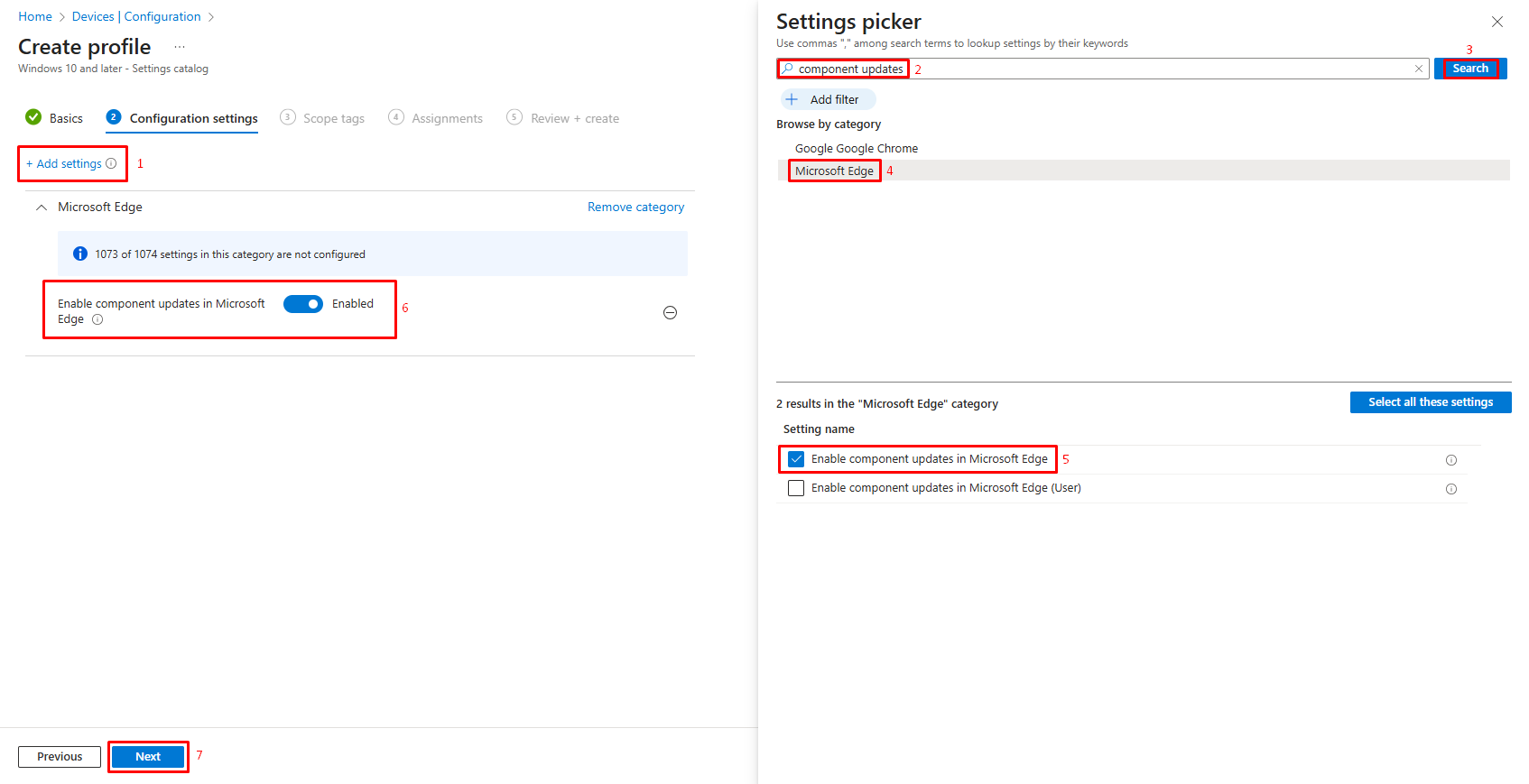
- On the Configuration settings tab, click + Add settings.
- In the Settings picker, search for “component updates” and browse to the Microsoft Edge category. Select Enable component updates in Microsoft Edge.
- Set the policy to Enabled (or true) to allow automatic updates for components.
- Click Next to proceed.
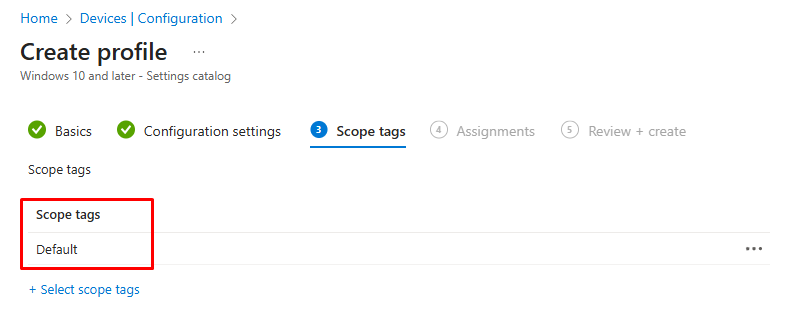
- On the Scope tags tab, add any relevant tags if needed, or skip by clicking Next.
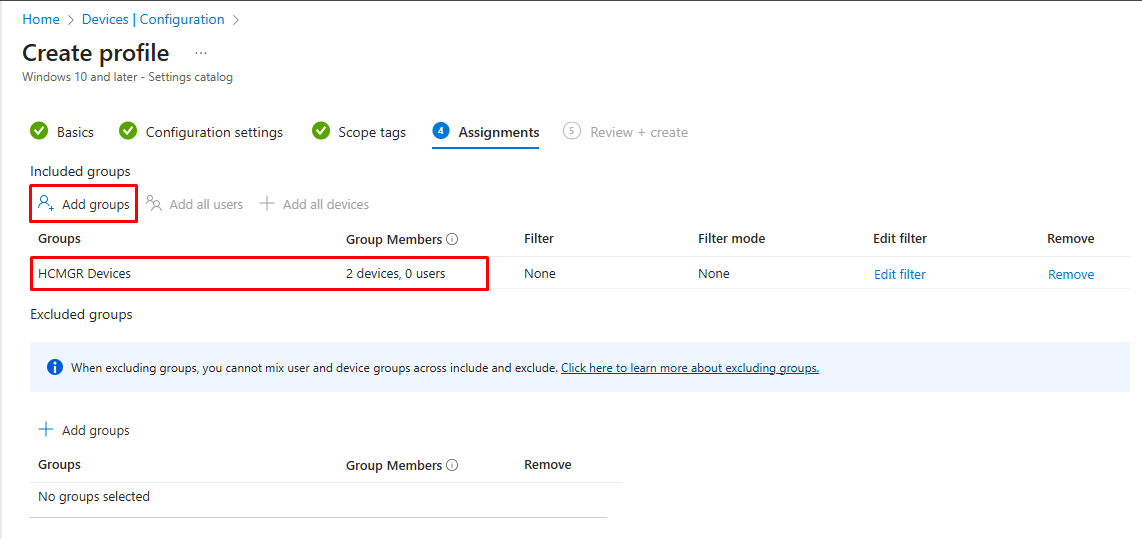
- On the Assignments tab, under Included groups, click + Add groups, select your target group (e.g., All Devices), and click Next.
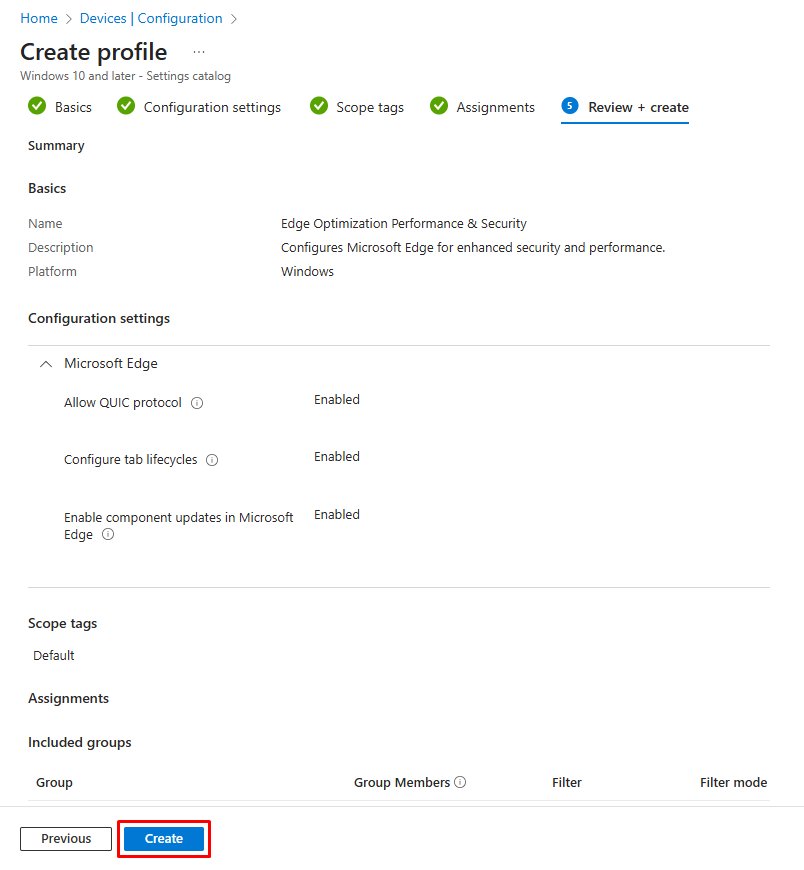
- Review the settings on the Review + create tab, then click Create. A success notification will appear.
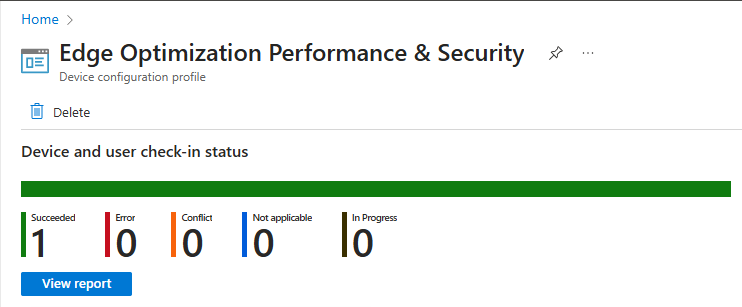
- To monitor, go to Devices → Configuration policies, find your policy, and check its status. It should show Succeeded for targeted devices.
Verification Steps:
To verify component updates are working:
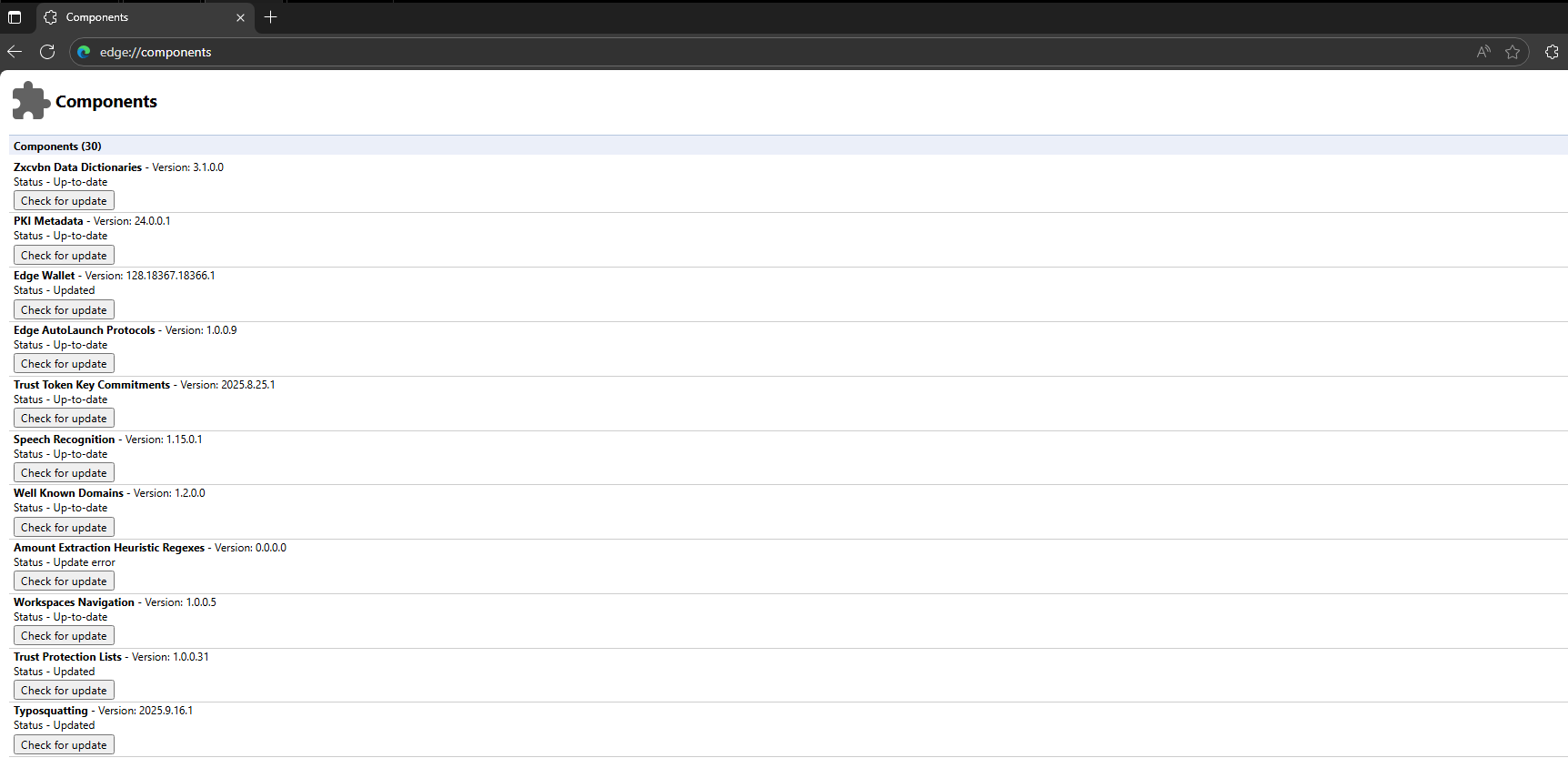
- On a target device, open Microsoft Edge
- Navigate to
edge://components - Verify components status.
2. Enable Tab Lifecycles Policy (Optimize Performance)
Why this helps:
Tab Lifecycles is an intelligent memory management feature that automatically discards inactive background tabs to free up system resources. When users return to these tabs, Edge seamlessly reloads them, creating a smooth experience while significantly reducing memory consumption particularly beneficial for devices with limited RAM.
Step-by-Step Configuration:
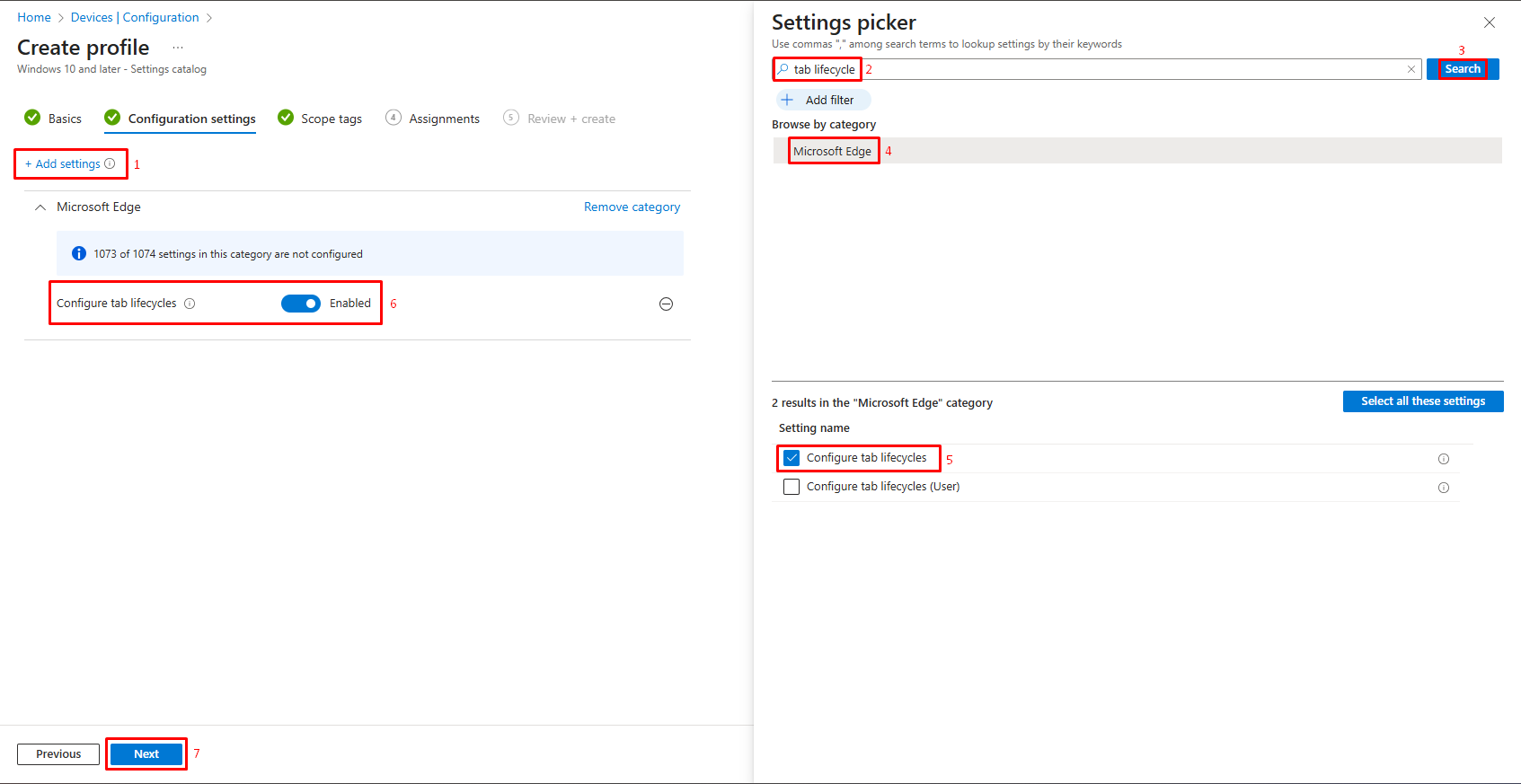
- Repeat steps 1 to 5 from the above configuration.
- Search for “tab lifecycle” in the Settings picker. Under Microsoft Edge, Select Configure tab lifecycles and set it to Enabled. Click Next.
- Skip or add Scope tags, then Next.
- Assign to groups on the Assignments tab, then Next.
- Review and Create the policy.
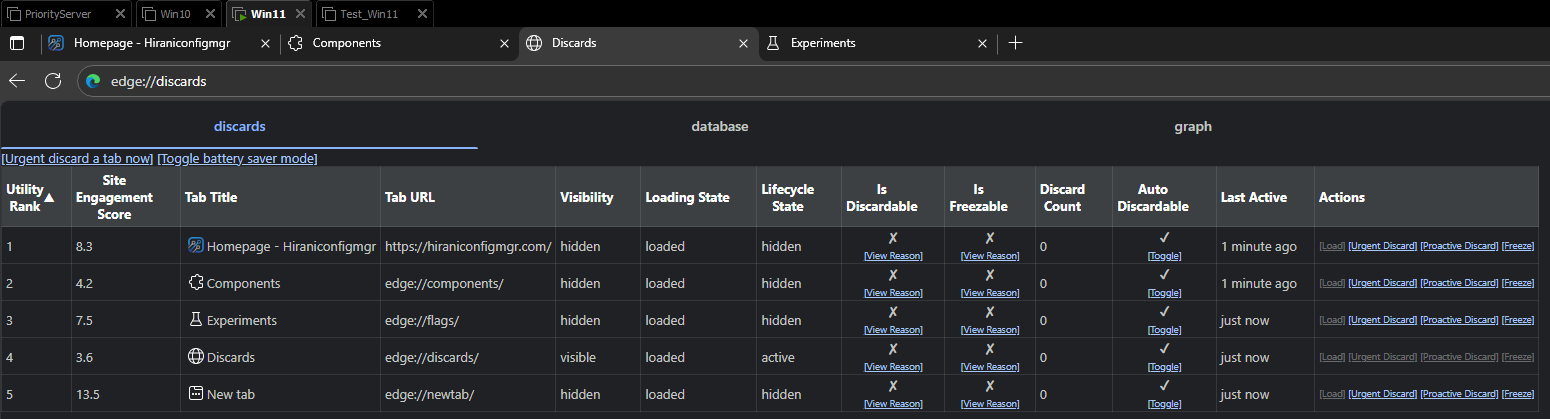
To monitor the effectiveness:
- Navigate to
edge://discardson client devices to view tab states. - Monitor memory usage through Task Manager.
- Collect user feedback on browsing experience.
3. Enable the QUIC Protocol (Accelerate Edge Performance)
Why QUIC matters:
QUIC (Quick UDP Internet Connections) is a cutting-edge transport protocol developed by Google that combines the reliability of TCP with the speed of UDP. It reduces connection establishment time, improves performance on poor networks, and provides better security through mandatory encryption. Enabling QUIC can reduce page load times by up to 30% in optimal conditions.
Step-by-Step Instructions:
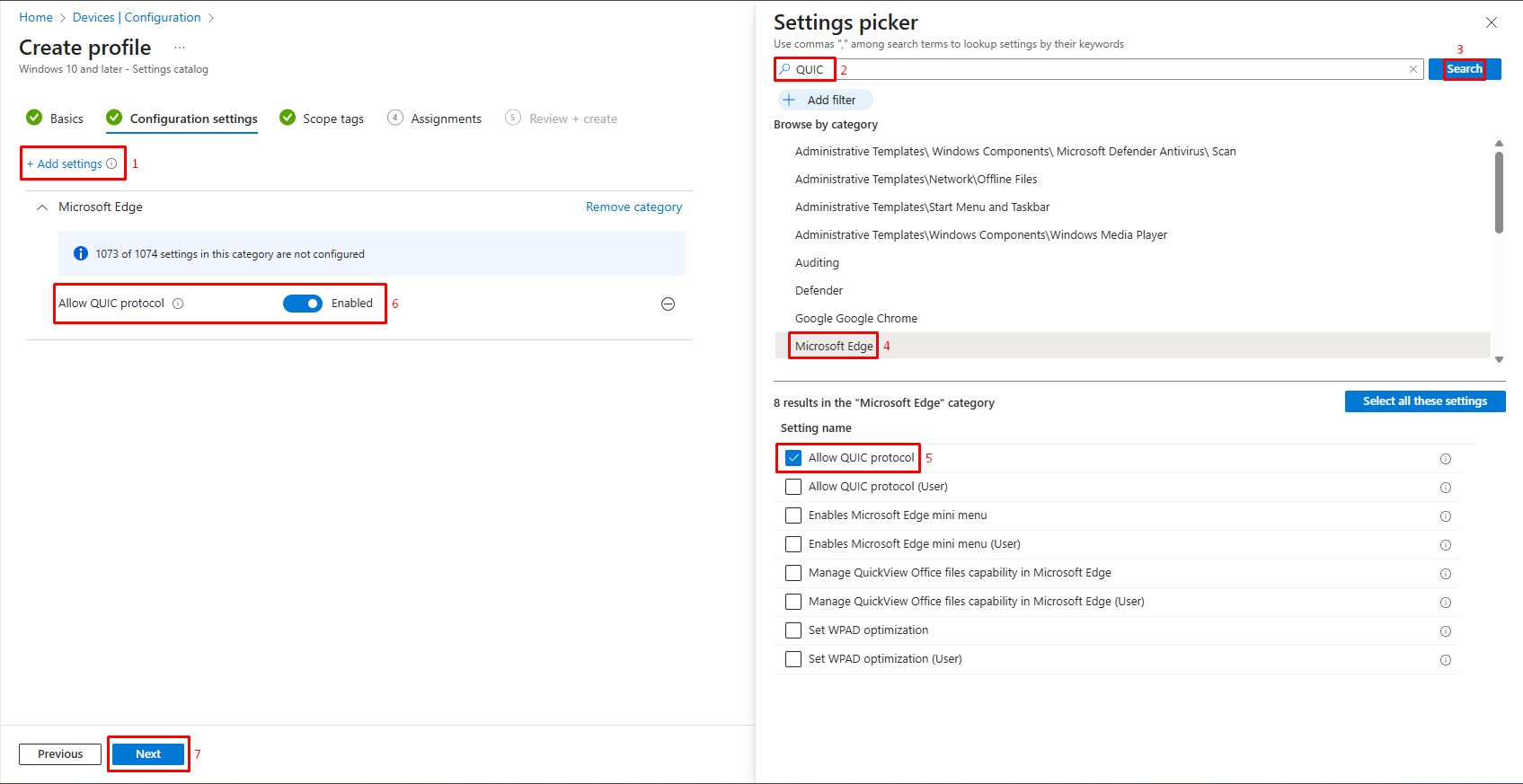
- Repeat steps 1 to 5 from the first configuration.
- Search for “QUIC” under Microsoft Edge. Set it to Enabled (or true) to allow QUIC. Click Next.
- Skip or add Scope tags, then Next.
- Assign to groups on the Assignments tab, then Next.
- Review and Create the policy.
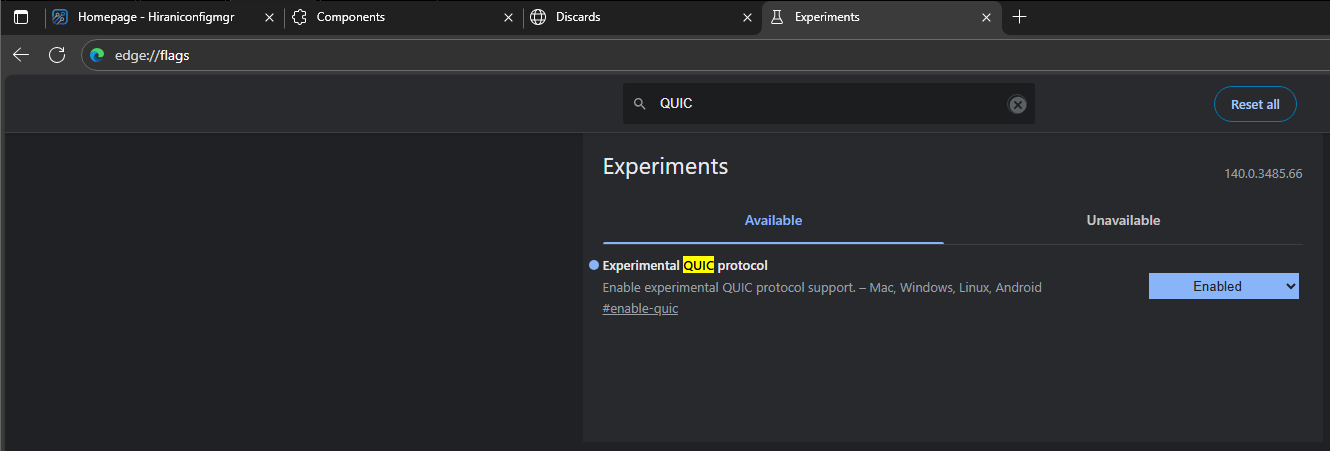
To verify QUIC is active:
- Open Edge and navigate to
<span data-contrast="none">edge://flags</span> - Search for “Experimental QUIC protocol”
Best Practices & Considerations
- Test in Pilot Group First: Before deploying widely, test these policies on a smaller group of devices/users to check for compatibility issues.
- Ensure Edge Version Supports the Policy: Some policies may require recent versions of Edge. If devices are behind, they may not honor the policy.
- Monitor Logs and User Feedback: After deploying, collect performance metrics (memory, CPU, page load times) and feedback from users to see if improvements are real or if any side-effects exist (tabs reloading, etc.).
- Keep Intune and Edge Documentation Handy: Microsoft updates its policy catalog often; always check the official policy reference for exact setting names, possible values, and dependencies.
Conclusion
By configuring Component Updates, Tab Lifecycles, QUIC, via Intune, you can make Edge both more secure and more efficient. These policies let organizations:
- Automatically get internal component fixes without manual intervention.
- Control and reduce resource usage from idle tabs.
- Leverage modern network protocols to speed up web traffic.
If you’re an IT admin, implementing these policies will help improve user experience, reduce helpdesk tickets related to sluggish browsers, and strengthen your organization’s security posture.