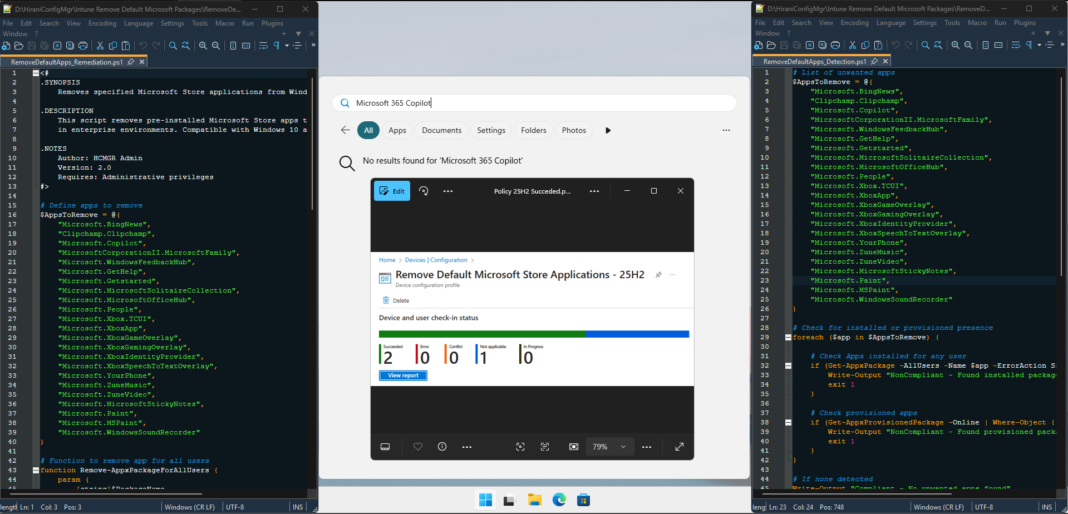
Organizations managing Windows devices often face a common challenge: pre-installed Microsoft Store applications that don’t align with corporate productivity goals. From Xbox gaming apps to entertainment tools like Solitaire, these consumer-focused applications consume system resources, clutter the Start menu, and can pose unnecessary security risks in enterprise environments.
If you’ve been wrestling with complex PowerShell scripts that break with every Windows update, you’re in the right place. Microsoft has finally introduced native policy-based methods to streamline app removal in Windows 11 25H2, making device management significantly easier for IT administrators.
This comprehensive guide will walk you through three proven methods to remove default Microsoft Store packages:
- Intune Settings Catalog for cloud-managed devices running Windows 11 25H2 and above
- Group Policy Objects (GPO) for on-premises Active Directory environments with Windows 11 25H2+
- PowerShell Script deployment for devices running older Windows versions
Let’s dive into modernizing your Windows deployment strategy.
Why Remove Pre-Installed Microsoft Store Applications?
Enterprise Benefits:
Enhanced Security Posture
Every installed application represents a potential attack surface. By removing unnecessary Store apps, you reduce the number of components that require security updates and monitoring, thereby strengthening your organization’s security framework.
Improved System Performance
Pre-installed apps consume storage space and system resources, even when not actively used. Background processes, automatic updates, and cached data can impact device performance, especially on systems with limited resources.
Streamlined User Experience
A clean, focused desktop environment reduces distractions and helps employees concentrate on business-critical tasks. Removing entertainment and social apps creates a more professional workspace that aligns with corporate standards.
Simplified Compliance Management
Many organizations have strict data governance policies. Removing apps that might collect or share data helps maintain compliance with regulations like GDPR, HIPAA, or industry-specific standards.
Reduced Support Overhead
Fewer applications mean fewer potential issues for your IT support team to troubleshoot, allowing them to focus on strategic initiatives rather than consumer app problems.
Prerequisites and Requirements
Before implementing any removal method, ensure your environment meets these requirements:
For Intune Settings Catalog and Group Policy Methods
- Windows 11 Version 25H2 or later (Build 26100 or higher)
- Windows 11 Enterprise or Education editions (not available on Pro/Home)
- Devices must be Entra ID Joined, Hybrid-Joined, or Entra ID Registered
- Multi-user session devices are currently not supported
- Administrative access to Microsoft Intune admin center or Group Policy Management Console
For PowerShell Script Method
- Compatible with all Windows 10 and Windows 11 versions
- Works on all Windows editions (Home, Pro, Enterprise, Education)
- Requires administrative privileges for script execution
- Microsoft Intune enrollment for automated deployment
Available Apps for Policy-Based Removal
The following 25 Microsoft Store applications can be removed using the new policy in Windows 11 25H2:
| Application Name | Notes |
| Calculator | Standard calculator app |
| Camera ** | Default handler for camera |
| Feedback Hub | Customer feedback collection |
| Microsoft 365 Copilot | AI assistant for Microsoft 365 |
| Microsoft Clipchamp | Video editing application |
| Microsoft Copilot (Consumer) | Consumer version of Copilot |
| Microsoft News | News aggregation app |
| Microsoft Photos ** | Default handler for images |
| Microsoft Solitaire Collection | Gaming application |
| Microsoft Sticky Notes | Note-taking application |
| Microsoft Teams (Consumer) | Messaging and collaboration |
| Microsoft To Do | Task management app |
| MSN Weather | Weather forecasting app |
| Notepad ** | Default text editor |
| Outlook for Windows | Email client |
| Paint | Basic image editor |
| Quick Assist | Remote assistance tool |
| Snipping Tool | Screenshot utility |
| Sound Recorder | Audio recording app |
| Windows Media Player ** | Default media player |
| Windows Terminal | Command-line interface |
| Xbox Gaming App | Gaming platform |
| Xbox Identity Provider * | Gaming service (headless) |
| Xbox Speech to Text Overlay * | Gaming accessibility feature |
| Xbox TCUI * | Gaming service component |
Legend:
* = Headless app (no user interface)
** = Default handler for file types/protocols (removal may affect user experience)
Method 1: Intune Settings Catalog (Windows 11 25H2+)
The Settings Catalog provides the most modern and manageable approach for cloud-native device management.
Step-by-Step Configuration
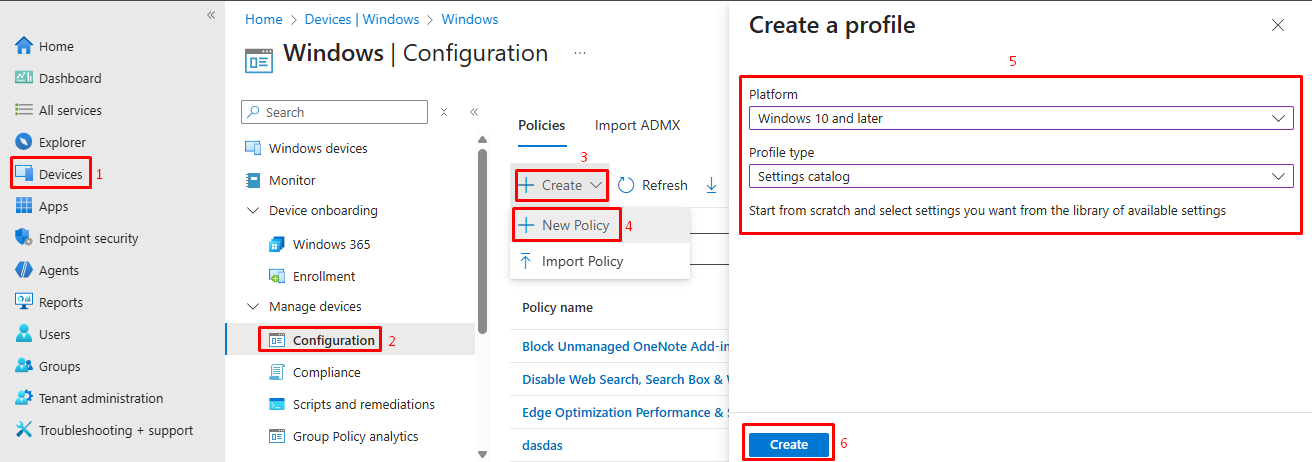
1. Create the Configuration Profile
Navigate to the Microsoft Intune admin center at https://intune.microsoft.com and follow these steps:
- Go to Devices > Windows > Manage devices > Configuration
- Click Create > New Policy
- Select the following options:
- Platform: Windows 10 and later
- Profile type: Settings catalog
- Click Create
2. Configure Basic Settings
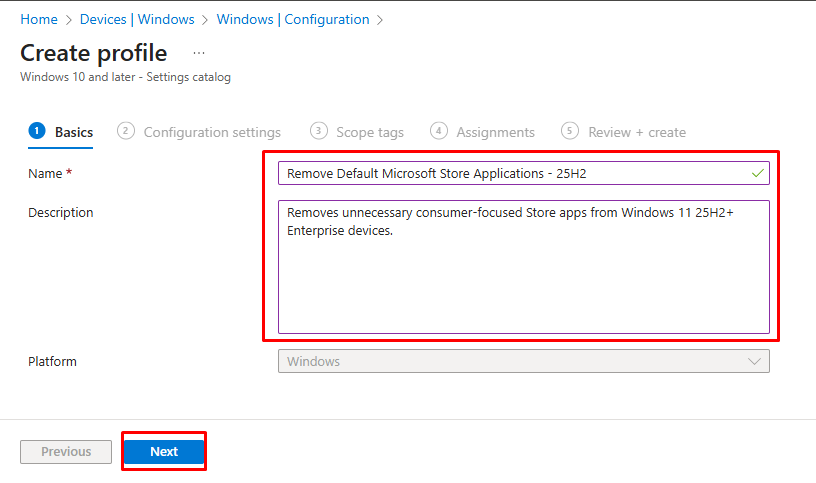
On the Basics tab:
- Name:
"Remove Default Microsoft Store Applications - 25H2" - Description:
"Removes unnecessary consumer-focused Store apps from Windows 11 25H2+ Enterprise devices" - Click Next
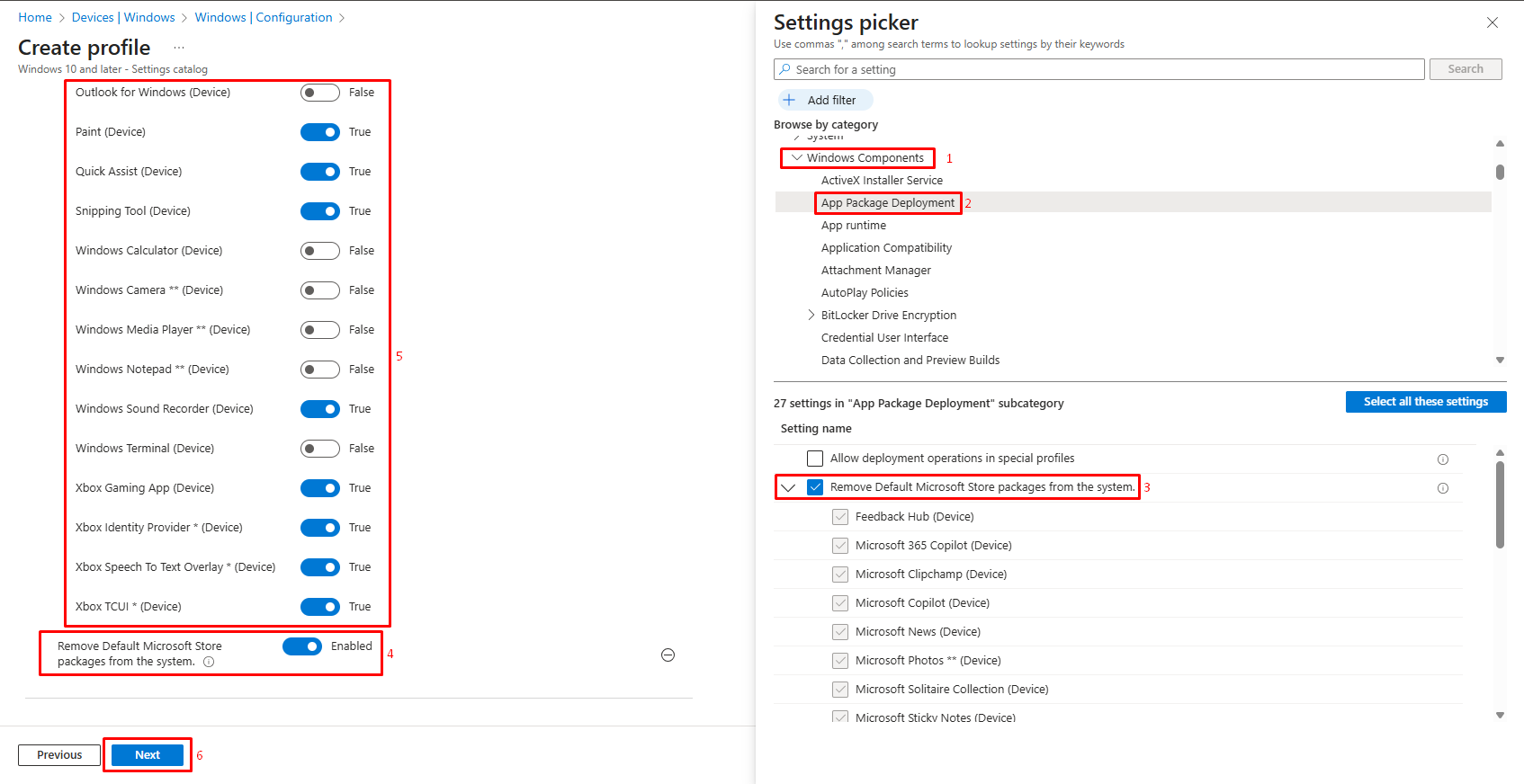
3. Add Policy Settings
- Click + Add settings
- In the Settings picker, search for: Microsoft Store Packages
- Navigate to: Administrative Templates > Windows Components > App Package Deployment
- Select: Remove Default Microsoft Store packages from the system
- Close the settings picker
4. Configure App Removal
- Enable the policy: Remove Default Microsoft Store packages from the system
- Toggle True for each application you want to remove
Recommended apps to remove in enterprise environments:
- Microsoft Solitaire Collection
- Xbox Gaming App and all Xbox components
- Microsoft News
- MSN Weather
- Microsoft Clipchamp (unless video editing is required)
- Paint (if you use professional design tools)
- Click Next
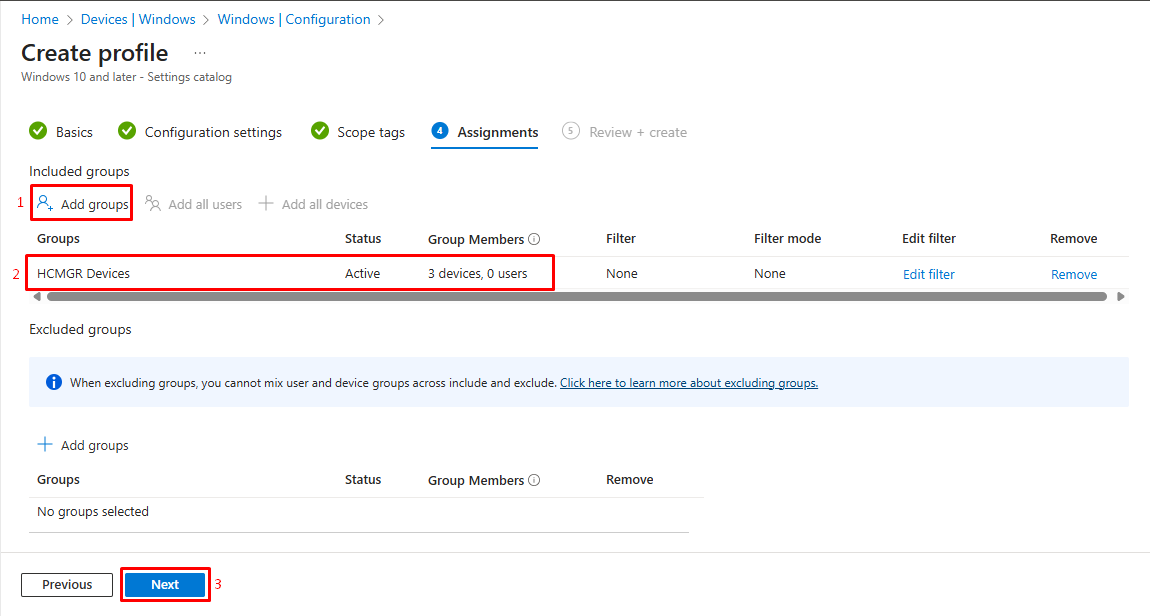
5. Assign to Device Groups
- On the Assignments tab, click Add groups
- Select your target device groups (
not user groups - this is device-level policy) - Optional: Use filters to target specific OS versions:
- Property: OSVersion
- Operator: Greater than or equals
- Value: 10.0.26100.0
- Click Next
6. Review and Create
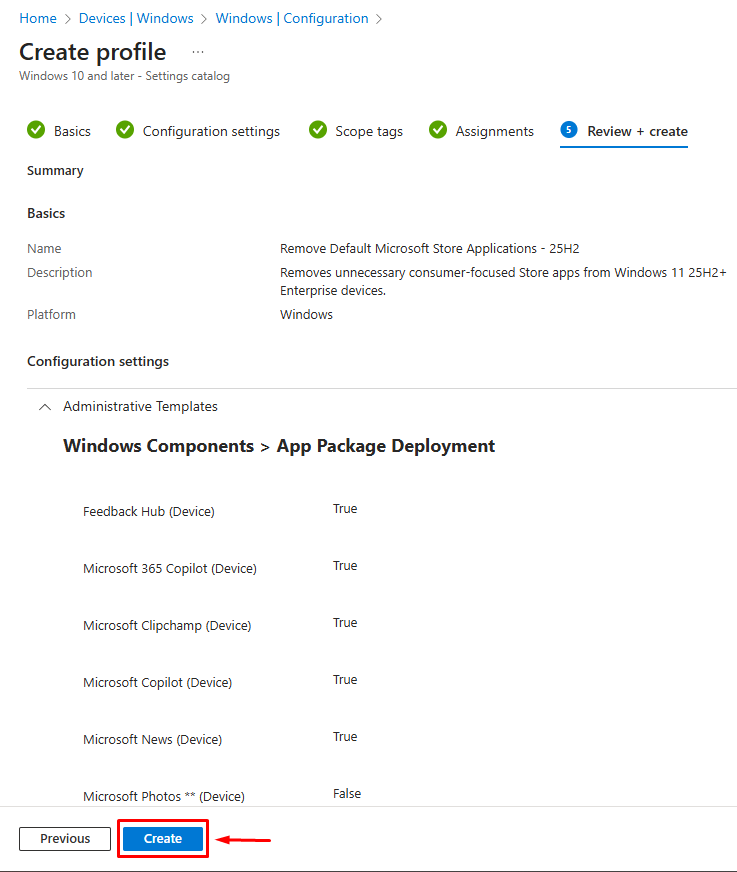
- Review all configuration settings
- Click Create to deploy the policy
The policy will apply during:
- Out-of-box experience (OOBE)
- First user sign-in after OS upgrade
- Next user sign-in after policy assignment
Monitoring Policy Deployment
To track policy application:
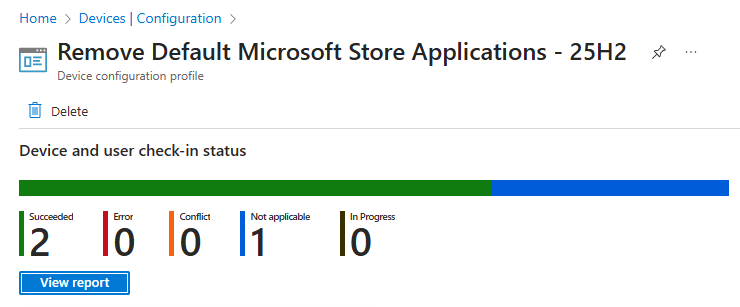
- Navigate to Devices > Windows > Configuration
- Select your
"Remove Default Microsoft Store Applications"policy - View the Device and user check-in status section
- Check deployment status: Success, Pending, Failed, or Not Applicable
Pro Tip: Use the “Not Applicable” status to identify devices not running Windows 11 25H2.
Method 2: Group Policy (Windows 11 25H2+)
For organizations with on-premises Active Directory infrastructure, Group Policy provides familiar centralized management.
Configuration Steps
1. Access Group Policy Management
- Open Group Policy Management Console (gpmc.msc)
- Navigate to the appropriate Organizational Unit (OU)
- Right-click and select Create a GPO in this domain, and Link it here
- Name the GPO: “
Remove Default Microsoft Store Apps - 25H2“
2. Edit the Policy
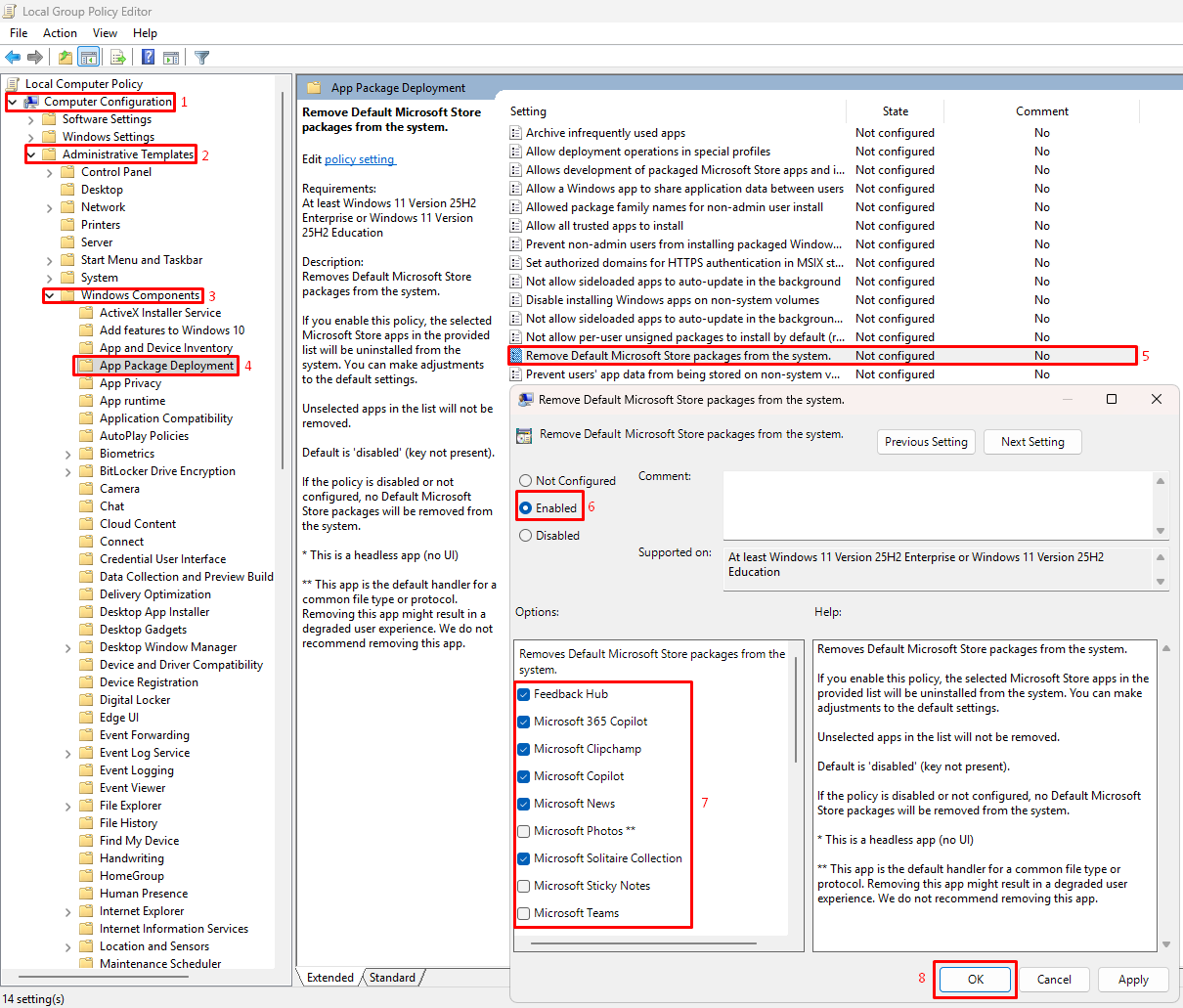
- Right-click the new GPO and select Edit
- Navigate to: Computer Configuration > Administrative Templates > Windows Components > App Package Deployment
- Double-click: Remove Default Microsoft Store packages from the system
3. Configure the Setting
- Select Enabled
- In the Options section, check the applications you want to remove
- Click OK to save
4. Verify Policy Application
On client devices, verify the policy using:
# Check registry keys for configured values
Get-ItemProperty –Path "HKLM:\SOFTWARE\Policies\Microsoft\Windows\Appx\RemoveDefaultMicrosoftStorePackages"
5. Force Policy Update (Optional)
On target devices, force immediate policy refresh:
gpupdate /force
Method 3: PowerShell Remediation Script (Legacy Windows Versions)
For devices running Windows 11 versions prior to 25H2, or Windows 10, use PowerShell-based removal.
PowerShell Script for App Removal
Detection Script:
# List of unwanted apps
$AppsToRemove = @(
    "Microsoft.BingNews",
    "Clipchamp.Clipchamp",
    "Microsoft.Copilot",
    "MicrosoftCorporationII.MicrosoftFamily",
    "Microsoft.WindowsFeedbackHub",
    "Microsoft.GetHelp",
    "Microsoft.Getstarted",
    "Microsoft.MicrosoftSolitaireCollection",
    "Microsoft.MicrosoftOfficeHub",
    "Microsoft.People",
    "Microsoft.Xbox.TCUI",
    "Microsoft.XboxApp",
    "Microsoft.XboxGameOverlay",
    "Microsoft.XboxGamingOverlay",
    "Microsoft.XboxIdentityProvider",
    "Microsoft.XboxSpeechToTextOverlay",
    "Microsoft.YourPhone",
    "Microsoft.ZuneMusic",
    "Microsoft.ZuneVideo",
    "Microsoft.MicrosoftStickyNotes",
    "Microsoft.Paint",
    "Microsoft.MSPaint",
    "Microsoft.WindowsSoundRecorder"
)

# Check for installed or provisioned presence
foreach ($app in $AppsToRemove) {

    # Check Appx installed for any user
    if (Get-AppxPackage -AllUsers -Name $app -ErrorAction SilentlyContinue) {
        Write-Output "NonCompliant - Found installed package: $app"
        exit 1
    }

    # Check provisioned apps
    if (Get-AppxProvisionedPackage -Online | Where-Object { $_.DisplayName -eq $app }) {
        Write-Output "NonCompliant - Found provisioned package: $app"
        exit 1
    }
}

# If none detected
Write-Output "Compliant - No unwanted apps found"
exit 0
Remediation Script:
<#
.SYNOPSIS
    Removes specified Microsoft Store applications from Windows devices.

.DESCRIPTION
    This script removes pre-installed Microsoft Store apps that are not required
    in enterprise environments. Compatible with Windows 10 and all Windows 11 versions.

.NOTES
    Author: HCMGR Admin
    Version: 2.0
    Requires: Administrative privileges
#>

# Define apps to remove
$AppsToRemove = @(
    "Microsoft.BingNews",
    "Clipchamp.Clipchamp",
    "Microsoft.Copilot",
    "MicrosoftCorporationII.MicrosoftFamily",
    "Microsoft.WindowsFeedbackHub",
    "Microsoft.GetHelp",
    "Microsoft.Getstarted",
    "Microsoft.MicrosoftSolitaireCollection",
    "Microsoft.MicrosoftOfficeHub",
    "Microsoft.People",
    "Microsoft.Xbox.TCUI",
    "Microsoft.XboxApp",
    "Microsoft.XboxGameOverlay",
    "Microsoft.XboxGamingOverlay",
    "Microsoft.XboxIdentityProvider",
    "Microsoft.XboxSpeechToTextOverlay",
    "Microsoft.YourPhone",
    "Microsoft.ZuneMusic",
    "Microsoft.ZuneVideo",
    "Microsoft.MicrosoftStickyNotes",
    "Microsoft.Paint",
    "Microsoft.MSPaint",
    "Microsoft.WindowsSoundRecorder"
)

# Function to remove app for all users
function Remove-AppxPackageForAllUsers {
    param (
        [string]$PackageName
    )

    try {
        # Remove for current user
        $app = Get-AppxPackage -Name $PackageName -ErrorAction SilentlyContinue
        if ($app) {
            Write-Host "Removing $PackageName for current user..." -ForegroundColor Yellow
            Remove-AppxPackage -Package $app.PackageFullName -ErrorAction Stop
            Write-Host "Successfully removed $PackageName" -ForegroundColor Green
        }

        # Remove provisioned package (prevents reinstallation)
        $provisionedApp = Get-AppxProvisionedPackage -Online | Where-Object { $_.DisplayName -eq $PackageName }
        if ($provisionedApp) {
            Write-Host "Removing provisioned package: $PackageName..." -ForegroundColor Yellow
            Remove-AppxProvisionedPackage -Online -PackageName $provisionedApp.PackageName -ErrorAction Stop
            Write-Host "Successfully removed provisioned package: $PackageName" -ForegroundColor Green
        }

        # Remove for all users
        $allUsersApp = Get-AppxPackage -AllUsers -Name $PackageName -ErrorAction SilentlyContinue
        if ($allUsersApp) {
            Write-Host "Removing $PackageName for all users..." -ForegroundColor Yellow
            Remove-AppxPackage -Package $allUsersApp.PackageFullName -AllUsers -ErrorAction Stop
            Write-Host "Successfully removed $PackageName for all users" -ForegroundColor Green
        }
    }
    catch {
        Write-Warning "Failed to remove $PackageName : $_"
    }
}

# Main execution
Write-Host "Starting Microsoft Store apps removal process..." -ForegroundColor Cyan
Write-Host "========================================" -ForegroundColor Cyan

foreach ($app in $AppsToRemove) {
    Remove-AppxPackageForAllUsers -PackageName $app
    Write-Host "---" -ForegroundColor Gray
}

Write-Host "========================================" -ForegroundColor Cyan
Write-Host "App removal process completed!" -ForegroundColor Cyan

# Exit with success code
exit 0
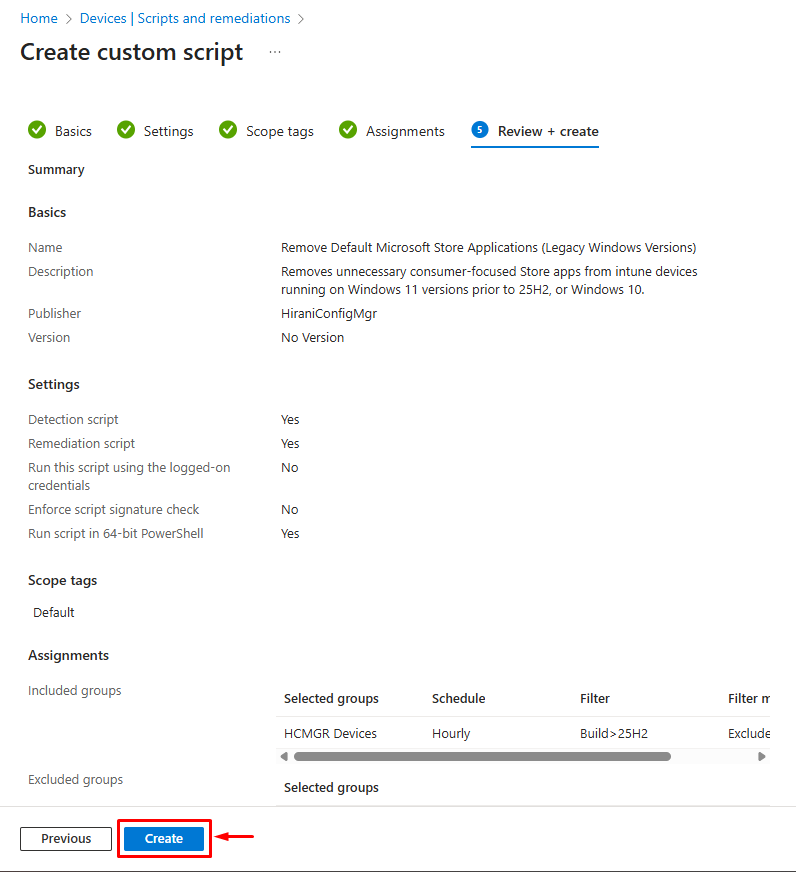
Upload to Intune:
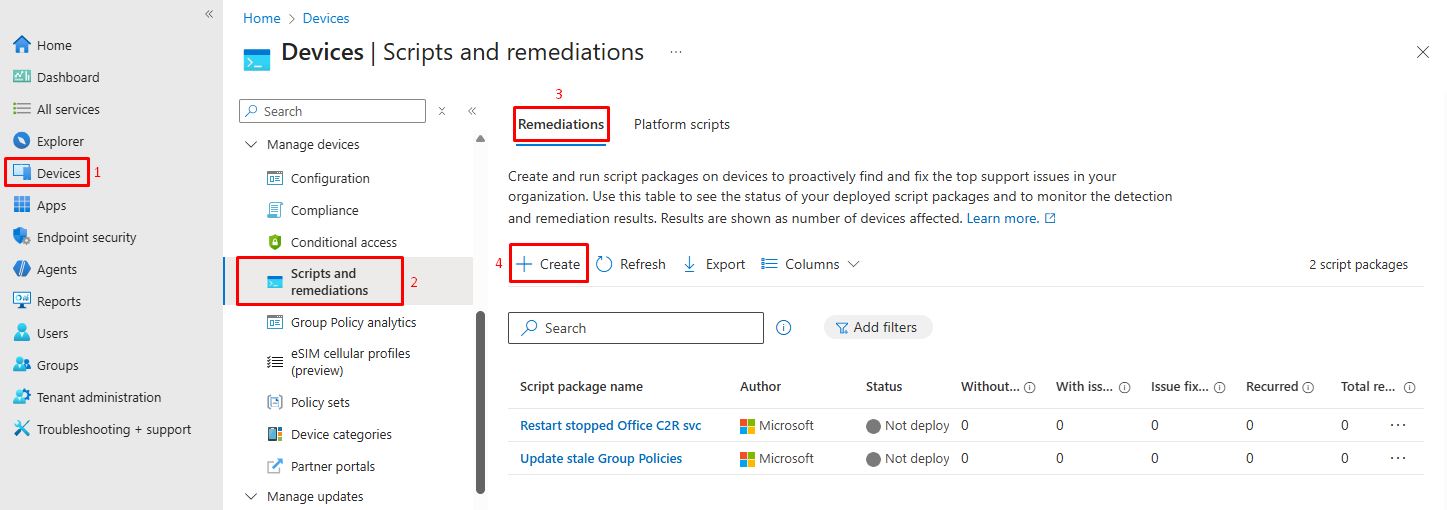
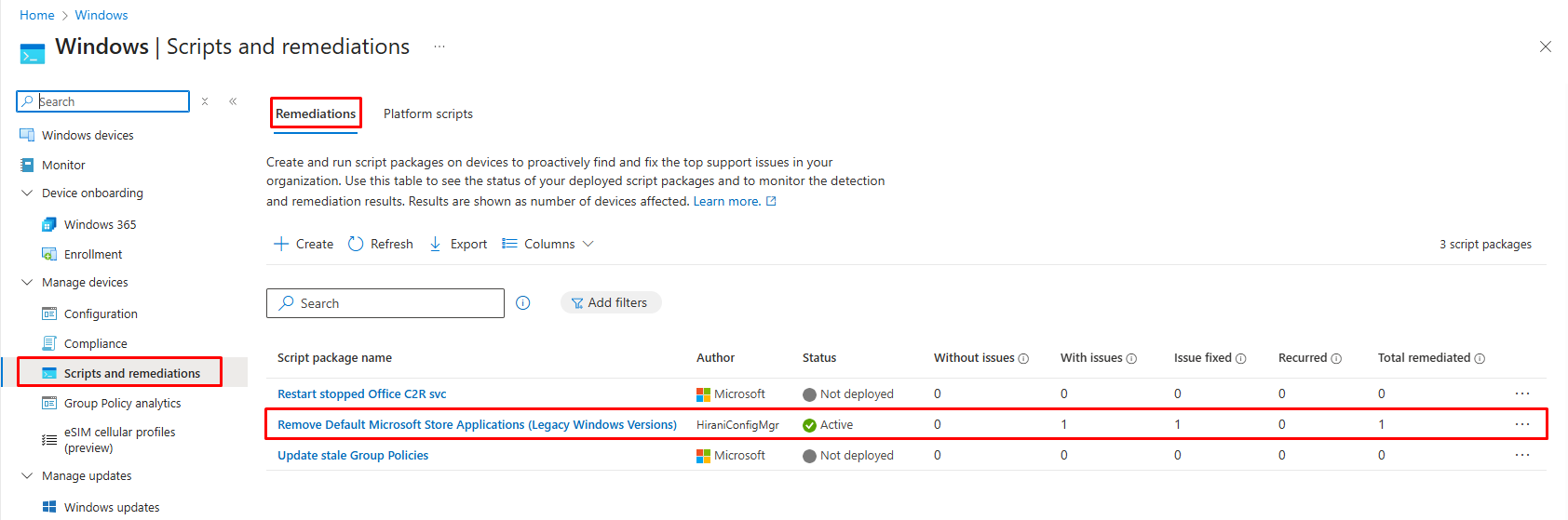
- Navigate to Devices > Scripts and remediations > Remediations
- Click Create
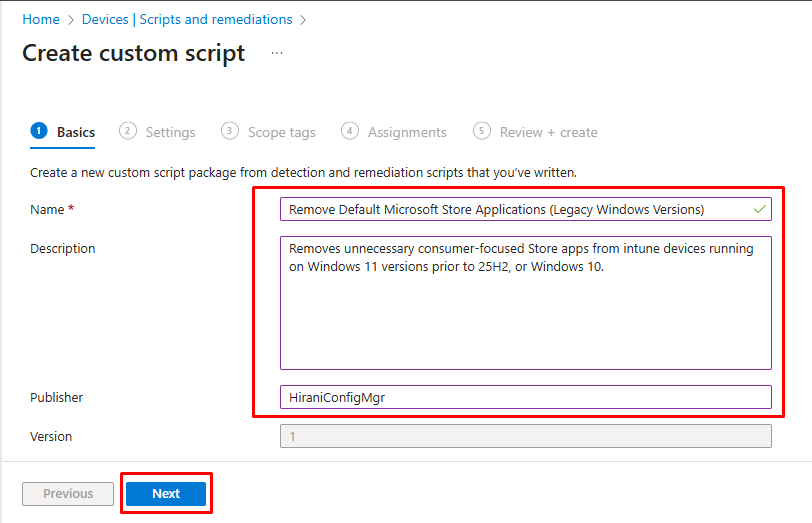
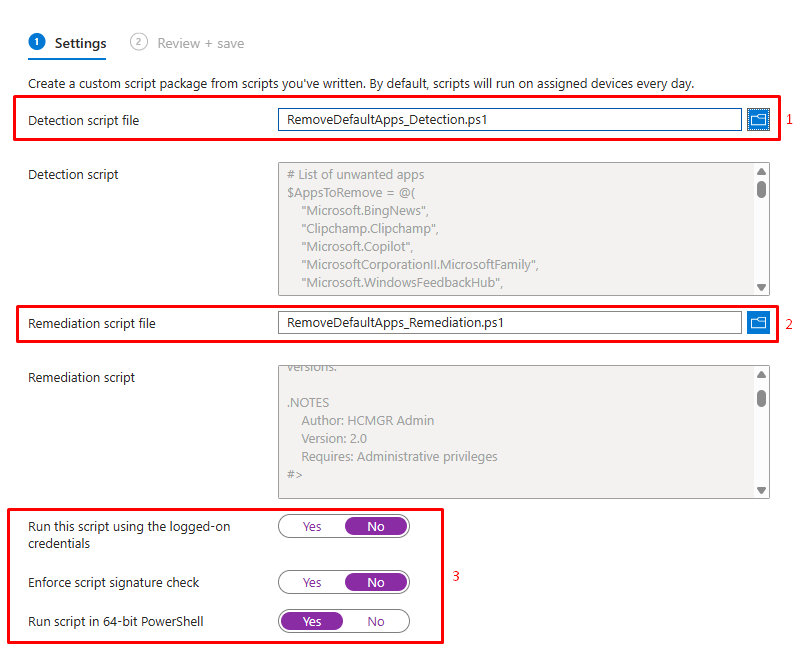
- Upload your detection & remediation PowerShell scripts correctly.
- Configure:
- Run script in 64-bit PowerShell: Yes
- Run this script using the logged-on credentials: No
- Enforce script signature check: No
- Assign to device groups
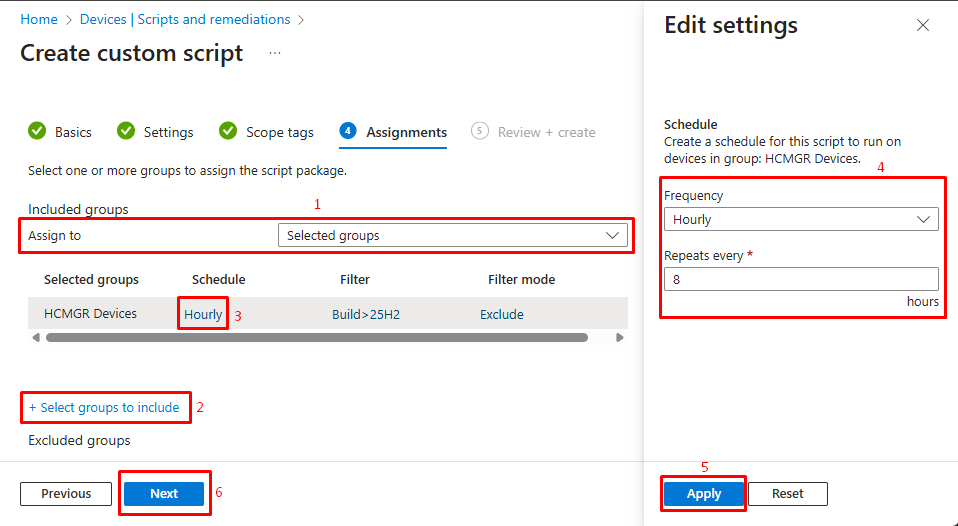
Review and Deploy
- Review all configuration settings
- Click Create to deploy the policy
Verification and Monitoring
Verify Successful Removal
Method 1: Manual Verification
- Log in to a targeted device
- Open Start Menu
- Search for the removed application names
- Confirm they no longer appear in search results
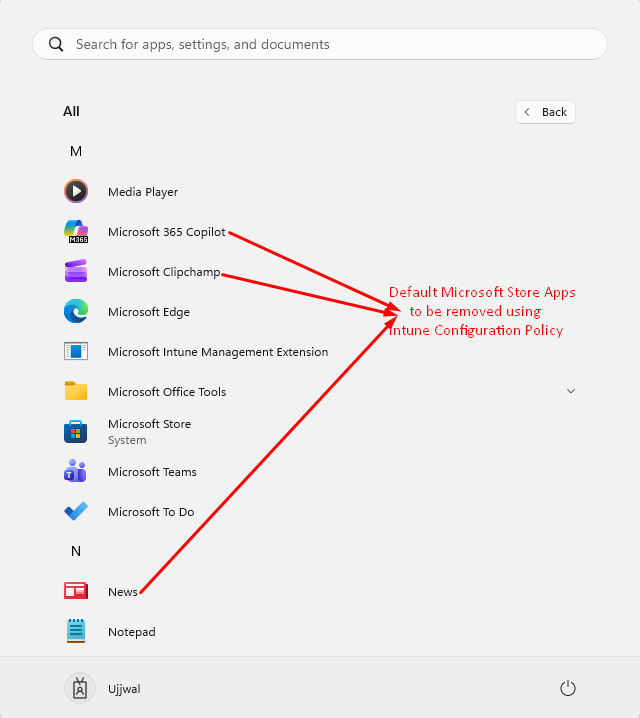
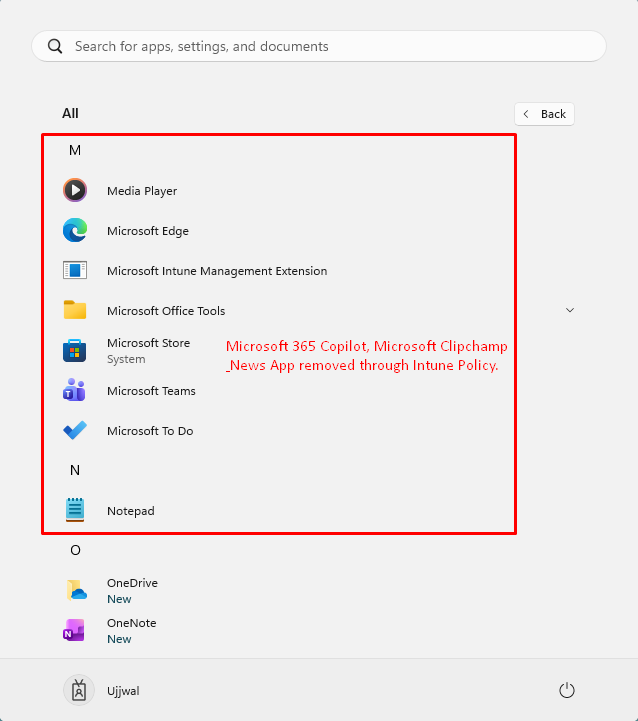
- Apps removed from the target device after policy deployment:
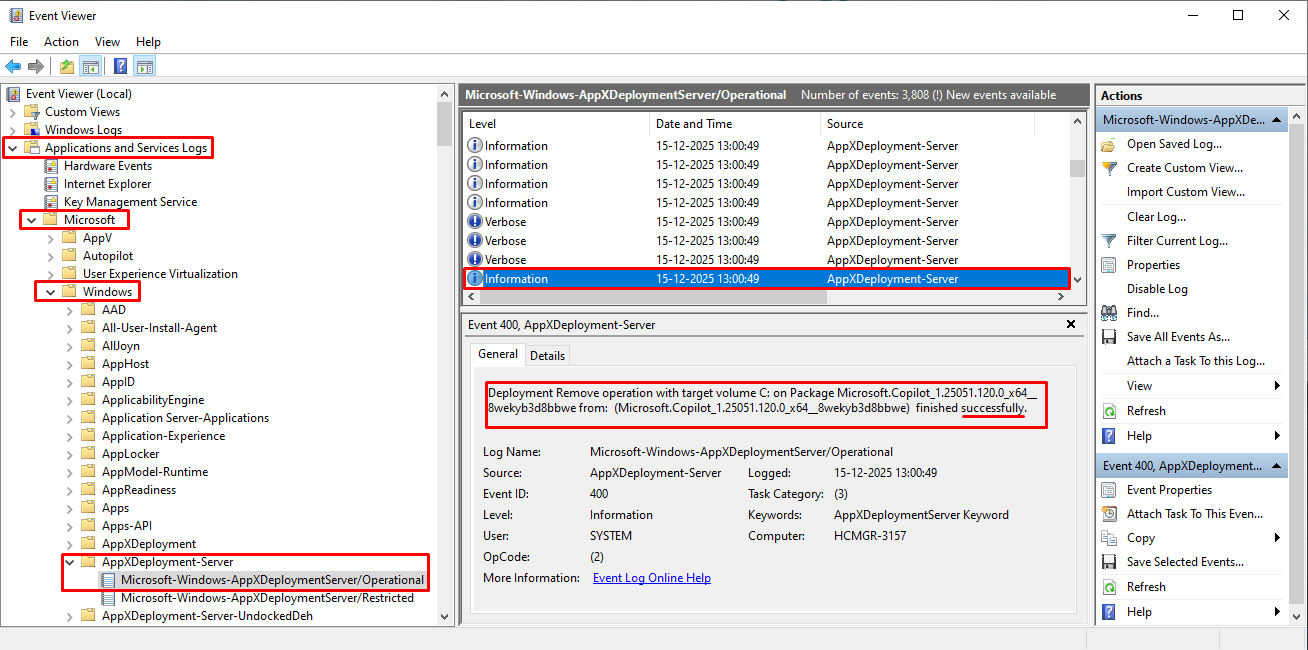
Method 2: Event Viewer (for PowerShell Remediation Script)
- Open Event Viewer (eventvwr.msc)
- Navigate to: Applications and Services Logs > Microsoft > Windows > AppxDeployment-Server > Microsoft-Windows-AppxDeploymentServer/Operational
- Look for Event ID 400 with text like:
Deployment Remove operation with target volume C: on Package Microsoft.Copilot finished successfully.
Monitoring in Intune
For PowerShell Script Methods:
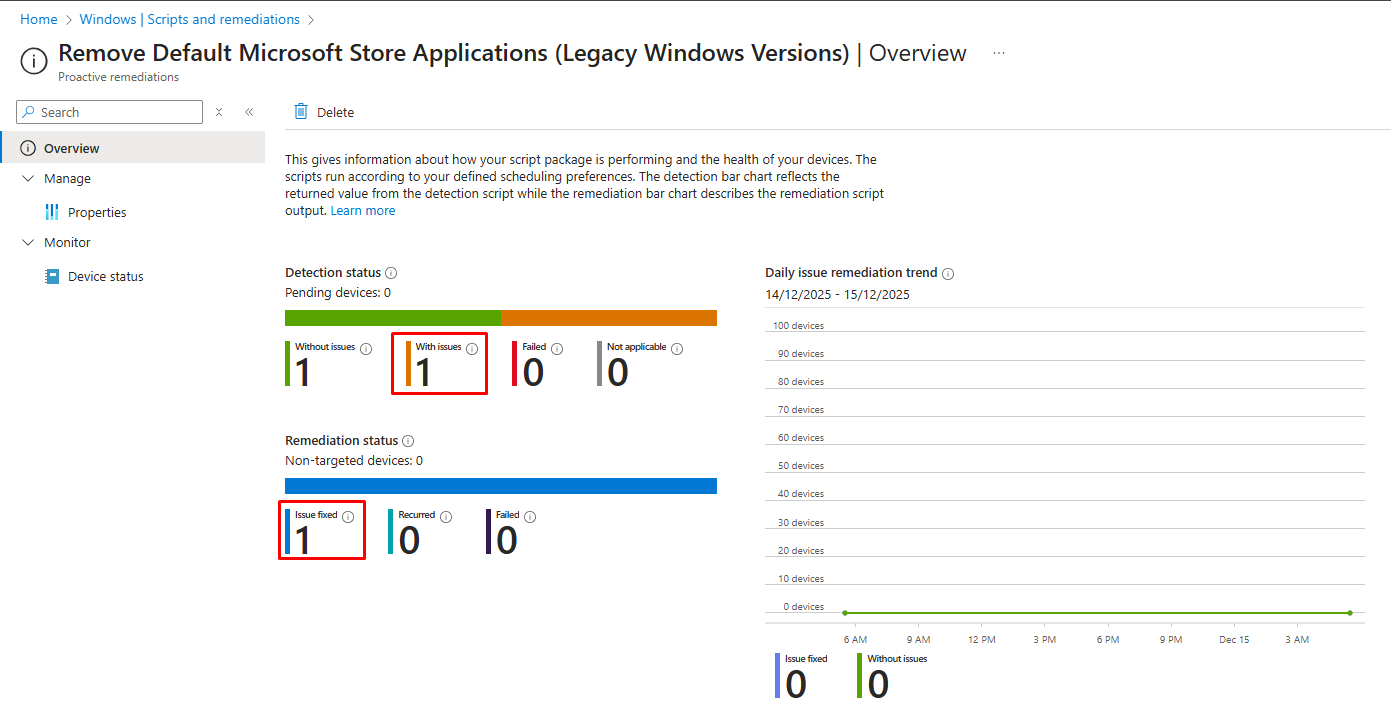
- Navigate to Devices > Scripts and remediations
- Select your remediation script
- View Device status tab for detailed analysis
Conclusion
Managing default Microsoft Store applications has evolved from complex scripting to straightforward policy configuration. With Windows 11 25H2, Microsoft has finally delivered the enterprise-grade app management tools IT administrators have been requesting.
Key Takeaways:
- Modern devices (Windows 11 25H2+): Use Intune Settings Catalog or Group Policy for native, supported app removal
- Legacy devices: Deploy PowerShell scripts via Intune remediations or Win32 apps
- Hybrid environments: Combine both methods based on device OS versions
- Always test first: Pilot deployments prevent unexpected productivity impacts
Start your cleanup journey today and experience the benefits of a streamlined Windows deployment!