Thursday, June 4, 2026

Failed to decrypt SQL server machine serialized PFX certificate last error=0
Greeting for the day!! 

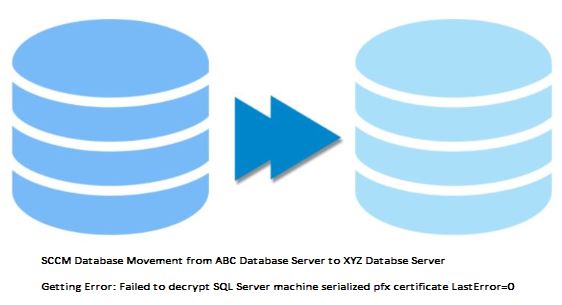
Today We will be discussed about due to any of the reason you have to change site server database ABC Server Database to XYZ Database server.

Scenarios: You Infrastructure is working as normal but due to existing server decommission or want to separate database from share database. 

How to Move Database from ABC Server to XYZ Database.

Login to your Site Server Control Panel Add or remove Program Select System Center Configuration site Setup:

You will be see below screen Click on Next:

In Getting Start Wizard

Select Perform Site maintenance or reset this site a Click Next:

In Site Maintenance Wizard

Select Modify SQL Server configuration Click on Next:

Database Information Wizard.

You will see existing site server configure Database as we have to change ABC database server to XYZ change new server name and click next

Wizard will check new server name and validate all pre request if all good then your new server configuration will go smooth as normal but today I will be sharing issue like while moving database getting error Failed to decrypt SQL Server machine serialized pfx certificate (LastError=0)

Issue: While moving Database using site maintenance wizard getting error 

Failed to decrypt SQL Server machine serialized pfx certificate (LastError=0)

Error on configMGRSetup.log

While open ConfigMGRSetuWizard.log you will see error like received error fail to create SQL server certificate

Now we have error how to fix to success full move. Above issue will reports on below scenarios. 

Pre request:

Step 1: The account used for the installation and the computer account of SCCM have to be members of the local admins group on SCCMDB and need also sysadmin rights in SQL.

Step 2:  make sure you configure the SQL services to run under a domain user account rather than as local system or network service. Running SQL under a domain user follows MS best practices.

Step 3: Certificate is not mapped to your SCCM Instance. How to verify ?

Launch the SQL Server Configuration Manager, expand SQL Server Network Configuration, right click Protocols for MSSQLSERVER and click Properties.  Make sure ConfigMGR SQL Server Identification Certificate is Mapped if missing then we have to create certificate and import in SCCMDB Server.

If Certificate is missing. How to Create Certificate?

Create ConfigMgr SQL Server Identification Certificate.

To create ConfigMgr SQL Server Identification Certificate, open the IIS management console. Select the server then double click Server Certificates

Right click on the right pane and click Create Self-Signed Certificate.

Provide a friendly name to this cert. Choose the certificate to be stored in Personal store. Click OK.

Now you have certificate import in SQL SERVER and configure in above mention Step 3.

In Our Scenario Certificate was missing we have mapped certificate and re run site maintenance wizard SQL server got change successful without any problem.

Hope you like solution!!! Happy Learning Keep watching space @hiraniconfigmgr.com

Many Problem, One Place solutions.

Thanks & Regards,
Haresh Hirani
Email: [email protected]
Follow me: Twitter @hirravi1
linkedin: https://www.linkedin.com/in/hiraniconfigmgr

Author

  • Hi, I’m Haresh Hirani the mind behind Hiraniconfigmgr.com. I’m a seasoned IT professional with deep expertise in Microsoft technologies, especially in Configuration Manager (ConfigMgr/SCCM). Over the years, I’ve expanded my skill set to cover a broader range of modern device management platforms like Microsoft Intune, Jamf Pro, ManageEngine Endpoint Central, and VMware AirWatch (Workspace ONE UEM), I use this blog to document real-world, tested, working fixes and walkthroughs from my daily technical experiences. The 💡idea is simple: if it helped me, it might help someone like you. My goal is to create a living repository of practical IT solutions for the community. If you find something useful, or if you want to collaborate, feel free to connect with me on LinkedIn or drop a message through the Contact page. Happy to help.

LEAVE A REPLY

Please enter your comment!
Please enter your name here

Latest posts