Introduction
This article explains the step by step process to Install/block extensions based on the extension ID for Edge, Google Chrome, Firefox using Intune.
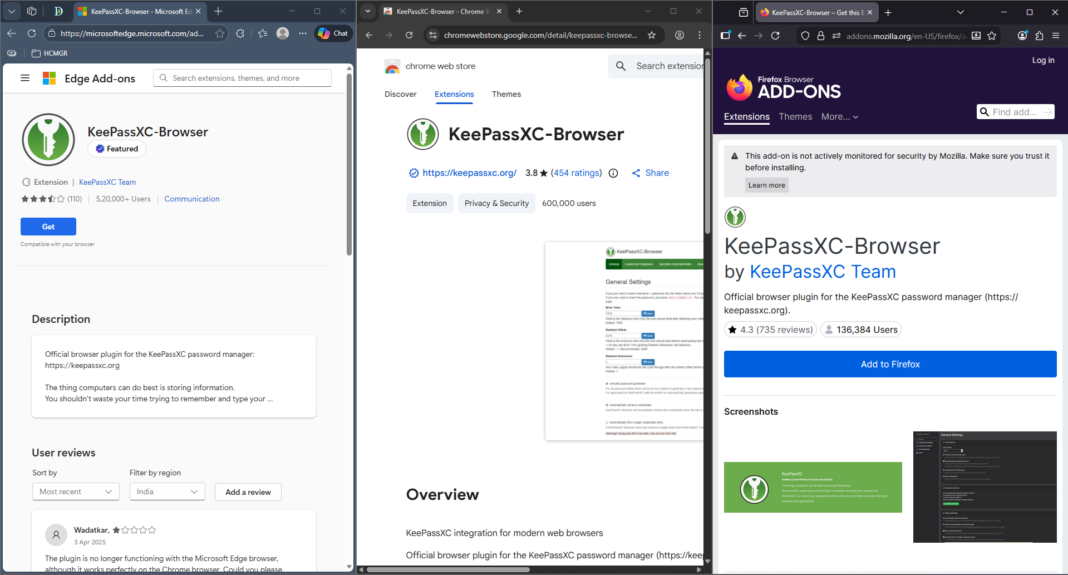
How to find the extension ID
For setting up any specific extension to be installed or blocked, we need to have the extension ID.
To retrieve the extension id, follow below steps
Microsoft Edge
- On local machine, browse to Edge extension (https://microsoftedge.microsoft.com/addons/Microsoft-Edge-Extensions-Home?hl=en-US)
- Select the required extension and navigate to it
- You will find the id in the address bar as highlighted below

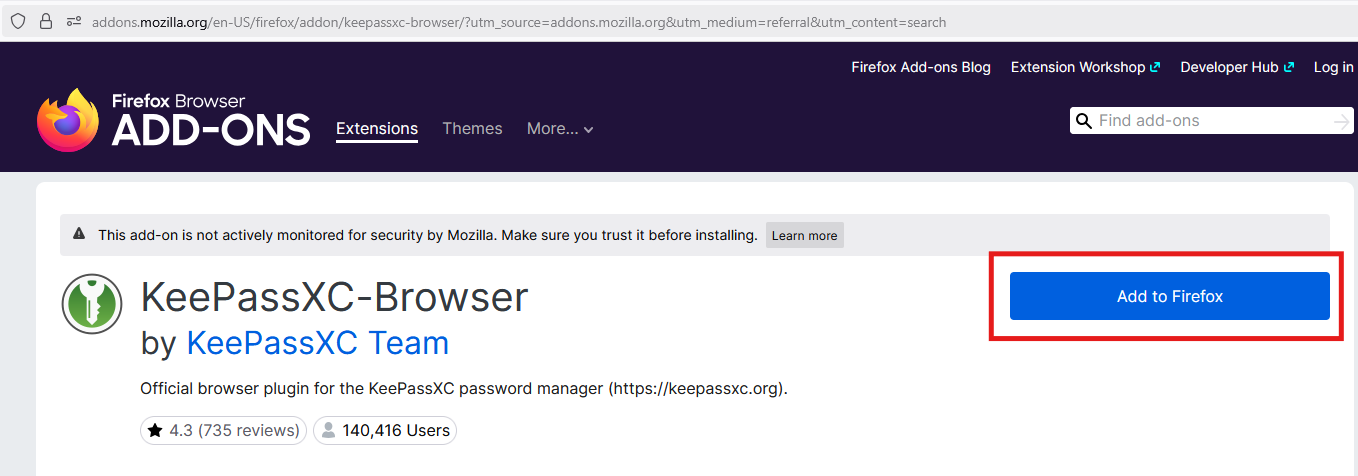
Mozilla Firefox
- Go to the Firefox Add-ons website (
about:addons)
- Search for the extension you want to configure
- Click on the extension to open its details page
- Right-click on the “Add to Firefox” button and select “Copy Link Location”. The URL will contain the .
xpifile path
Google Chrome
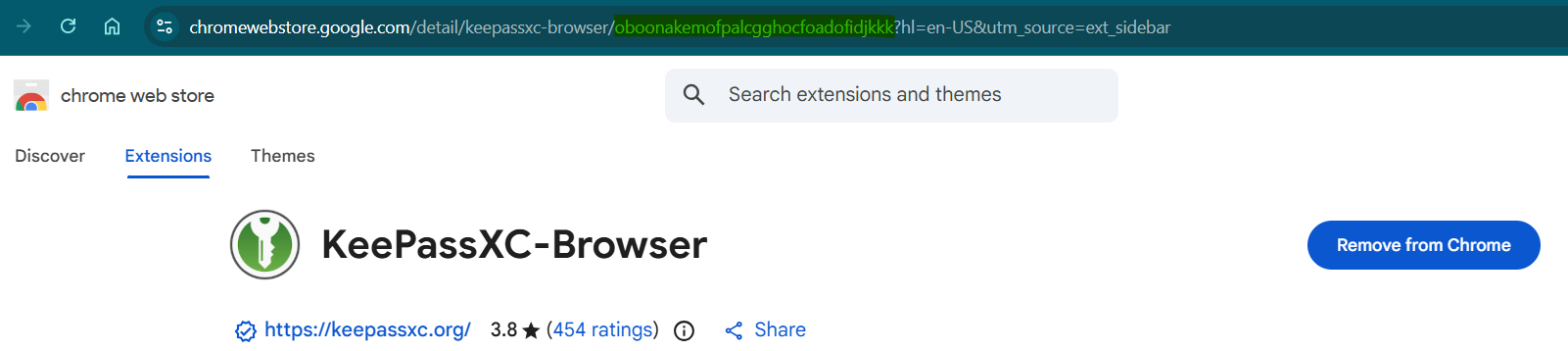
- Navigate to “Chrome” webstore – https://chromewebstore.google.com/
- Search for the requried extension
- You will find the id in the address bar as highlighted below
Microsoft Edge
Block an Extension
In Intune, navigate to Windows –> Configuration
- Select ‘Create’–> New Policy
- Platform – Windows 10 and later
- Profile type – Settings catalog
- Enter the name, description
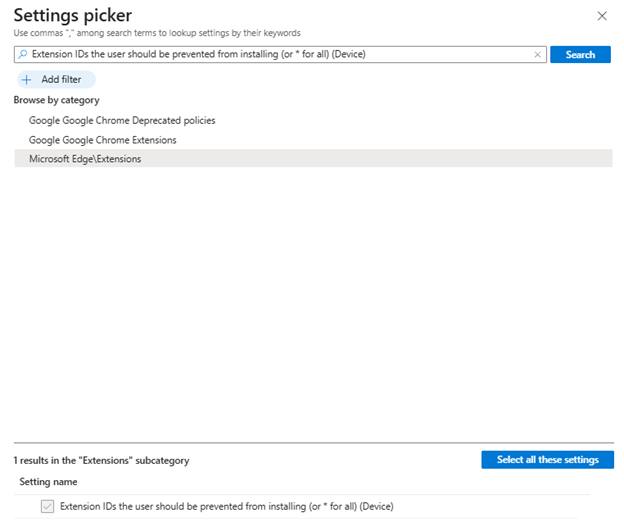
- Click on “add settings”
-
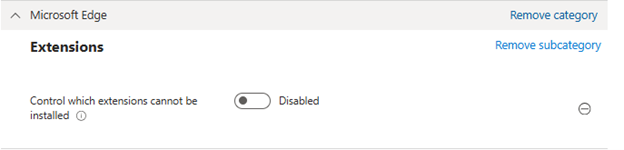
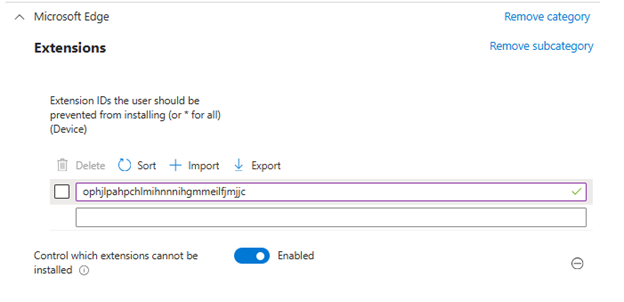
- Select Microsoft Edge\Extensions under Browse by category and select Extension IDs the user should be prevented from installing (or * for all) (Device)
-
- Enable the setting and paste the extension ID
- Assign the scope tag, if any
- Target it to the devices
Install an Extension
In Intune, navigate to Windows –> Configuration
- Select ‘Create’–> New Policy
- Platform – Windows 10 and later
- Profile type – Settings catalog
- Enter the name, description
- Click on “add settings”
-
- Select Microsoft Edge\Extensions under Browse by category and select
-
-
- Configure the list of force-installed apps and extension to Enabled
- Add the extension ID to Extension/App IDs and update URLs to be silently installed (Device)
-
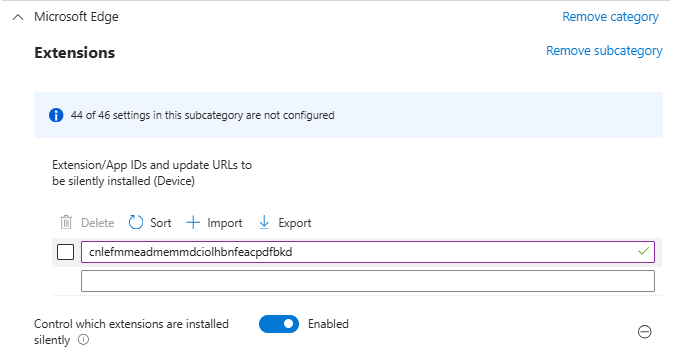
Tip : If the extension is from Chrome webstore, we need to add the update URL, next to the extensionID as below
oboonakemofpalcgghocfoadofidjkkk;https://clients2.google.com/service/update2/crx
- Assign the scope tag, if any
- Target it to the devices
Firefox
Block an Extension
Option 1 : Use custom OMA-URI
- Download the latest ADMX files from github repository of Mozilla https://github.com/mozilla/policy-templates/releases
- In Intune, navigate to Windows –> Configuration
- Select ‘Create’ –> New Policy
- Platform – Windows 10 and later
- Profile type – Templates
- Select Custom
-
- Enter the name, description
- Click on “add settings”
- Name : FirefoxADMX
- OMA-URI –>
./Device/Vendor/MSFT/Policy/ConfigOperations/ADMXInstall/Firefox/Policy/FirefoxAdmx - Data type : String
- Value : Paste the content of the admx file
- Again click on “Add” and then follow below steps to add the extensions
- Name : Block Firefox extension
- OMA_URI :
./Device/Vendor/MSFT/Policy/Config/Firefox~Policy~firefox~Extensions/ExtensionSettings - Data type : String
- Value :
<enabled/>

<data id="ExtensionSettings" value='
{
"jid1-93WyvpgvxzGATw@jetpack": {
"installation_mode": "blocked"
},
"jid1-ZAdIEUB7XOzOJw@jetpack": {
"installation_mode": "blocked"
},
"{c0ab436e-cfa6-453f-ac48-df20bcce2c07}": {
"installation_mode": "blocked"
}

}'/>- Assign the scope tag, if any
- Target it to the devices
Option 2 : Import the ADMX file via Confiugration –> Import ADMX
- Download the latest ADMX files from github repository of Mozilla https://github.com/mozilla/policy-templates/releases
- In Intune, navigate to Windows –> Configuration –> Import ADMX
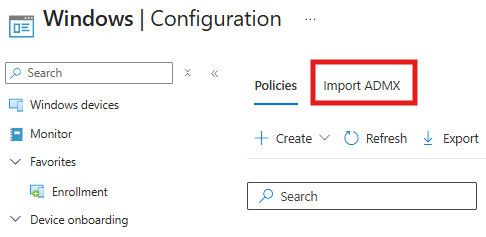
- Clink on Import, select respective ADMX and ADML file for the default language
- When the import is completed, you can configure the required policy (similar to GPO interface)
-
- In Intune, navigate to Windows –> Configuration –> Create
-
-
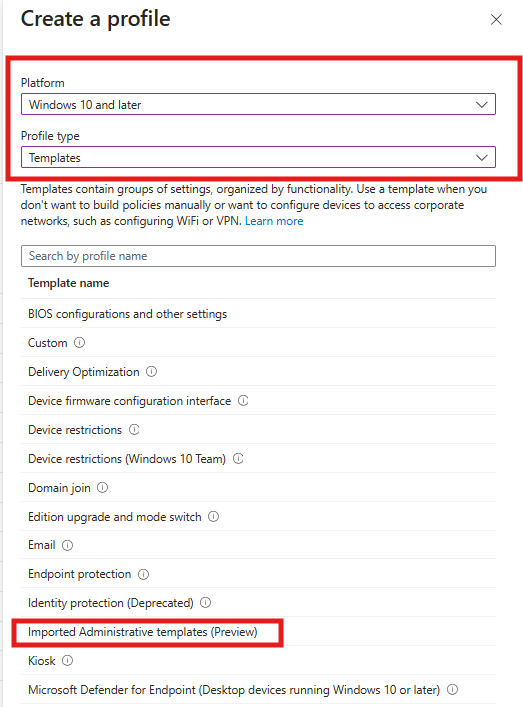
- Platform : Windows 10 and later
- Profile type : Templates
- Template name: Imported Administrative templates (Preview)
-
Tip 1 : 1st import mozilla.admx, wait for the completion and then firefox.admx. Else, you will receive ‘failed’ notification
Tip 2 : If you have already configured firefox policies using custom OMA-URI using, make sure to (re)test with limited devices while proceeding with Option2
Install an Extension
- In Intune, navigate to Windows –> Configuration –> Create
-
- Platform : Windows 10 and later
- Profile type : Templates
- Template name: Imported Administrative templates (Preview)
-
-
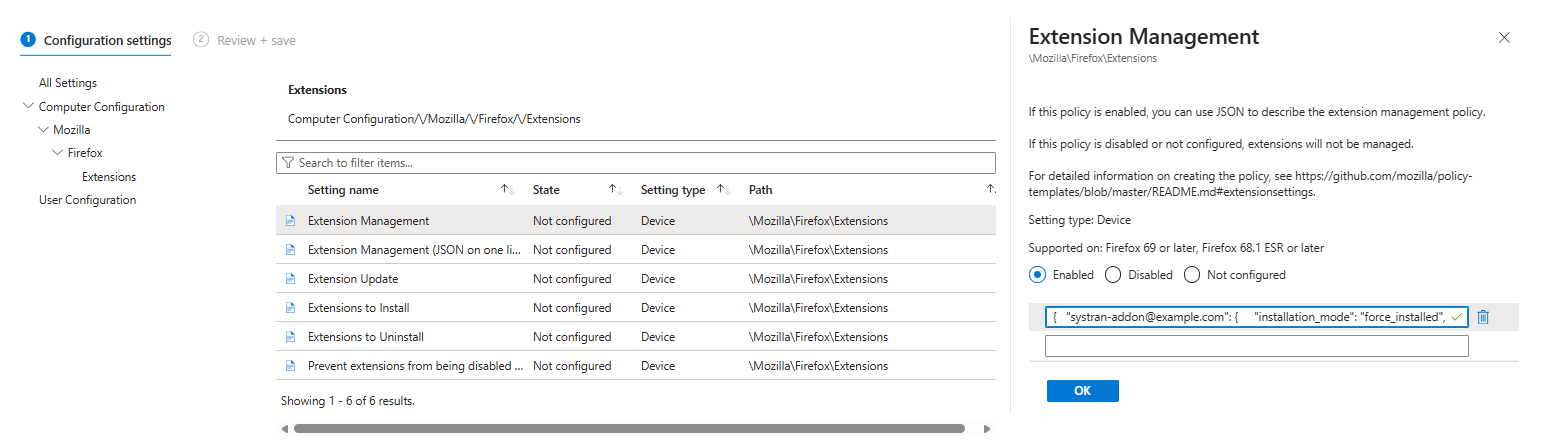
- Computer Configuration –> Mozilla –> Firefox –> Extensions –> Extension Management – set this Enabled and paste the value as below.
{
"[email protected]": {
"installation_mode": "force_installed",
"install_url": "https://addons.mozilla.org/firefox/downloads/file/4628286/keepassxc_browser-1.9.11.xpi"   }
}
- Computer Configuration –> Mozilla –> Firefox –> Extensions –> Extension Management – set this Enabled and paste the value as below.
-
Google Chrome
Block an Extension
In Intune, navigate to Windows –> Configuration
- Select ‘Create’–> New Policy
- Platform – Windows 10 and later
- Profile type – Settings catalog
- Enter the name, description
- Click on “add settings”
-
- Select Google Chrome > Extensions
- Configure extension installation blocklist –> Enabled
- Extension IDs the user should be prevented from installing (or
*for all) (Device)
-
-
- Enter the extension IDs
-
- Assign the scope tag, if any
- Target it to the devices
Install an Extension
In Intune, navigate to Windows –> Configuration
- Select ‘Create’–> New Policy
- Platform – Windows 10 and later
- Profile type – Settings catalog
- Enter the name, description
- Click on “add settings”
-
- Select Microsoft Edge\Extensions under Browse by category and select
-
-
-
-
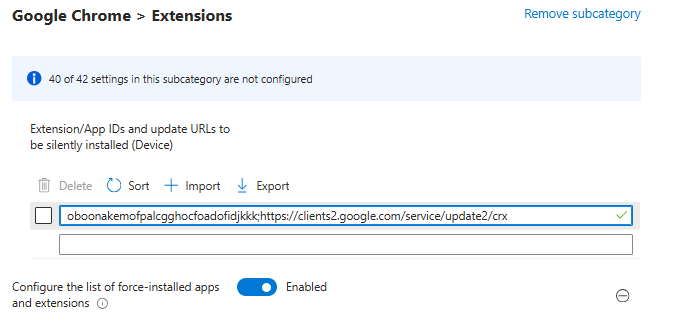
Add the extension ID and Update URL to Extension/App IDs and update URLs to be silently installed (Device)
-
-
- Assign the scope tag, if any
- Target it to the devices.