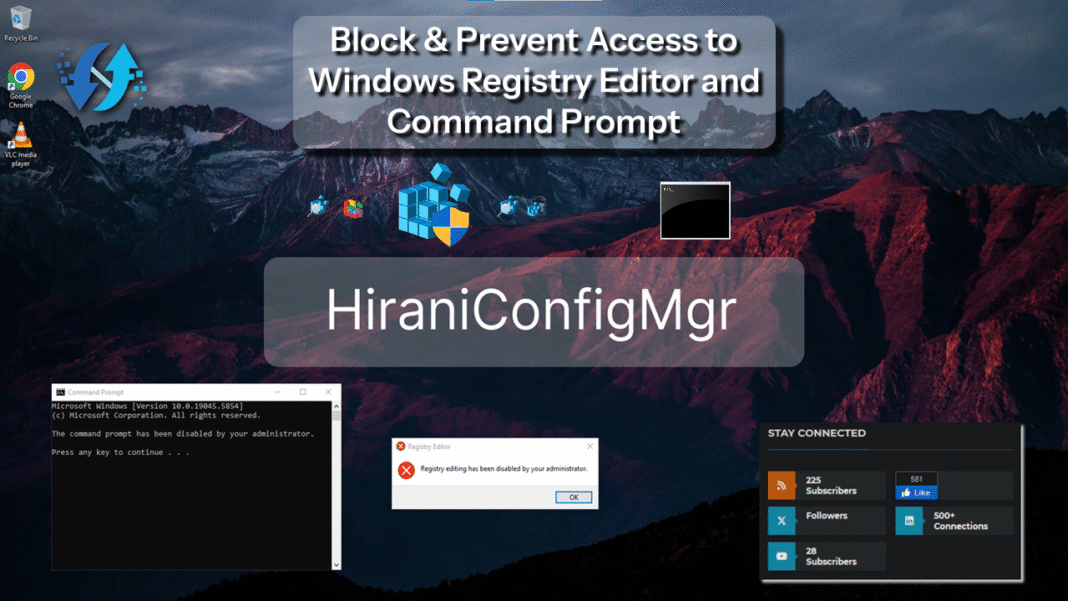
In enterprise environments, restricting access to critical system tools like the Windows Registry Editor (regedit.exe) and Command Prompt (cmd.exe) is essential to maintain system integrity and prevent unauthorized configurations. Microsoft Intune provides a centralized approach to enforce these restrictions across managed devices using the Settings Catalog.
Prerequisites
-
Target devices are running Windows 10 (version 1909 or later) or Windows 11.
-
Devices are enrolled in Intune and are either Devices are Microsoft Entra ID-joined or Hybrid joined.
Blocking Access to Windows Registry Editor
The Windows Registry Editor allows users to modify system configurations, which can pose security risks if misused. To prevent access:
Step-by-Step Guide:
-
Sign in to Intune Admin Center:
- Navigate to https://intune.microsoft.com.
-
Create a New Configuration Profile:
- Go to Devices > Windows > Configuration profiles > + Create profile.
- Select Platform: Windows 10 and later.
- Choose Profile type: Settings catalog.
-
Configure Profile Basics:
- Enter a Name: Block Windows Registry Access.
- Provide a Description: Prevents users from accessing the Windows Registry Editor.
- Click Next.

-
Add Settings:
- In the Configuration settings tab, click + Add settings.
- In the Settings picker, search for Prevent access to registry editing tools.
- Select the setting under Administrative Templates > System.

-
Configure the Setting:
- Set Prevent access to registry editing tools to Enabled.
- Set Disable regedit from running silently to Yes.
- Click Next.

-
Assign the Profile:
- In the Assignments tab, choose the user or device groups to which this policy should apply.
- Click Next.

-
Review and Create:
-
Review the configuration settings.
-
Click Create to deploy the policy.
-

End-User Experience:
Once applied, users attempting to open the Registry Editor will receive the message:
“Registry editing has been disabled by your administrator.”

Preventing Access to Command Prompt
The Command Prompt can be used to execute various commands that may compromise system integrity. To restrict access:
Step-by-Step Guide:
-
Create a New Configuration Profile:
- In the Intune Admin Center, go to Devices > Windows > Configuration profiles > + Create profile.
- Select Platform: Windows 10 and later.
- Choose Profile type: Settings catalog.
-
Configure Profile Basics:
- Enter a Name: Prevent Access to Command Prompt.
- Provide a Description: Disables access to cmd.exe for users.
- Click Next.

-
Add Settings:
- In the Configuration settings tab, click + Add settings.
- In the Settings picker, search for Prevent access to the command prompt.
- Select the setting under Administrative Templates > System.

-
Configure the Setting:
- Set Prevent access to the command prompt to Enabled.
- Set Disable the command prompt script processing also to No (unless you also want to block batch scripts).
- Click Next.

-
Assign the Profile:
- In the Assignments tab, choose the user or device groups to which this policy should apply.
- Click Next.
-
Review and Create:
-
Review the configuration settings.
-
Click Create to deploy the policy.
-

End-User Experience:
After the policy is applied, users attempting to open the Command Prompt will see:
“The command prompt has been disabled by your administrator.”

Additional Considerations
- Batch Scripts: If your organization relies on batch scripts for logon or startup processes, ensure that the Disable the command prompt script processing also setting is configured appropriately to avoid disruptions.
- Administrative Access: These settings apply to standard users. Administrators may still have access unless additional restrictions are implemented.
- Testing: Always test new policies on a subset of devices before widespread deployment to prevent unintended consequences.
Conclusion
By leveraging Microsoft Intune’s Settings Catalog, administrators can effectively restrict access to critical system tools like the Windows Registry Editor and Command Prompt, enhancing the security posture of their organization’s devices.