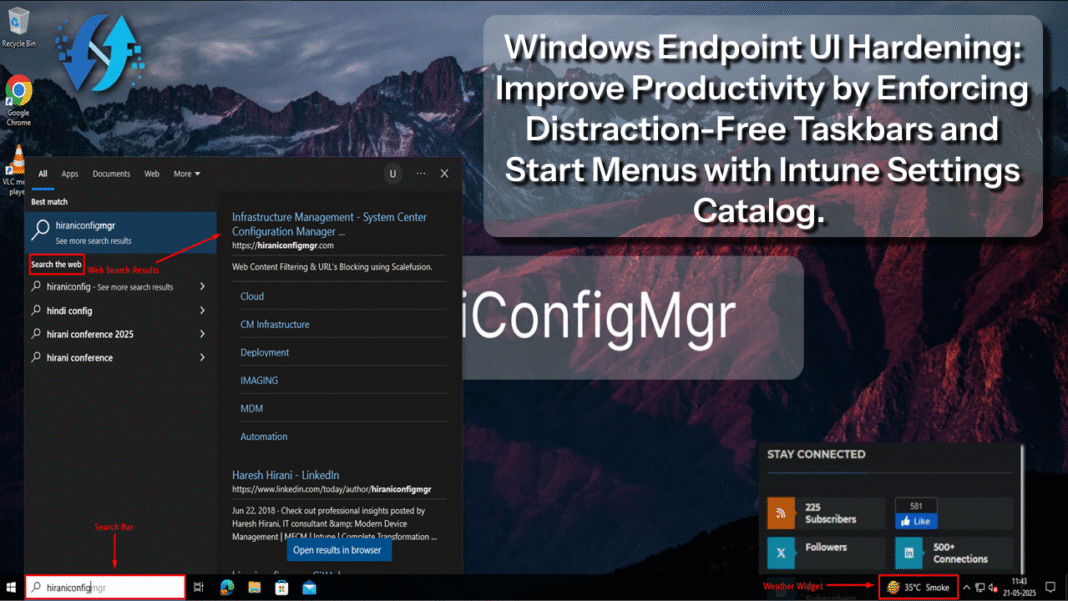
Managing distractions on Windows devices is essential for enterprise productivity. Using Microsoft Intune’s Settings catalog, you can easily enforce the following on Windows 10 and Windows 11 devices:
- Disable web results in Start Menu search
- Hide the search box from the taskbar
- Remove the News and Interests (Weather) widget
This guide walks you through step-by-step instructions using the Settings catalog — a modern and easier way to configure Windows settings in Intune without needing custom OMA-URI or scripts.
Prerequisites
Ensure the following before you begin:
- Microsoft Intune (Endpoint Manager) Admin access.
- Windows 10 (1909 or later) or Windows 11 devices enrolled.
- Devices are Microsoft Entra ID-joined or Hybrid joined.
A. Disable Web Search in Start Menu (Bing + Web Search)
Steps to Disable Web Search via Settings Catalog:
- Go to https://intune.microsoft.com
- Navigate to:
- Devices → Configuration profiles → + Create → New Policy

- Devices → Configuration profiles → + Create → New Policy
- Platform:
- Windows 10 and later
- Profile Type:
- Settings catalog

- Settings catalog
- Click Create
- Name your profile:
- Disable Web Search, Search Box & Weather Widget

- Disable Web Search, Search Box & Weather Widget
- Configure settings & values:
- Click + Add settings
- In the Search bar, type: search
- Select Administrative Templates/Start Menu and Taskbar and Search

- Set the value:
|
Setting
|
Value
|
|
Do not search Internet (User)
|
Disabled
|
|
Do Not Use Web Results
|
Enabled
|
|
Allow search to use location
|
Blocked
|
|
Allow Cloud Search
|
Not Allowed
|

This will disable Bing/web results and prevent location-based suggestions in Windows Search.
B. Hide Search Box in Taskbar
Steps to Hide Taskbar Search Box via Settings Catalog:
- In the Settings picker:
- Search for Configure Search
- Select Search

- Set the value:
|
Setting
|
Value
|
|
Configure Search on Taskbar Mode
|
Hide
|

The search box will now be removed from users’ taskbars.
C. Remove Weather Widget (News and Interests)
Steps to Remove News & Interests Widget
- In the Settings picker:
- Search for news
- Select the setting: Feeds

- Set the value:
|
Setting
|
Value
|
|
Enable News and interests
|
Not Allowed
|

This will hide the Weather/News widget from the taskbar for all users.
8. Assign the profile to device groups, then click Next → Create.


Post-Deployment Tips
- These settings apply at next user sign-in or after a device restart.
- Use Device > Configuration profiles > [Profile] > Device status to monitor deployment.
- Combine all settings into a single profile if desired, or use per-feature granularity for flexibility.
Summary
Using the Settings catalog, you have now:
- Disabled Bing/web search in Start Menu
- Hidden the search box from the taskbar
- Removed the distracting weather widget
This modern Intune approach is more reliable than legacy OMA-URI or scripts and is easier to manage at scale.
Final Recommendation
- Always test policies on a pilot group before full deployment.
- Use filters to apply policies only to specific OS versions or device models.
- Document all profile names and assignment scopes for future audits.