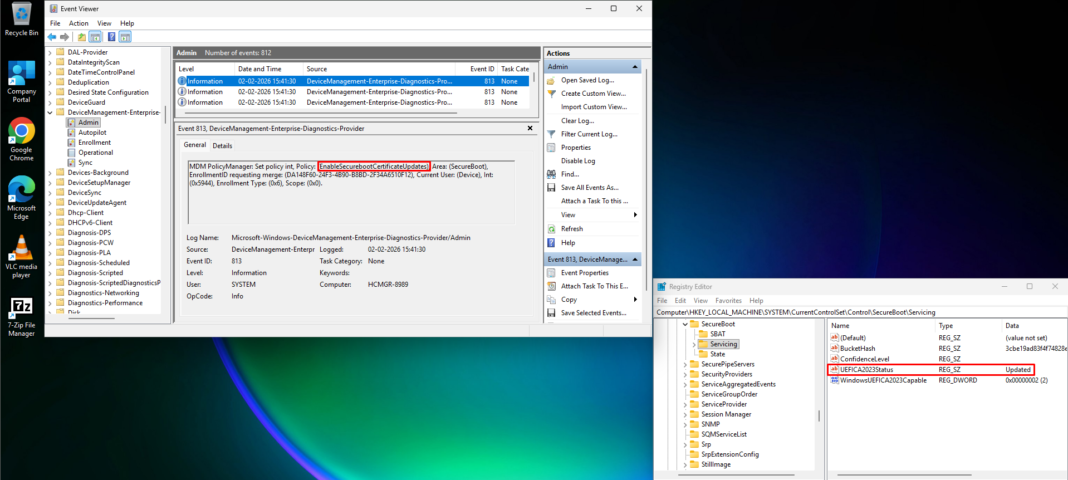
Understanding the Secure Boot Certificate Challenge:
In 2026, Microsoft Windows will reach a critical milestone as the Secure Boot certificates that have protected devices for over 15 years approach their expiration date. For IT administrators managing enterprise Windows environments, this transition requires careful planning and proactive configuration to ensure business continuity.
This comprehensive guide walks you through the process of updating Secure Boot certificates using Microsoft Intune Settings Catalog policies, helping you prepare your organization well ahead of the June 2026 deadline.
What Is Secure Boot & Why You Must Update Its Certificates:
UEFI Secure Boot is a trusted security feature that ensures only verified, signed firmware and boot components load when Windows starts. It does this using cryptographic certificates stored in firmware (UEFI DB, KEK, DBX) to establish trust in the boot process.
However, many devices still use certificates issued in 2011, which are set to expire in June-October 2026. If these certificates aren’t updated, devices may lose trust in new boot components and fail to receive important updates after that point.
Which Secure Boot Certificates Are Expiring?
Four critical Microsoft certificates stored in the Key Enrollment Key (KEK) and Signature Database (DB) are approaching expiration. Understanding these certificates is essential for planning your update strategy.
Expiring Certificates and Their Replacements
The following table outlines the certificates requiring updates:
|
Expiring Certificate |
Expiration Date | New Certificate | Location |
Purpose |
| Microsoft Corporation KEK CA 2011 | June 2026 | Microsoft Corporation KEK 2K CA 2023 | KEK | Signs DB and DBX updates |
| Microsoft Windows Production PCA 2011 | October 2026 | Windows UEFI CA 2023 | DB | Signs Windows bootloader |
| Microsoft UEFI CA 2011 | June 2026 | Microsoft UEFI CA 2023 | DB | Signs third-party bootloaders |
| Microsoft UEFI CA 2011 | June 2026 | Microsoft Option ROM UEFI CA 2023 | DB | Signs third-party option ROMs |
Microsoft has introduced built-in Secure Boot settings within Intune’s Settings Catalog. These policies allow enterprises to:
- Trigger the deployment of new Secure Boot certificates
- Opt into Microsoft-managed controlled rollouts
- Configure whether devices automatically accept certificates via Windows Update
Using these settings instead of manual registry tweaks simplifies deployment across large fleets.
Prerequisites Before Implementation
Before deploying Intune policies, ensure your environment meets these requirements:
- Administrative access to Microsoft Intune admin center
- Devices enrolled in Intune with appropriate licensing
- Devices must have Secure Boot enabled in UEFI/BIOS
- Windows diagnostic data enabled for Microsoft-managed update opt-in
Step-By-Step: Configure Secure Boot Certificate Update via Intune
Follow these steps to deploy the Secure Boot update policy:
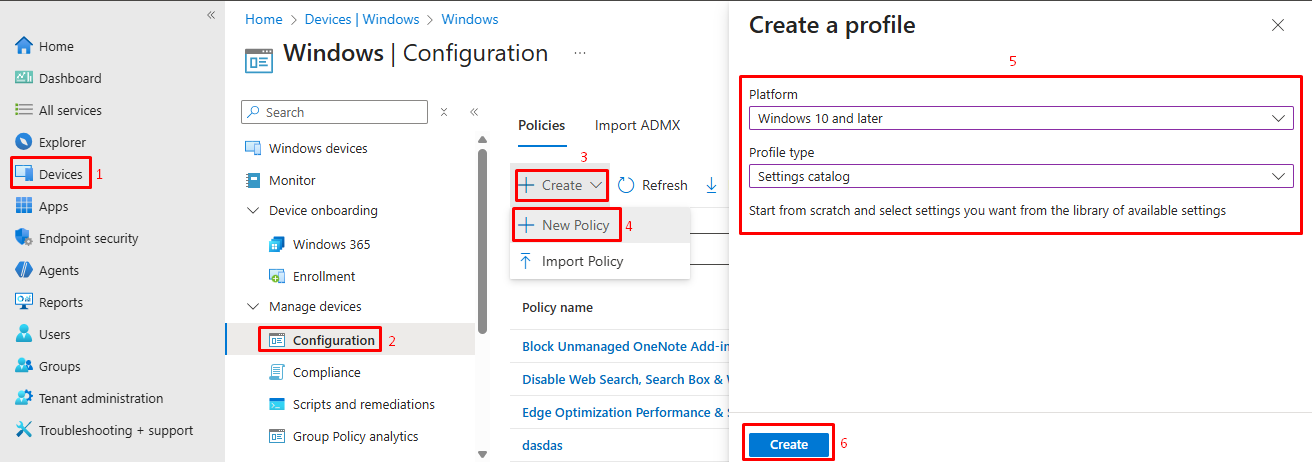
1. Sign in to Microsoft Intune
- Open the Microsoft Intune admin center.
- Navigate to:
-
- Devices → Configuration profiles
2. Create a New Configuration Profile
- Click Create profile
- Set:
-
- Platform: Windows 10 and later
- Profile type: Settings Catalog
-
-
- Click Create
-
3. Configure Profile Basics
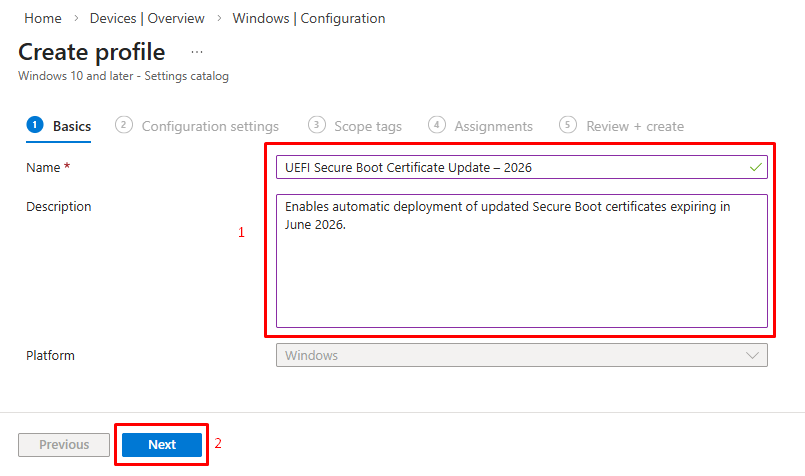
- On the Basics page, provide a descriptive Name such as ‘
UEFI Secure Boot Certificate Updates - 2026‘ - Add a Description: ‘
Enables automatic deployment of updated Secure Boot certificates expiring in June 2026‘ - Click Next to proceed to Configuration settings
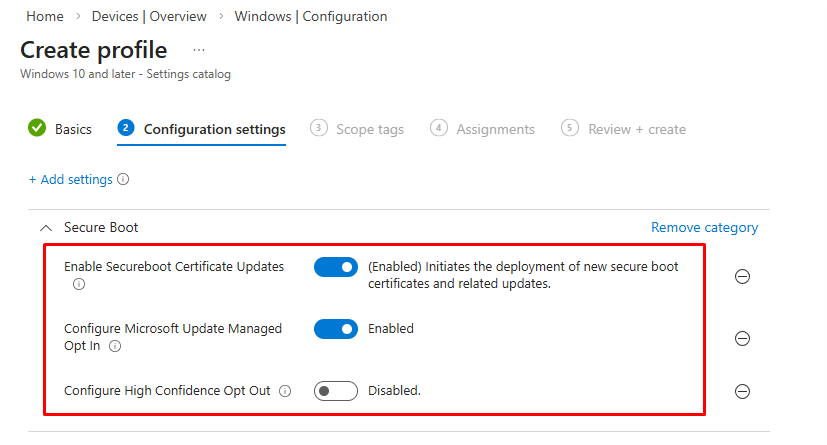
4. Add Secure Boot Settings
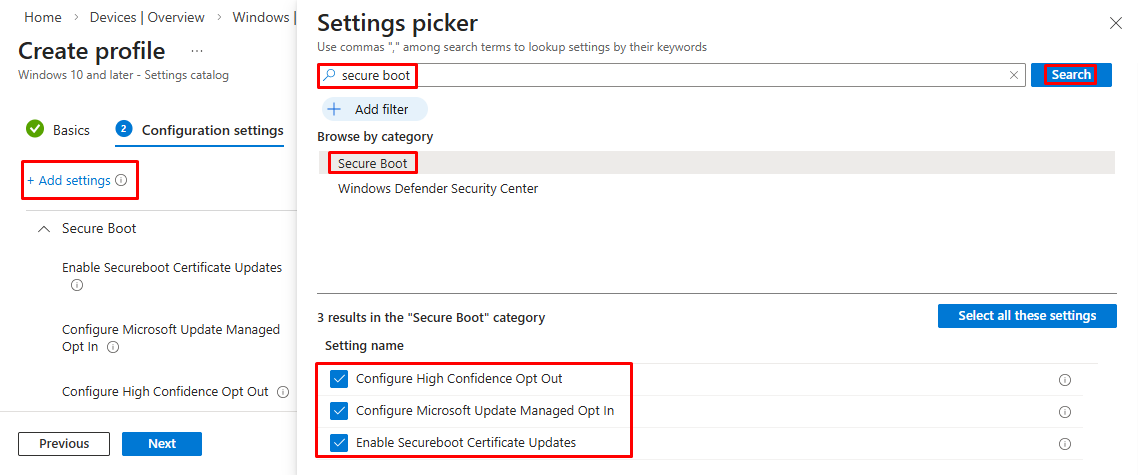
- Under Configuration settings, click Add settings
- In the Settings picker search box, type ‘
Secure Boot‘ - Expand the Secure Boot category to reveal three available settings
- Select all three checkboxes to add them to your profile
The three settings available are:
|
Setting |
Purpose |
| Enable Secureboot Certificate Updates | Triggers deployment of new certificates to devices. |
| Configure Microsoft Update Managed Opt In | Opts devices into Microsoft’s controlled rollout assistance. |
| Configure High Confidence Opt-Out | Prevents automatic certificate updates via Windows monthly updates. |
5. Configure Individual Settings
Setting 1: Enable Secureboot Certificate Updates
- Purpose: Controls whether Windows automatically deploys updated Secure Boot certificates
- Recommended Setting: Enabled
- Registry Key:
HKEY_LOCAL_MACHINE\SYSTEM\CurrentControlSet\Control\SecureBoot\AvailableUpdates - Note: The certificate deployment task runs every 12 hours and may require a system restart to complete
Setting 2: Configure Microsoft Update Managed Opt In
- Purpose: Allows participation in Microsoft’s Controlled Feature Rollout for certificate updates
- Recommended Setting: Enabled as we want Microsoft-managed gradual rollout
- Registry Key:
HKEY_LOCAL_MACHINE\SYSTEM\CurrentControlSet\Control\SecureBoot\MicrosoftUpdateManagedOptIn - Requirement: Devices must send required diagnostic data to Microsoft if enabled
Setting 3: Configure High Confidence Opt-Out
- Purpose: Controls automatic deployment through Windows monthly cumulative updates
- Recommended Setting: Disabled (default) to allow automatic updates for validated devices
- Registry Key:
HKEY_LOCAL_MACHINE\SYSTEM\CurrentControlSet\Control\SecureBootHighConfidenceOptOut - Note: Only devices with sufficient diagnostic data can be classified as high confidence; enable this to block automatic deployment if needed
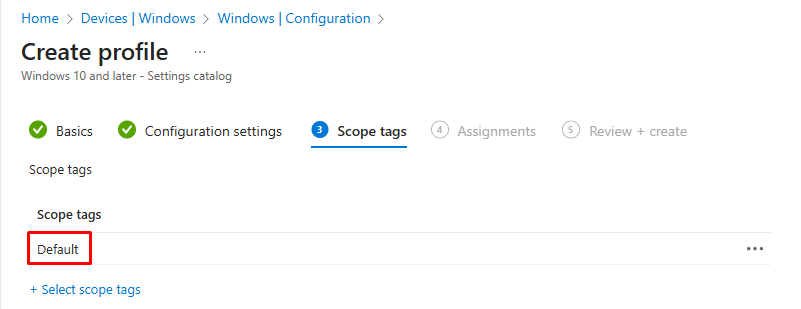
6. Configure Scope Tags (Optional)
- Add appropriate scope tags if your organization uses role-based access control
- Click Next to proceed to Assignments
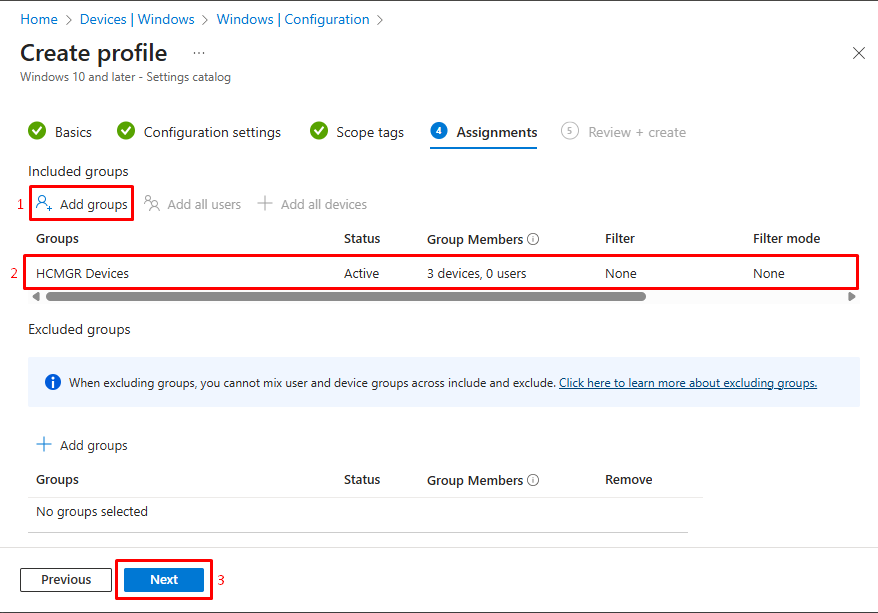
 7. Assign the Policy to Device Groups
- Under Assignments, click Add groups or Add all devices
- Select the Entra ID groups containing devices that should receive the policy
- Consider starting with a pilot group for initial testing before full deployment
- Click Next to proceed to Review + create
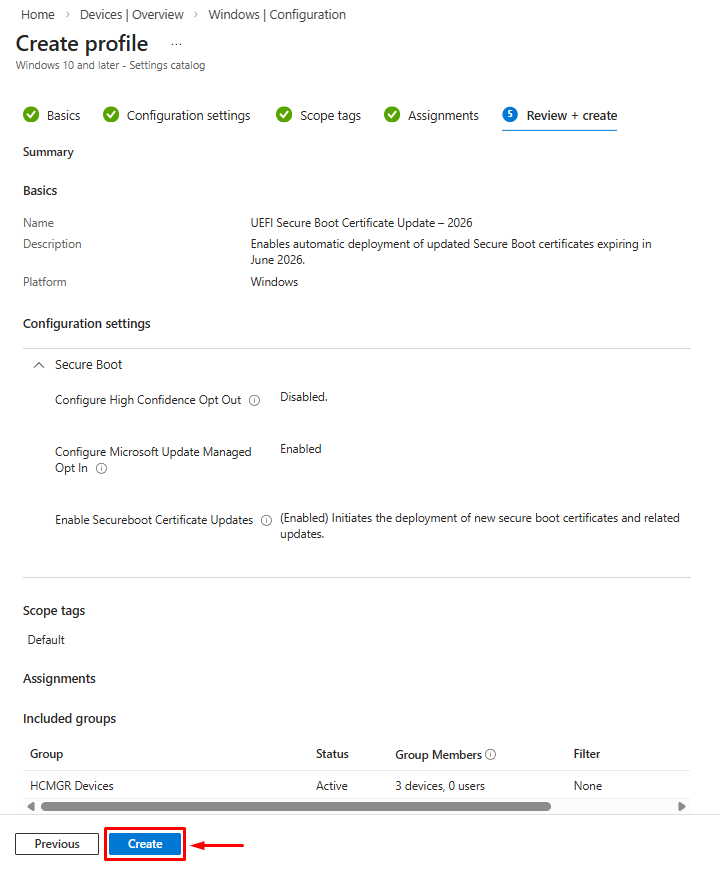
 8. Review and Create
- Review all configuration settings carefully
- Verify assigned groups and scope
- Click Create to deploy the policy
Verifying Policy Deployment and Certificate Updates
After deploying the policy, monitor its effectiveness using these verification methods.
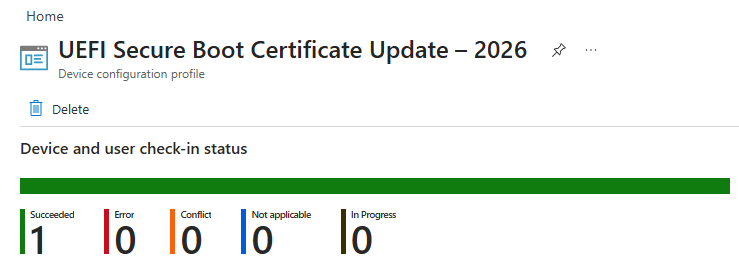
Checking Policy Status in Intune
- Navigate to Devices > Configuration in Intune admin center
- Locate your Secure Boot certificate policy
- Review Device and user check-in status to see successful deployments
- Investigate any errors or pending statuses
Verifying Registry Keys on Client Devices
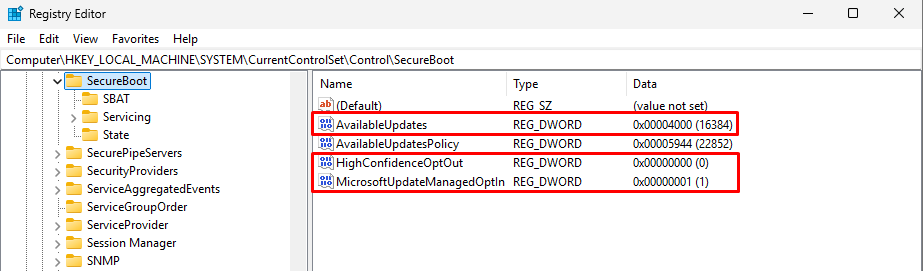
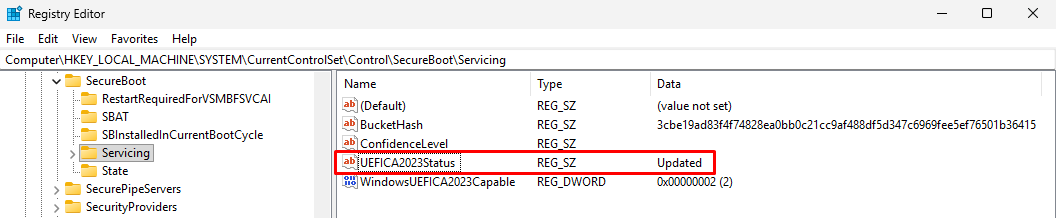
On Windows devices, verify the registry keys have been configured:
- Open Registry Editor (regedit.exe) as administrator
- Navigate to
HKEY_LOCAL_MACHINE\SYSTEM\CurrentControlSet\Control\SecureBoot - Verify the presence of AvailableUpdates, MicrosoftUpdateManagedOptIn, and HighConfidenceOptOut keys and the UEFICA2023Status key’s value.
Known Issues and Troubleshooting
Intune Error Code 65000 on Pro Editions
Issue: Secure Boot configuration settings deployed through Intune MDM are currently blocked on Windows 10 Pro and Windows 11 Pro editions, resulting in Error Code 65000.
Symptoms:
- Policy assignment shows failed status in Intune console
- Event logs may record POLICYMANAGER_E_AREAPOLICY_NOTAPPLICABLEINEDITION
Workaround: Microsoft is investigating this issue. Consider using Enterprise or Education editions for full Intune policy support, or monitor Microsoft’s support documentation for updates.
Firmware limitations: Devices with outdated BIOS/UEFI may not accept certificate updates until updated.
Diagnostic data: Microsoft-managed rollout requires devices to send diagnostic data at a minimum level.
Final Notes: Why This Matters
✔ Keeping Secure Boot certificates current:
✔ Ensures continued protection from advanced boot-level malware
✔ Reduces risk of boot integrity violations
✔ Enables future Secure Boot-related security updates
✔ If certificates expire without updates, devices may no longer trust newer signed boot components potentially blocking updates or introducing security gaps.
Conclusion
Updating Secure Boot certificates using Microsoft Intune Settings Catalog policies is the recommended way to future-proof your Windows device fleet before the 2026 certificate expiry. It’s scalable, manageable, and integrates seamlessly with your existing endpoint management workflows.
By following the steps above, your environment will be prepared well ahead of the key expiration deadlines.