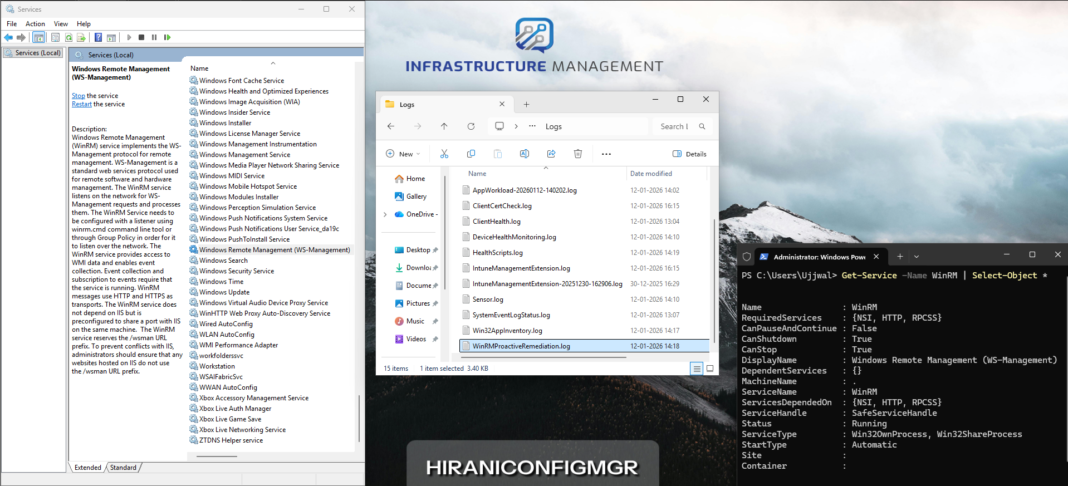
Windows services often control critical OS behavior such as updates, networking, and system communication. Managing Windows system services across an enterprise fleet can be challenging, especially when you need to ensure critical services maintain specific startup configurations. While Microsoft Intune doesn’t provide native UI controls for managing Windows service startup types, there’s a powerful workaround using Proactive Remediations and PowerShell scripting.
In this comprehensive guide, we’ll walk through the process of configuring the Windows Remote Management (WinRM) service to start automatically (delayed) on all managed Windows devices using Intune Proactive Remediations.
Table of Contents:
- Understanding WinRM (Windows Remote Management) Service
- Why Use Proactive Remediations for Service Management
- Prerequisites
- Understanding PowerShell Service Management
- Creating the Detection Script
- Creating the Remediation Script
- Deploying the Proactive Remediation in Intune
- Monitoring and Validation
- Best Practices
Understanding Windows Remote Management (WinRM)
WinRM is a core Windows component that enables remote management using the WS-Management protocol. It is foundational for modern cloud-based and enterprise management operations.
WinRM enables:
- Remote PowerShell execution
- Intune device management actions
- Modern Configuration Management & DSC
- Security incident response automation
- System diagnostics and troubleshooting
- MDE/Sentinel/EDR/Tanium remote actions
By default, WinRM starts in Manual mode and activates only when triggered. In cloud-managed enterprise environments, you may want to set WinRM to Automatic (Delayed Start) to ensure its consistently available for:
- Remote remediation tasks
- Compliance enforcement
- Security response automation
- Device inventory
- Configuration maintenance
Why Use Proactive Remediations for Service Management
Intune Proactive Remediations offer several advantages over one-time platform scripts:
- Continuous enforcement: Regularly checks and corrects configuration drift
- Compliance monitoring: Provides visibility into how many devices are compliant
- Automatic correction: Remediates non-compliant devices without manual intervention
- Scheduled execution: Runs on a defined schedule to maintain desired state
- Detailed reporting: Offers insights into detection and remediation success rates
This approach ensures WinRM remains configured consistently across your fleet, even if users, applications, or legacy tools modify the service settings.
Prerequisites
- Devices must be Windows 10/11 Enterprise/Professional/Education and enrolled in Intune.
- Devices must be Microsoft Entra joined or Microsoft Entra hybrid joined
- Detection and remediation scripts must be UTF-8 encoded not UTF-8 BOM (Byte Order Mark)
- Basic PowerShell knowledge & Understanding of Windows services fundamentals
Understanding PowerShell Service Management
Finding Service Information
To identify the service name and current configuration:
# List all services in a grid view
Get-Service | Sort-Object DisplayName | Out-GridView

# Search for a service specifically
Get-Service -Name "WinRM"

# Get detailed service information
Get-Service -Name WinRM | Select-Object * 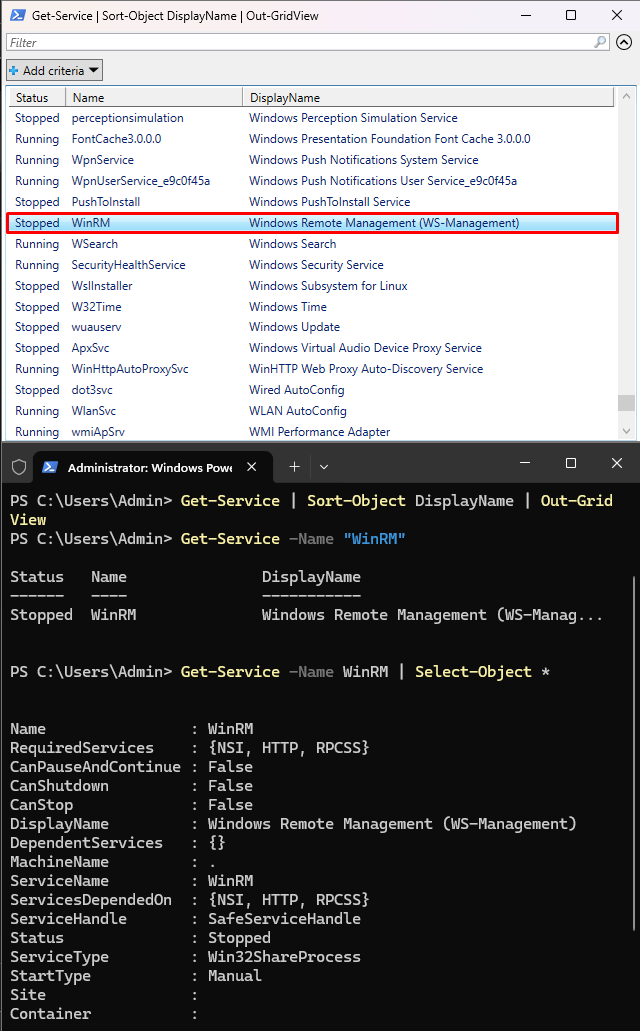
Managing Service Startup Types
# Set service to Automatic startup
Set-Service -Name "WinRM" -StartupType Automatic
Common valid startup values:
| StartupType | Meaning |
| Automatic | Starts during boot |
| Automatic (Delayed Start) | Starts after boot stabilization |
| Manual | Starts only on demand |
| Disabled | Cannot start |
- For WinRM, Automatic (Delayed Start) offers the best startup efficiency.
Creating the Detection Script
The detection script checks whether the WinRM service is configured correctly. It should exit with code 0 if the service is compliant (startup type is Automatic) and exit with code 1 if remediation is needed.
Detection Script: WinRM_ServiceStartupType_detection.ps1:
<#
.SYNOPSIS
    Detection script for WinRM (Windows Remote Management) Service Startup Type

.DESCRIPTION
    Checks if the WinRM service is configured to Automatic (Delayed Start) and running.
    Exits with 0 if compliant, 1 if remediation required.

.NOTES
    Author: HCMGR Administrator
    Date: 12 January 2026
    Version: 4.0
#>

# Variables
$ServiceName = "WinRM"
$DesiredStartupType = "Automatic (Delayed Start)"
$ScriptName = "WinRM_StartType_Detection"
$LogFile = "$env:ProgramData\Microsoft\IntuneManagementExtension\Logs\WinRMProactiveRemediation.log"

#region CMTrace Logging
function Write-CMTraceLog {
    param(
        [string]$Message,
        [ValidateSet('Info','Warning','Error')] [string]$Severity = 'Info',
        [string]$Component = $ScriptName,
        [string]$LogFile
    )

    switch ($Severity) {
        'Info'    { $LogLevel = 1 }
        'Warning' { $LogLevel = 2 }
        'Error'   { $LogLevel = 3 }
    }

    $TimeStamp = Get-Date -Format "HH:mm:ss.fff"
    $Date = Get-Date -Format "MM-dd-yyyy"
    $CallerInfo = (Get-PSCallStack)[1]
    $LineNumber = $CallerInfo.ScriptLineNumber
    $LogEntry = "<![LOG[$Message]LOG]!><time=`"$TimeStamp+000`" date=`"$Date`" component=`"$Component`" context=`"`" type=`"$LogLevel`" thread=`"$PID`" file=`"${Component}:${LineNumber}`">"

    Add-Content -Path $LogFile -Value $LogEntry -ErrorAction SilentlyContinue
}
#endregion

Write-CMTraceLog -Message "Starting WinRM Detection Script" -LogFile $LogFile

try {
    $Service = Get-Service -Name $ServiceName -ErrorAction Stop
    Write-CMTraceLog -Message "Service '$ServiceName' exists." -LogFile $LogFile
    Write-CMTraceLog -Message "Service Status: $($Service.Status)" -LogFile $LogFile

    $StartMode = (Get-CimInstance Win32_Service -Filter "Name='$ServiceName'").StartMode

    # Normalize "DelayedAuto" into readable form
    if ($StartMode -eq "DelayedAuto") { $Normalized = "Automatic (Delayed Start)" }
    elseif ($StartMode -eq "Auto")    { $Normalized = "Automatic" }
    else                              { $Normalized = $StartMode }

    Write-CMTraceLog -Message "Current Startup Type: $Normalized" -LogFile $LogFile
    Write-CMTraceLog -Message "Desired Startup Type: $DesiredStartupType" -LogFile $LogFile

    $RegDelayed = (Get-ItemProperty "HKLM:\System\CurrentControlSet\Services\$ServiceName" -Name DelayedAutoStart -ErrorAction SilentlyContinue).DelayedAutoStart

    if (($StartMode -eq "DelayedAuto") -or ($StartMode -eq "Auto" -and $RegDelayed -eq 1)) {
        Write-CMTraceLog -Message "COMPLIANT: WinRM configured correctly (Auto + DelayedStart detected)." -LogFile $LogFile
        exit 0
    }
    else {
        Write-CMTraceLog -Message "NON-COMPLIANT: Startup type mismatch." -Severity Warning -LogFile $LogFile
        exit 1
    }
}
catch {
    Write-CMTraceLog -Message "Service '$ServiceName' missing or query failure." -Severity Error -LogFile $LogFile
    exit 0
}
Creating the Remediation Script
The remediation script runs only when the detection script returns exit code 1. It configures the WinRM service to the desired startup type and ensures it’s running.
Remediation Script: WinRM_ServiceStartupType_remediation.ps1
<#
.SYNOPSIS
    Remediation script for WinRM Service Startup Type

.DESCRIPTION
    Configures WinRM to Automatic (Delayed Start) and ensures the service is running.

.NOTES
    Author: HCMGR Administrator
    Date: 12 January 2026
    Version: 4.0
#>

# Variables
$ServiceName = "WinRM"
$DesiredStartupType = "Automatic (Delayed Start)"
$ScriptName = "WinRM_StartupType_Remediation"
$LogFile = "$env:ProgramData\Microsoft\IntuneManagementExtension\Logs\WinRMProactiveRemediation.log"

#region CMTrace Logging
function Write-CMTraceLog {
    param(
        [string]$Message,
        [ValidateSet('Info','Warning','Error')] [string]$Severity = 'Info',
        [string]$Component = $ScriptName,
        [string]$LogFile
    )

    switch ($Severity) {
        'Info'    { $LogLevel = 1 }
        'Warning' { $LogLevel = 2 }
        'Error'   { $LogLevel = 3 }
    }

    $TimeStamp = Get-Date -Format "HH:mm:ss.fff"
    $Date = Get-Date -Format "MM-dd-yyyy"
    $CallerInfo = (Get-PSCallStack)[1]
    $LineNumber = $CallerInfo.ScriptLineNumber
    $LogEntry = "<![LOG[$Message]LOG]!><time=`"$TimeStamp+000`" date=`"$Date`" component=`"$Component`" context=`"`" type=`"$LogLevel`" thread=`"$PID`" file=`"${Component}:${LineNumber}`">"

    Add-Content -Path $LogFile -Value $LogEntry -ErrorAction SilentlyContinue
}
#endregion

Write-CMTraceLog -Message "Starting WinRM Remediation Script" -LogFile $LogFile

try {
    $Service = Get-Service -Name $ServiceName -ErrorAction Stop

    # Configure startup type
    Write-CMTraceLog -Message "Configuring WinRM StartupType to '$DesiredStartupType'..." -LogFile $LogFile
    Set-Service -Name $ServiceName -StartupType Automatic -ErrorAction Stop

    # Convert to delayed auto via registry (Microsoft recommended method)
    Set-ItemProperty -Path "HKLM:\System\CurrentControlSet\Services\$ServiceName" -Name "DelayedAutoStart" -Value 1 -ErrorAction SilentlyContinue

    # Start service if needed
    if ($Service.Status -ne 'Running') {
        Write-CMTraceLog -Message "Starting WinRM service..." -LogFile $LogFile
        Start-Service -Name $ServiceName -ErrorAction Stop
        Start-Sleep -Seconds 2
    }

    # Final verification
    $StartMode = (Get-CimInstance Win32_Service -Filter "Name='$ServiceName'").StartMode
    $Normalized = if ($StartMode -eq "DelayedAuto") { "Automatic (Delayed Start)" } else { $StartMode }
    $Service = Get-Service -Name $ServiceName

    Write-CMTraceLog -Message "Startup Mode: $Normalized | Status: $($Service.Status)" -LogFile $LogFile

    $RegDelayed = (Get-ItemProperty "HKLM:\System\CurrentControlSet\Services\$ServiceName" -Name DelayedAutoStart -ErrorAction SilentlyContinue).DelayedAutoStart

    if (($StartMode -eq "DelayedAuto" -or ($StartMode -eq "Auto" -and $RegDelayed -eq 1)) -and $Service.Status -eq 'Running') {
        Write-CMTraceLog -Message "REMEDIATION SUCCESSFUL: WinRM healthy." -LogFile $LogFile
        exit 0
    }

    Write-CMTraceLog -Message "REMEDIATION INCOMPLETE: Validation failed." -Severity Warning -LogFile $LogFile
    exit 1
}
catch {
    Write-CMTraceLog -Message "FAILED: $($_.Exception.Message)" -Severity Error -LogFile $LogFile
    exit 1
}
Deploying the Proactive Remediation in Intune
Now that we have our scripts ready, let’s deploy them through the Intune admin center.
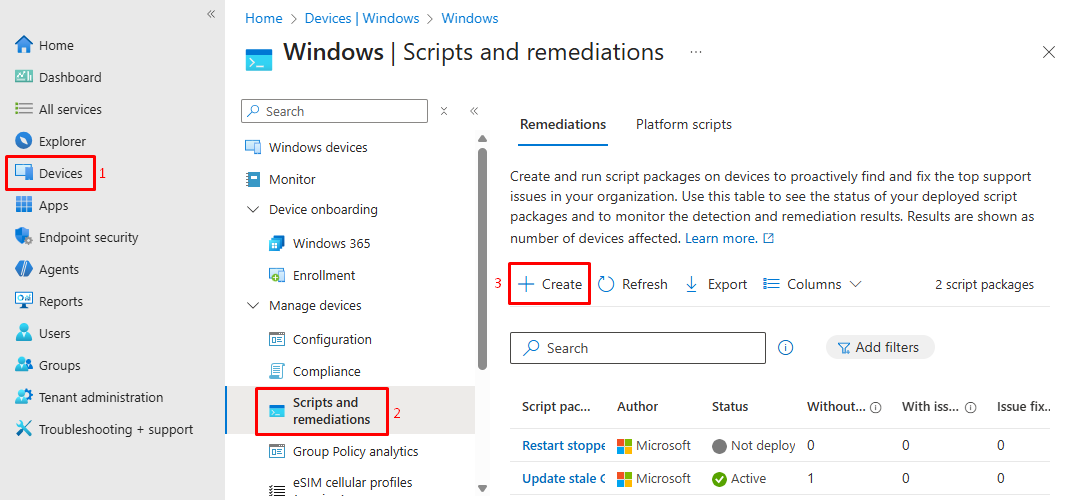
Step 1: Access Scripts and Remediations
- Sign in to the Microsoft Intune admin center
- Navigate to Devices > Scripts and Remediations
- Click + Create
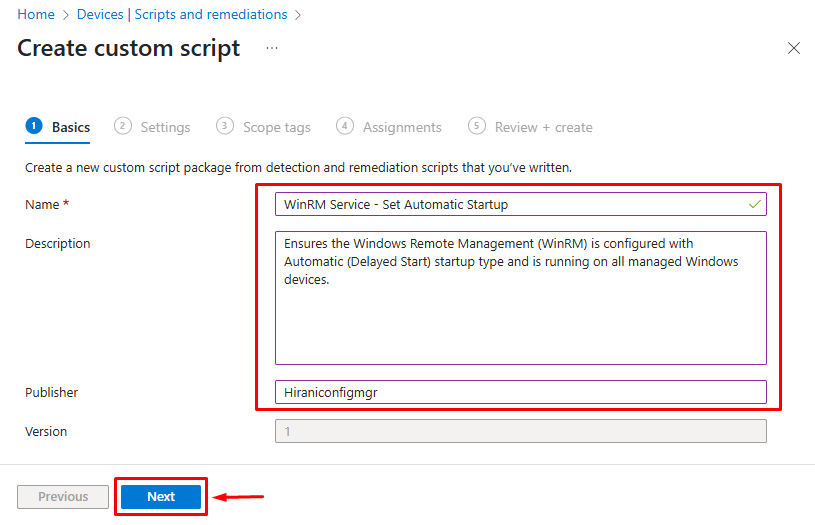
Step 2: Configure Script Package Basics
- Name:
WinRM Service - Set Automatic Startup - Description:
Ensures the Windows Remote Management (WinRM) is configured with Automatic (Delayed Start) startup type and is running on all managed Windows devices. - Click Next
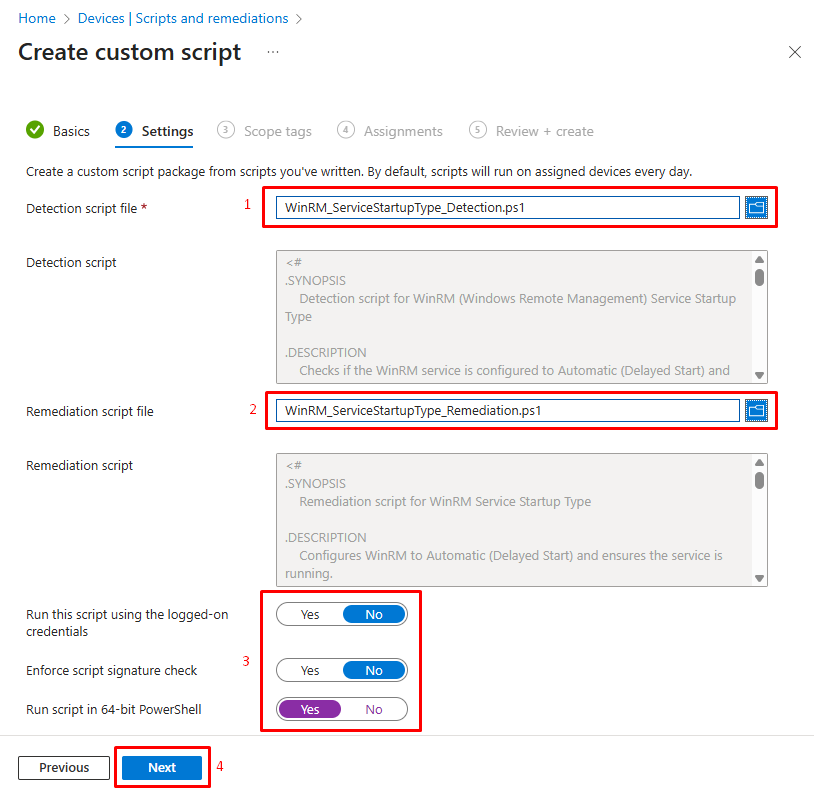
Step 3: Upload Script Files
- Detection script file: Upload
WinRM_ServiceStartupType_Detection.ps1 - Remediation script file: Upload
WinRM_ServiceStartupType_Remediation.ps1 - Run this script using the logged-on credentials:
No(leave unchecked)- Services require SYSTEM-level permissions
- Enforce script signature check:
No(unless you’re using signed scripts) - Run script in 64-bit PowerShell:
Yes(recommended) - Click Next
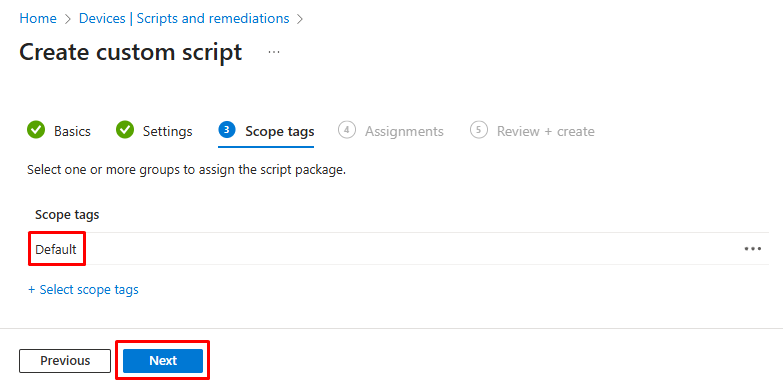
Step 4: Configure Scope Tags (Optional)
If your organization uses scope tags for role-based access control:
- Add appropriate scope tags
- Click Next
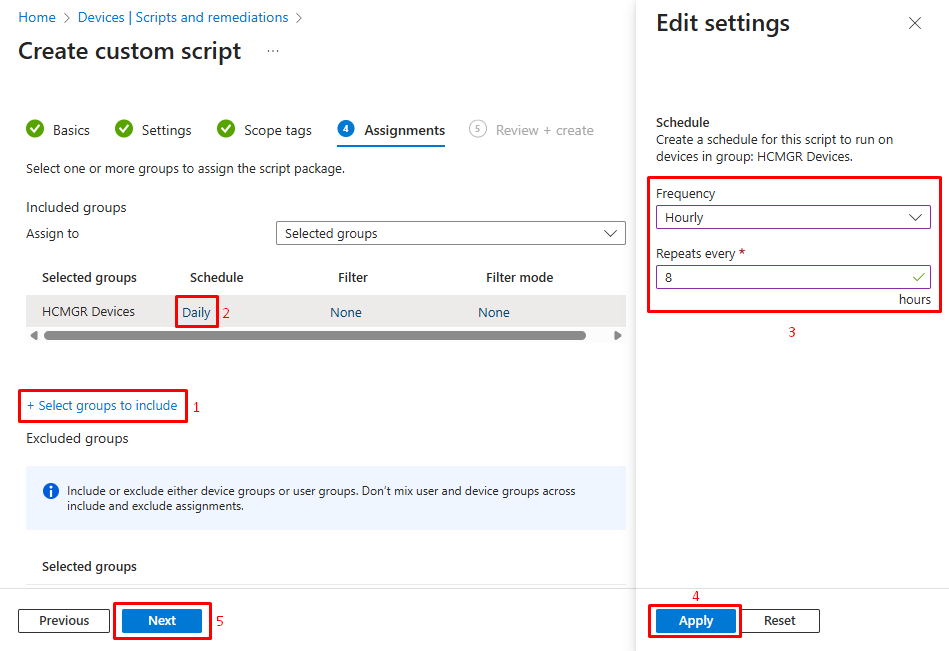
Step 5: Assign to Device Groups
- Click + Select groups to include
- Choose your target device groups (e.g., “Pilot Devices” or specific pilot groups)
Configure how often the detection script should run:
3. Schedule type: Choose one option
-
- Daily: Runs once per day
- Hourly: Runs every X hours (recommended: every 8 hours)
4. Click Next
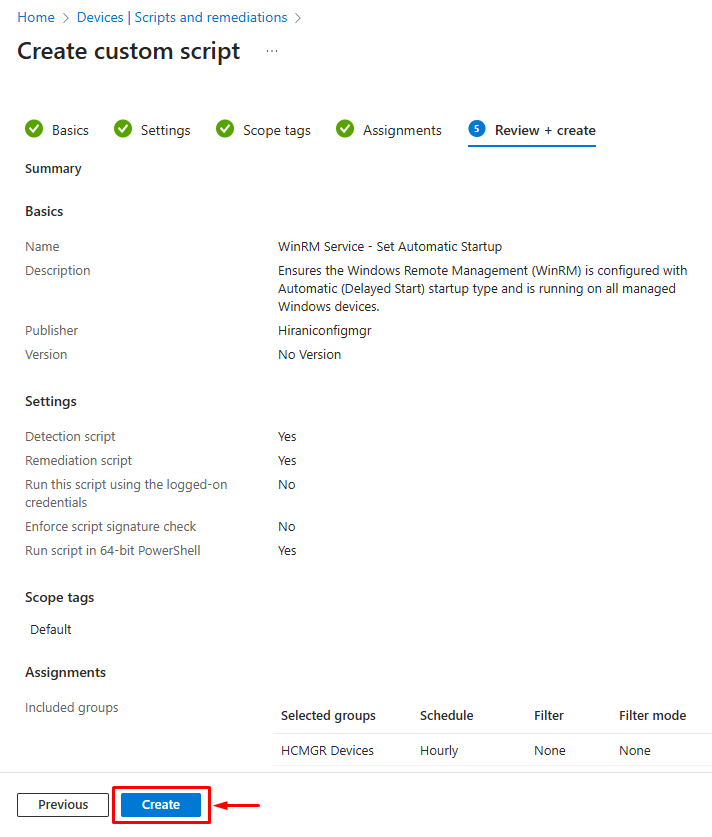
Step 6: Review and Create
- Review all settings
- Click Create
- Wait for the policy to deploy (usually takes 5-15 minutes)
Monitoring and Validation
Viewing Remediation Status
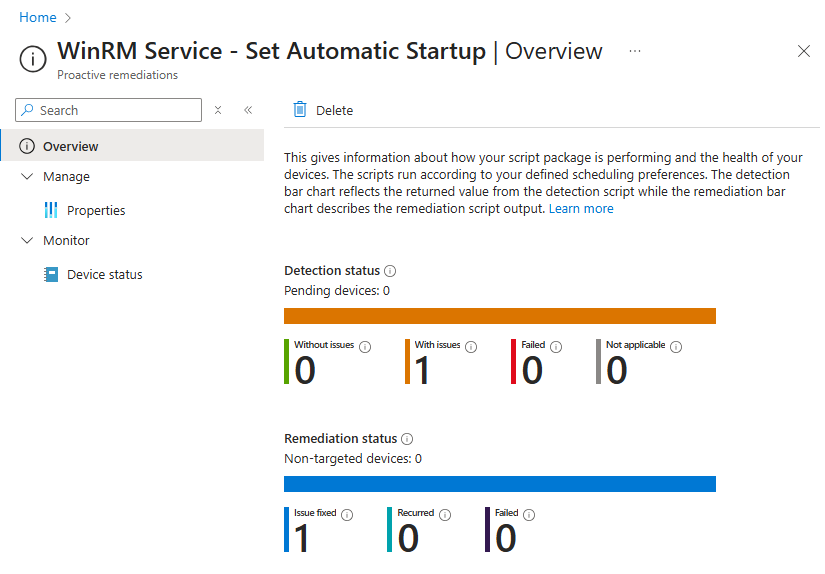
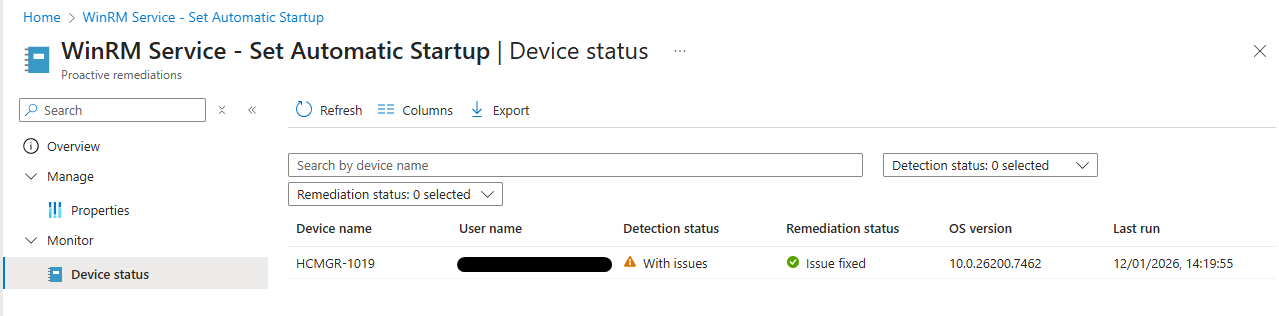
- Go to Devices > Remediations
2 .Click on your “WinRM Service - Set Automatic Startup” package
3. Review the Overview & Device status tab:
-
- Without issues: Devices where detection passed (compliant)
- With issues: Devices where detection failed and remediation is needed
- Pending: Devices that haven’t reported yet
Accessing Detailed Logs on Client Devices
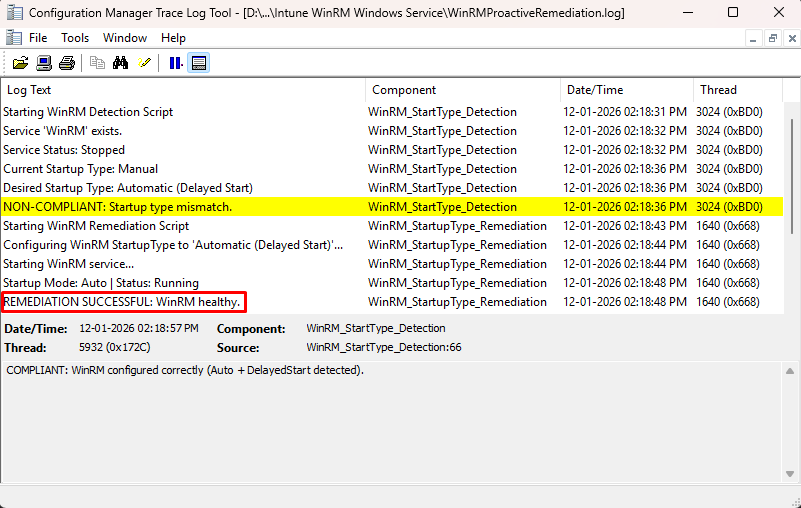
Logs are stored on each Windows device at:
C:\ProgramData\Microsoft\IntuneManagementExtension\Logs\
Look for file:
WinRMProactiveRemediation.log- Open in CMTrace tool for best viewing.
Best Practices
- Use Automatic (Delayed Start) to reduce boot contention
- Avoid servicing-critical services like WaaSMedicSvc
- Always include validation after remediation
- Use CMTrace format for forensics
- Keep remediation idempotent (no double-effects)
- Test on pilot devices before broad assignment
Conclusion
Controlling Windows service startup behavior through Intune Proactive Remediations provides a robust, cloud-native solution for enterprise device management.
The combination of detection and remediation scripts creates a self-healing infrastructure that maintains desired configurations without manual intervention. While Microsoft Intune doesn’t natively support service management through its UI, PowerShell-based Proactive Remediations offer flexibility and power that goes beyond traditional configuration profiles.