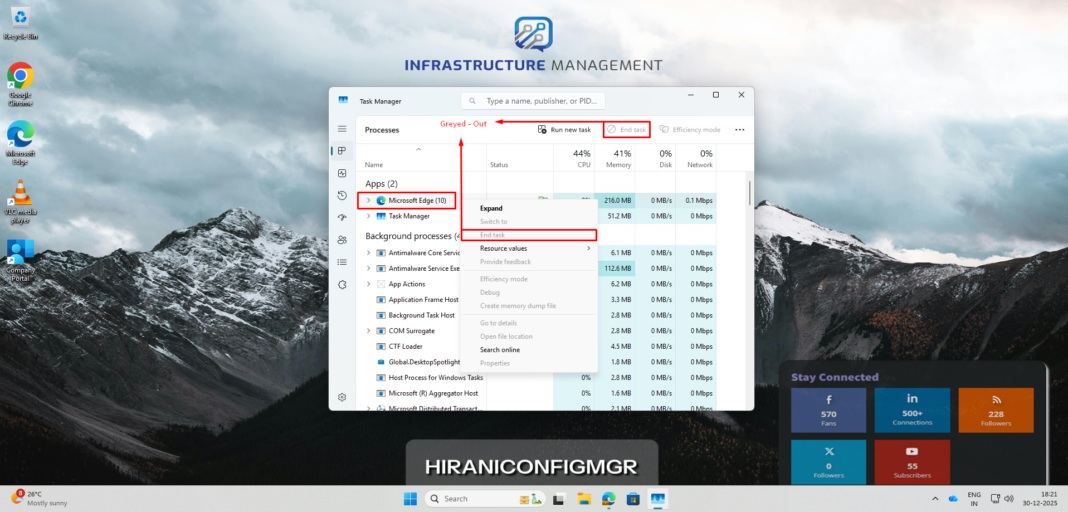
In enterprise environments, unrestricted access to Task Manager’s “End Task” action can lead to serious operational issues. Standard (non-admin) users may accidentally – or intentionally – terminate business-critical applications, background services, or security agents, resulting in data loss or service disruption.
With Microsoft Intune Settings Catalog, administrators can centrally disable the End Task option in Task Manager without scripts, registry hacks, or custom ADMX ingestion.
This guide walks you through exactly how to configure this setting in Intune, step by step.
Why Disable “End Task” for Non-Administrative Users?
Disabling the End Task option is especially useful in:
- Kiosk or shared devices
- Call center and frontline worker systems
- Highly regulated environments
- Line-of-business (LOB) application lockdown scenarios
Key Benefits
- Prevents accidental termination of critical apps
- Reduces helpdesk tickets
- Improves device stability
- Enforces least-privilege security principles
- Centralized control via Intune (no local changes)
Prerequisites
Before you begin, ensure:
- Windows 10 / Windows 11 devices are Azure AD joined or Hybrid joined
- Devices are enrolled in Microsoft Intune
- You have Intune Administrator or Policy Administrator permissions
- Target users are non-administrators (standard users)
Understanding the Policy Scope
This configuration specifically targets non-administrative users, meaning:
- Standard users will be unable to end tasks or processes in Task Manager
- Local administrators and domain administrators will retain full Task Manager functionality
- The restriction applies at the user level, not the device level
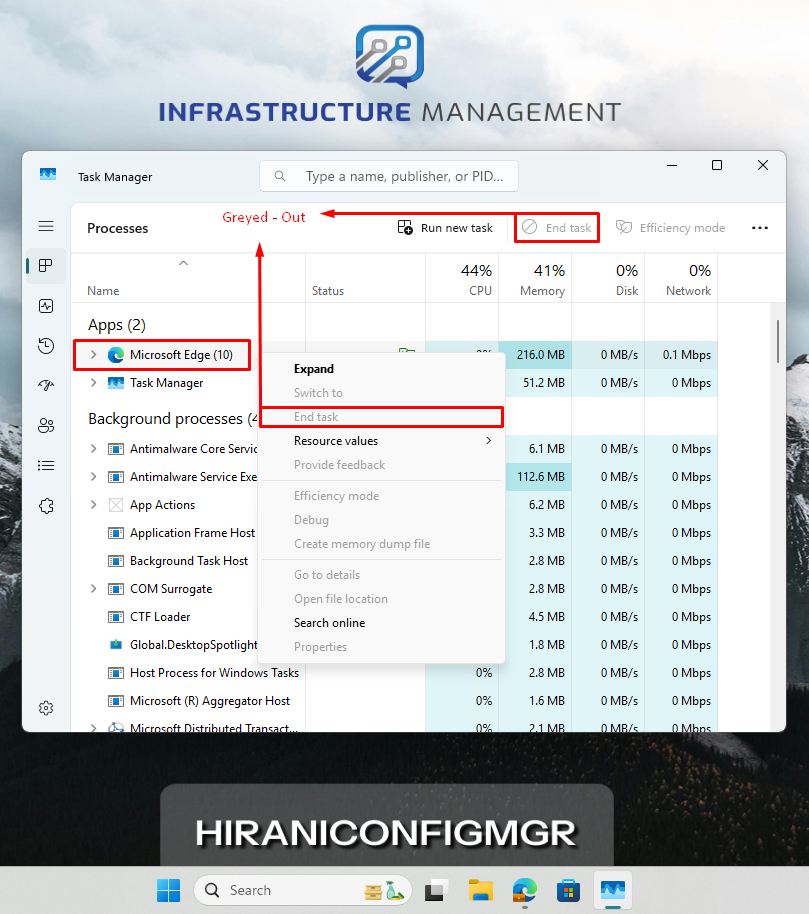
- Users will see grayed-out or disabled End Task buttons when the policy is applied
Step-by-Step: Disable End Task Using Intune Settings Catalog
Step 1: Sign in to Microsoft Intune Admin Center
- Go to https://intune.microsoft.com
- Sign in with an administrator account
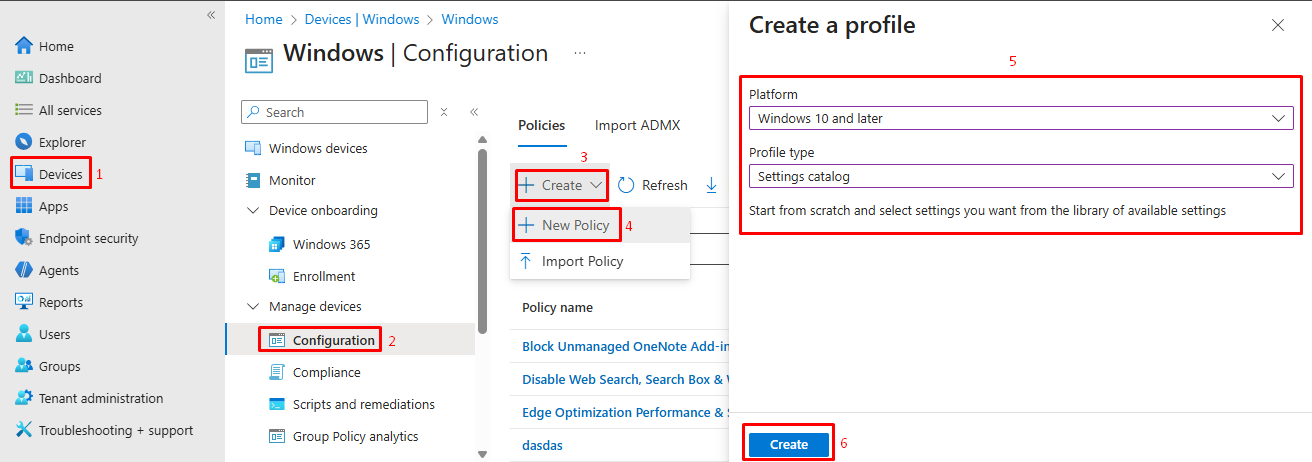
Step 2: Create a New Configuration Profile
- Navigate to:
- Devices → Configuration profiles
2. Click Create profile
| Setting | Value |
| Platform | Windows 10 and later |
| Profile type | Settings catalog |
3. Click Create
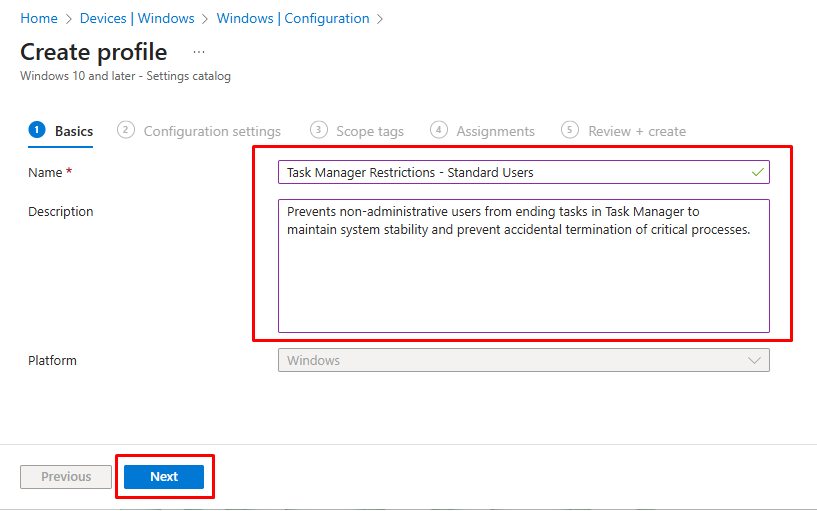
Step 3: Name the Profile
Use a clear, descriptive name:
- Name:
"Task Manager Restrictions - Standard Users" - Description:
"Prevents non-administrative users from ending tasks in Task Manager to maintain system stability and prevent accidental termination of critical processes." - Click Next
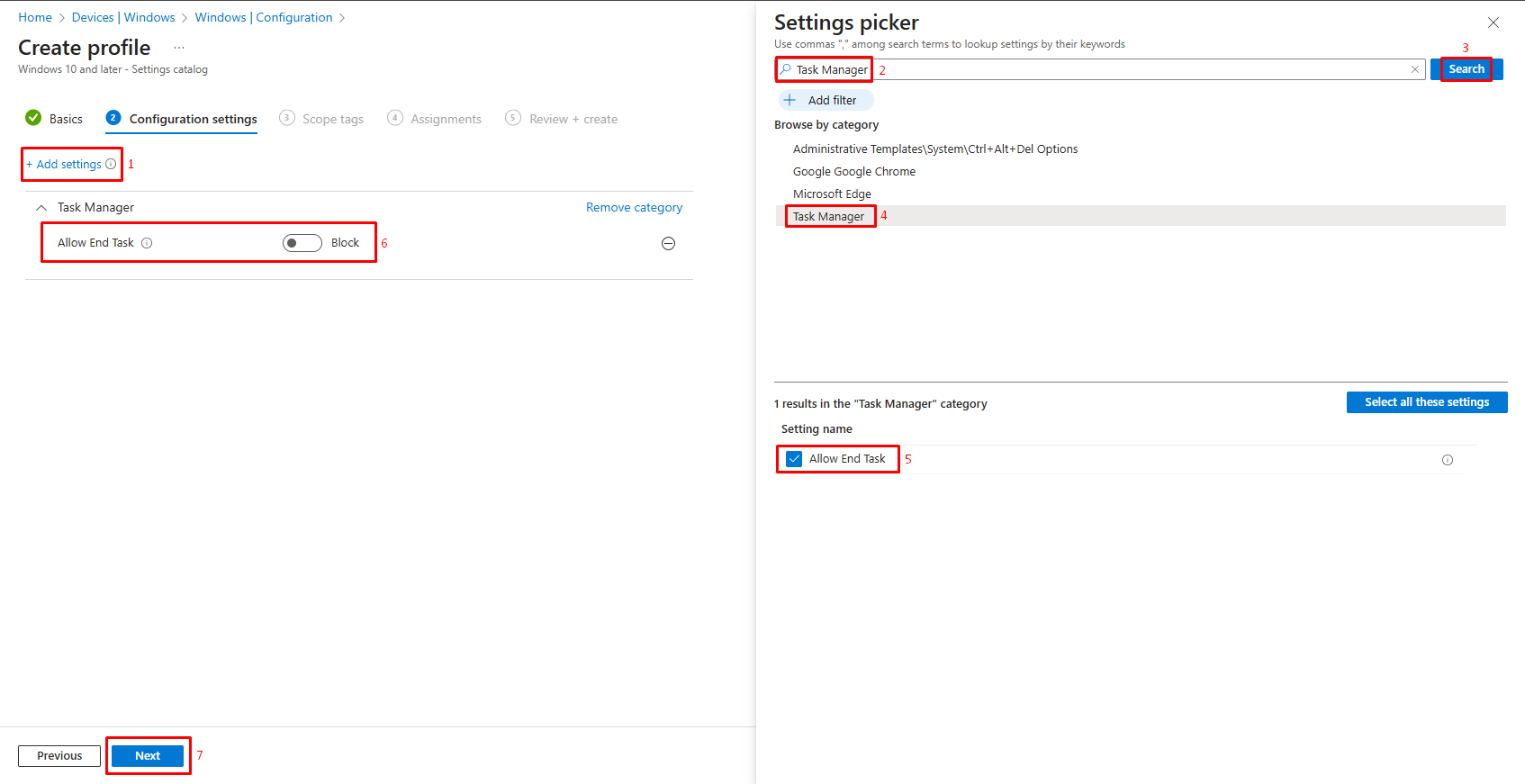
Step 4: Add the Required Setting
- Click Add settings
- Search for “
Task Manager“ - Select the Task Manager category
- Click on the Search button
- Click on the Allow End Task Checkbox.
- Toggle the setting bar to left to change it to Blocked state.
- Click Next
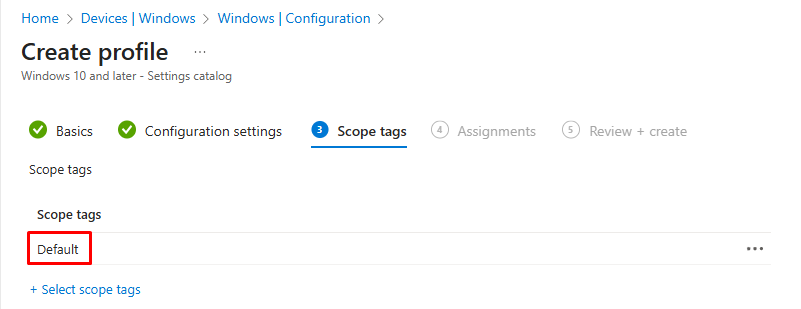
Step 5: Scope Tags Tab
- Add appropriate scope tags if your organization uses them
- Click Next
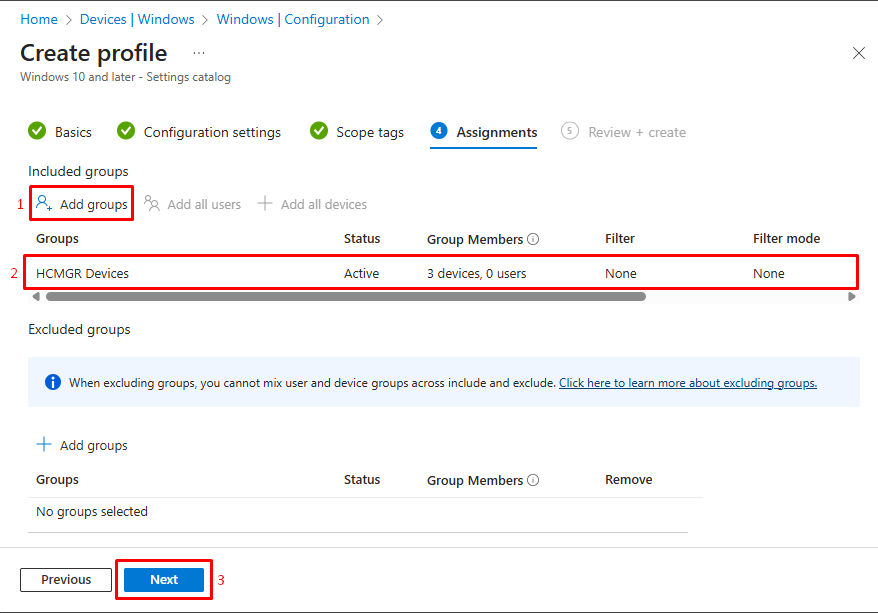
Step 6: Assign the Policy to Target Groups
- Under Included groups, click + Add groups
- Select the security group(s) that should receive this policy
- Click Select to confirm group selection
- Click Next
Step 7: Review and Create
- Review your settings
- Click Create
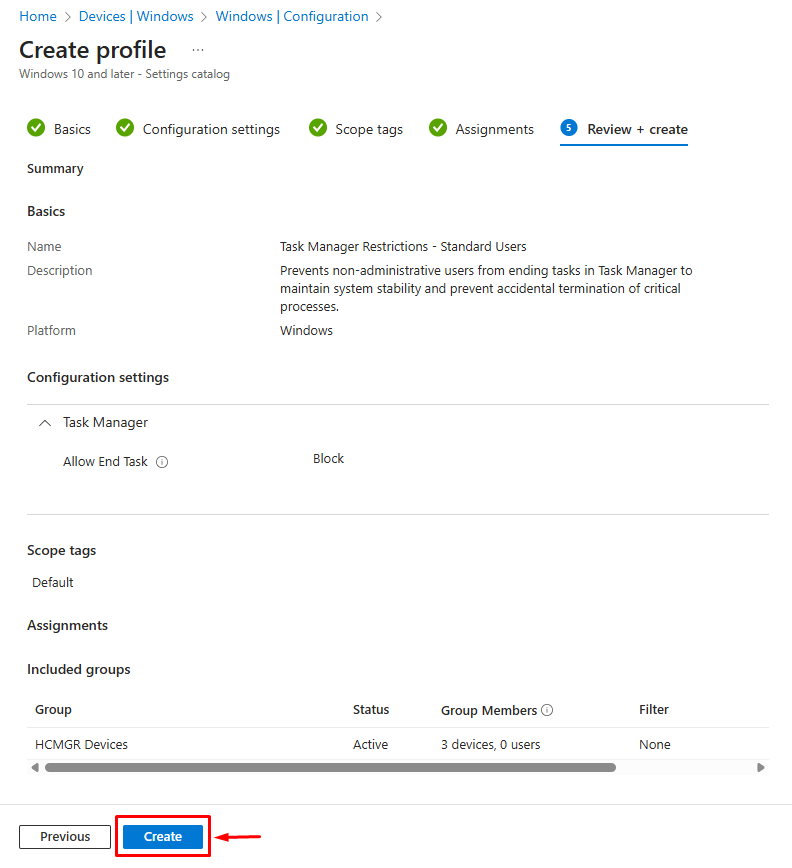
The policy will sync automatically during the next Intune check-in.
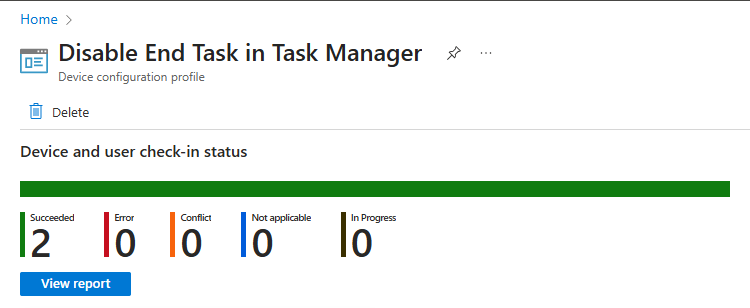
Step 8: Monitor Policy Deployment
After creating the policy, it’s important to monitor its deployment status to ensure it’s reaching target users successfully.
- Navigate back to Devices > Configuration > Policies
- Locate your newly created policy in the list
- Click on the policy name to open its details
- Review the deployment status showing:
-
- Number of users or devices assigned
- Success, error, or pending status
- Any conflicts with other policies
Step 9: Verify the Policy on End-User Devices
Testing is crucial to confirm that the policy works as intended before considering the deployment complete.
For a standard user account:
- Sign in to a test device with a non-administrative user account that’s part of the assigned group
- Wait for the Intune policy to sync (or manually sync through Settings > Accounts > Access work or school > Info > Sync)
- Press Ctrl + Shift + Esc to open Task Manager
- Observe that either:
-
- The End Task button is grayed out or disabled
- Right-click on any process and verify that the End Task option is unavailable
For an administrative user account:
- Sign in with an administrator account
- Open Task Manager using Ctrl + Shift + Esc
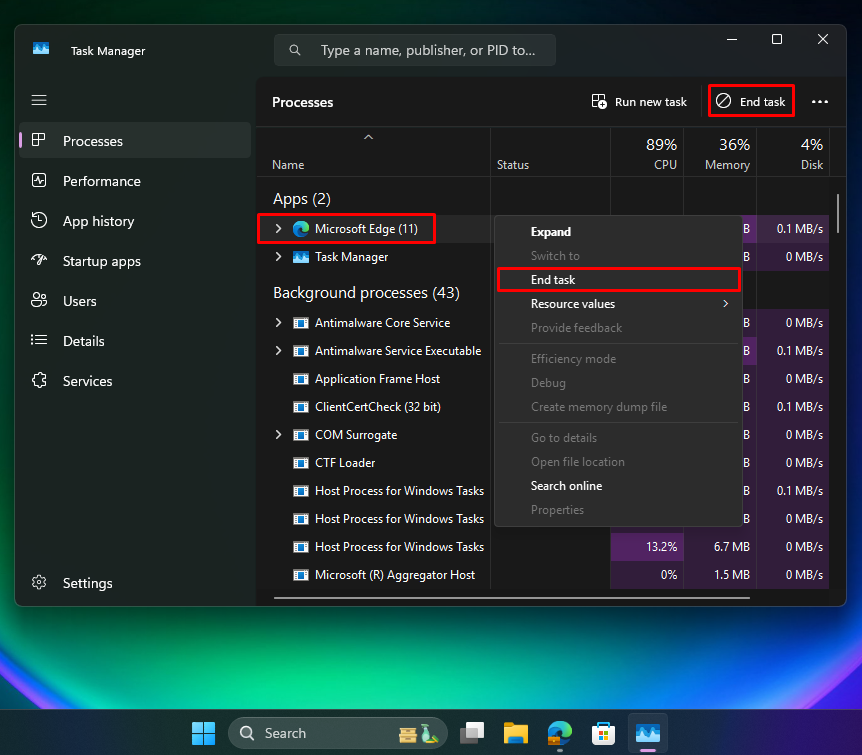
- Verify that all Task Manager functionality, including End Task, works normally
- This confirms that administrators are not affected by the restriction
Conclusion
Disabling the End Task option in Task Manager using Intune Settings Catalog is a clean, supported, and scalable solution for protecting enterprise Windows devices from accidental disruptions.
With no scripts, no registry changes, and full cloud-based management, this approach aligns perfectly with modern endpoint management best practices.