
Microsoft Office applications (Word, Excel, PowerPoint, Teams, etc.) store temporary cached data to speed up loading and improve responsiveness. However, over time, leftover cache can cause slow performance, broken functionality, or inconsistent behavior. Clearing the cache can often resolve these issues instantly without reinstalling the app.
This comprehensive guide demonstrates how to leverage Microsoft Intune’s Remediation Scripts (formerly Proactive Remediations) to automate Office cache cleanup across your organization.
In this guide, you’ll learn how to:
✔ Understand the benefits of clearing Office cache
✔ Write and deploy a PowerShell remediation script in Intune
✔ Run the script on demand to clear cache when needed
Understanding Microsoft Office Apps Cache
What is Office Apps Cache?
Microsoft Office applications store temporary data in cache folders to improve performance and maintain user preferences. This cache includes:
- Add-in configurations and data
- Web Extension Framework (WEF) components
- Temporary rendering files
- Application state information
Cache Location
- The primary cache location for Microsoft 365 applications resides at:
%LOCALAPPDATA%\Microsoft\Office\16.0\Wef\
- This path translates to:
C:\Users\[Username]\AppData\Local\Microsoft\Office\16.0\Wef\
Why Clear Microsoft Office Cache?
Clearing application cache can resolve issues such as:
- Application freeze or crash issues
- Corrupted cache data interfering with app performance
- Unexpected error messages
- Applications not reflecting updated content
Manual Cache Clearing Process
Before implementing automated solutions, understanding the manual process provides valuable context.
Step-by-Step Manual Cleanup
Step 1: Close All Office Applications
- Ensure all Microsoft Office applications are completely closed. Check the system tray for background processes.
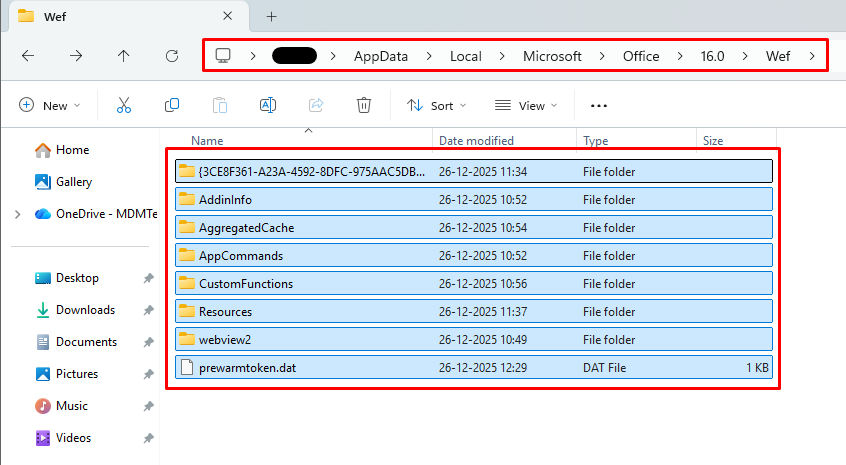
Step 2: Navigate to Cache Directory
- Press Win + R to open Run dialog, then enter:
%LOCALAPPDATA%\Microsoft\Office\16.0\Wef\
Step 3: Delete Cache Contents
- Select all files and folders within the Wef directory and delete them. You may be prompted for administrator permissions depending on your security configuration.
Step 4: Restart Office Applications
- Launch your Office application normally. The cache will rebuild automatically with fresh data.
Automating Cache Cleanup with Intune Remediation
To scale this process across users and devices, we use Proactive Remediations in Microsoft Intune.
The core of this solution is a PowerShell script that:
✔ Detects whether Office applications are running
✔ Prompts the user to close running apps (if needed)
✔ Clears cached files when confirmed
✔ Offers smooth silent execution for on-demand use
Prerequisites
Before implementing this solution, ensure you have:
- Microsoft Intune Administrator or equivalent role
- Windows 10/11 devices enrolled in Microsoft Intune
- Microsoft 365 Apps installed on target devices
- Basic PowerShell scripting understanding
Implementation Guide
Phase 1: Script Preparation
Step 1: Create the Scripts
Detection Script:
<#
.SYNOPSIS
    Detects Microsoft 365 Apps cache presence.

.DESCRIPTION
    If cache files exist, the device is marked non-compliant
    so that remediation can clear the cache.

.CONTEXT
    User

.NOTES
    Author: HCMGR Admin
    Version: 2.0
    Last Modified: 26 December, 2025
#>

$LogFile = "$env:LOCALAPPDATA\Temp\ClearM365AppsCache.log"
$Component = "Detection"

function Write-CMTraceLog {
    param (
        [Parameter(Mandatory=$true)]
        [string]$Message,
        [ValidateSet("INFO","WARNING","ERROR")]
        [string]$Level = "INFO"
    )

    $Time = Get-Date -Format 'HH:mm:ss.fff+000'
    $Date = Get-Date -Format 'MM-dd-yyyy'

    switch ($Level) {
        'WARNING' { $Type = 2 }
        'ERROR'   { $Type = 3 }
        default   { $Type = 1 }
    }

    $LogLine = '<![LOG[{0}]LOG]!><time="{1}" date="{2}" component="{3}" context="" type="{4}" thread="{5}" file="">' -f `
        $Message, $Time, $Date, $Component, $Type, $PID

        # Use Out-File with UTF8 encoding (CMTrace compatible)
        $LogLine | Out-File -FilePath $LogFile -Append -Encoding utf8 -Force -ErrorAction Stop
}

Write-CMTraceLog "Detection script started."

$CachePath = "$env:LOCALAPPDATA\Microsoft\Office\16.0\Wef"

if (
    (Test-Path $CachePath) -and
    ((Get-ChildItem -Path $CachePath -Recurse -ErrorAction SilentlyContinue | Measure-Object).Count -gt 0)
) {
    Write-CMTraceLog "Microsoft 365 cache detected. Remediation required." -Level WARNING
    exit 1
}
else {
    Write-CMTraceLog "No Microsoft 365 cache detected. Device compliant."
    exit 0
}
Remediation Script:
<#
.SYNOPSIS
    Clears Microsoft 365 Apps cache for the logged-in user.

.DESCRIPTION
    Prompts user to close Office apps if running,
    then clears the Microsoft 365 Apps cache.

.CONTEXT
    User

.NOTES
    Author: HCMGR Admin
    Version: 2.0
    Last Modified: 26 December, 2025
#>


# Configuration
$LogFile   = "$env:LOCALAPPDATA\Temp\ClearM365AppsCache.log"
$Component = "Remediation"

# CMTrace-compatible logging function
function Write-CMTraceLog {
    param (
        [Parameter(Mandatory = $true)]
        [string]$Message,

        [ValidateSet("INFO","WARNING","ERROR")]
        [string]$Level = "INFO"
    )

    $Time = Get-Date -Format 'HH:mm:ss.fff+000'
    $Date = Get-Date -Format 'MM-dd-yyyy'

    switch ($Level) {
        'WARNING' { $Type = 2 }
        'ERROR'   { $Type = 3 }
        default   { $Type = 1 }
    }

    $LogLine = '<![LOG[{0}]LOG]!><time="{1}" date="{2}" component="{3}" context="" type="{4}" thread="{5}" file="">' -f `
        $Message, $Time, $Date, $Component, $Type, $PID

    $LogLine | Out-File -FilePath $LogFile -Append -Encoding utf8 -Force -ErrorAction Stop
}

# Script start
Write-CMTraceLog "Remediation script started."

# Variables
$CachePath = "$env:LOCALAPPDATA\Microsoft\Office\16.0\Wef"

$OfficeProcesses = @(
    "OUTLOOK",
    "WINWORD",
    "EXCEL",
    "POWERPNT",
    "ONENOTE",
    "WINPROJ",
    "VISIO"
)

# Detect running Office apps
$RunningApps = Get-Process -Name $OfficeProcesses -ErrorAction SilentlyContinue

if ($RunningApps) {
    Write-CMTraceLog "Running Microsoft 365 applications detected." "WARNING"

    # Prompt user to close apps
    Add-Type -AssemblyName System.Windows.Forms
    $UserChoice = [System.Windows.Forms.MessageBox]::Show(
        "To resolve an issue with Microsoft 365 Apps, all Office applications must be closed and the local cache must be cleared.`n`nSave Your Work and Click OK to continue or Cancel to abort.",
        "Microsoft 365 Cache Cleanup",
        [System.Windows.Forms.MessageBoxButtons]::OKCancel,
        [System.Windows.Forms.MessageBoxIcon]::Information
    )

    if ($UserChoice -ne [System.Windows.Forms.DialogResult]::OK) {
        Write-CMTraceLog "User cancelled remediation." "ERROR"
        exit 1
    }

    Write-CMTraceLog "Closing Microsoft 365 applications."
    $RunningApps | Stop-Process -Force
    Start-Sleep -Seconds 5
}
else {
    Write-CMTraceLog "No running Microsoft 365 applications detected."
}

# Clear Microsoft 365 cache
if (Test-Path $CachePath) {
    Write-CMTraceLog "Clearing Microsoft 365 cache at path: $CachePath"
    Remove-Item "$CachePath\*" -Recurse -Force -ErrorAction SilentlyContinue
    Write-CMTraceLog "Microsoft 365 cache cleared successfully."
}
else {
    Write-CMTraceLog "Cache path not found. No cleanup required."
}

# Script end
Write-CMTraceLog "Remediation script completed successfully."
exit 0
Step 2: Save the Script File
- Save the files with a .ps1 extension, for example:
ClearM365AppsCache_Detection.ps1 & ClearM365AppsCache_Remediation.ps1
- Store this file in an accessible location for upload to Intune.
Phase 2: Creating the Remediation Package in Intune
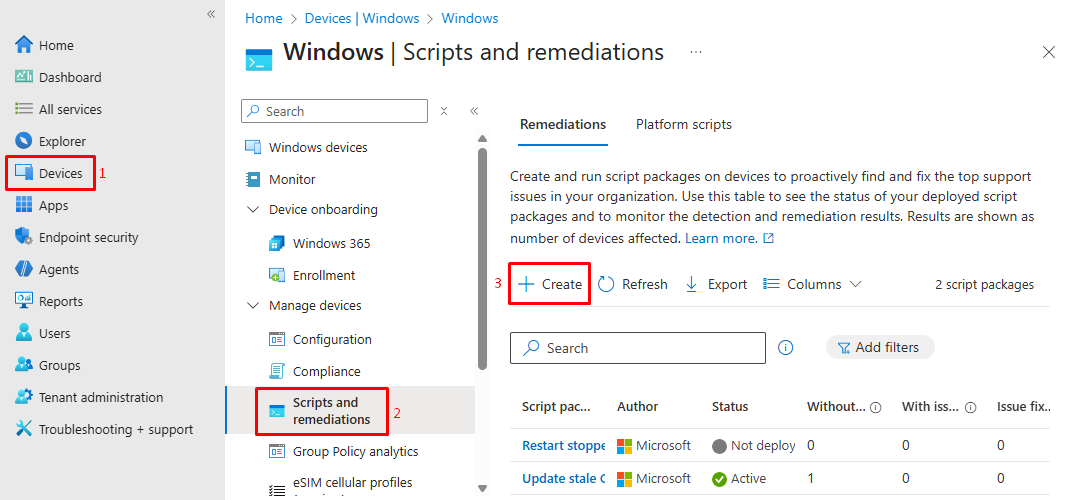
Step 1: Access Remediation Scripts
- Sign in to Microsoft Intune admin center (https://intune.microsoft.com)
- Navigate to Devices > Windows > Scripts and remediations
- Select the Remediations tab
- Click + Create to begin creating a new remediation package
Step 2: Configure Basic Settings
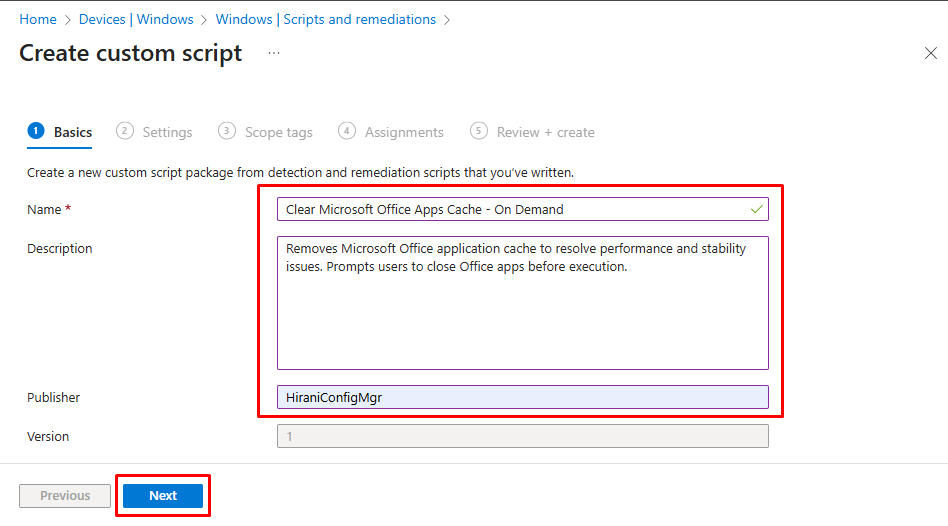
In the Basics page, configure:
- Name: “
Clear Microsoft Office Apps Cache - On Demand“ - Description: “
Removes Microsoft Office application cache to resolve performance and stability issues. Prompts users to close Office apps before execution.“ - Click Next to continue
Step 3: Configure Settings
In the Settings page:
Detection script:
- Click Browse and select your
ClearM365AppsCache_Detection.ps1file
Remediation script:
- Click Browse and select your
ClearM365AppsCache_Remediation.ps1file - Run this script using the logged on credentials: Select Yes
- Enforce script signature check: Select No (unless you’re using signed scripts)
- Run script in 64 bit PowerShell Host: Select Yes
Click Next to proceed.

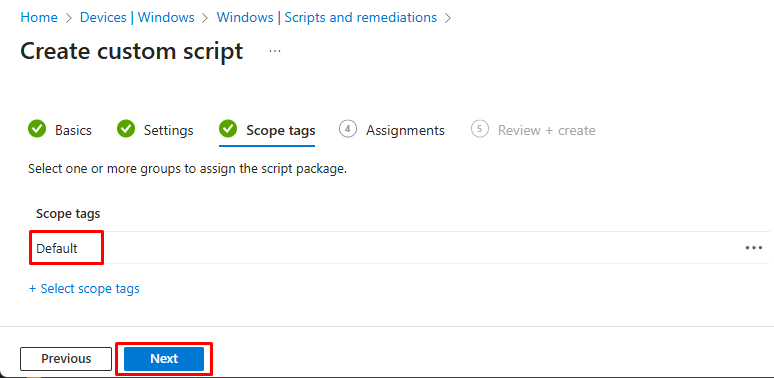
Step 4: Scope Tags Tab:
- Add appropriate scope tags if your organization uses them
- Click Next
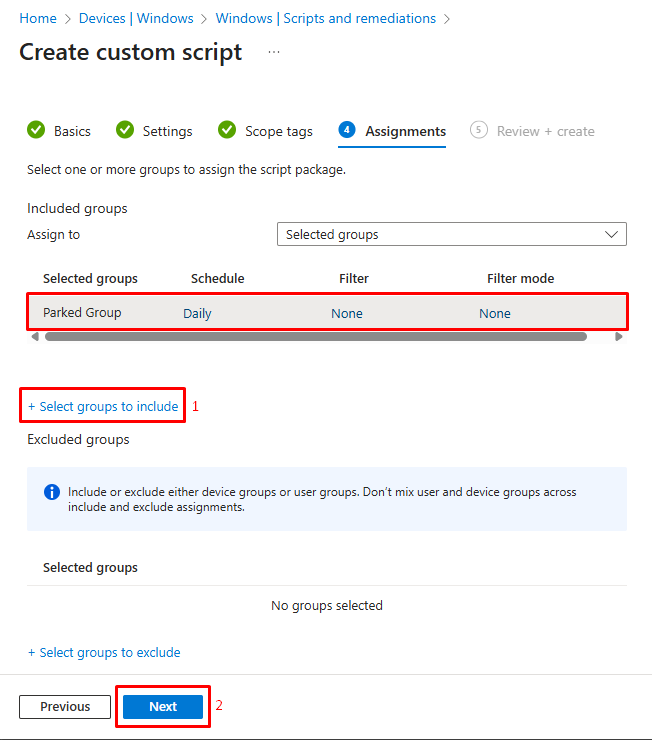
Step 5: Configure Assignments
- Intune requires at least one assignment for a remediation to be considered deployable.
- On-demand execution does not bypass the assignment requirement.
For on-demand execution:
- Assign to any group (parking/dummy/test group is fine)
This configuration allows manual triggering from the Intune portal rather than scheduled automatic execution.
- Click Next to continue.
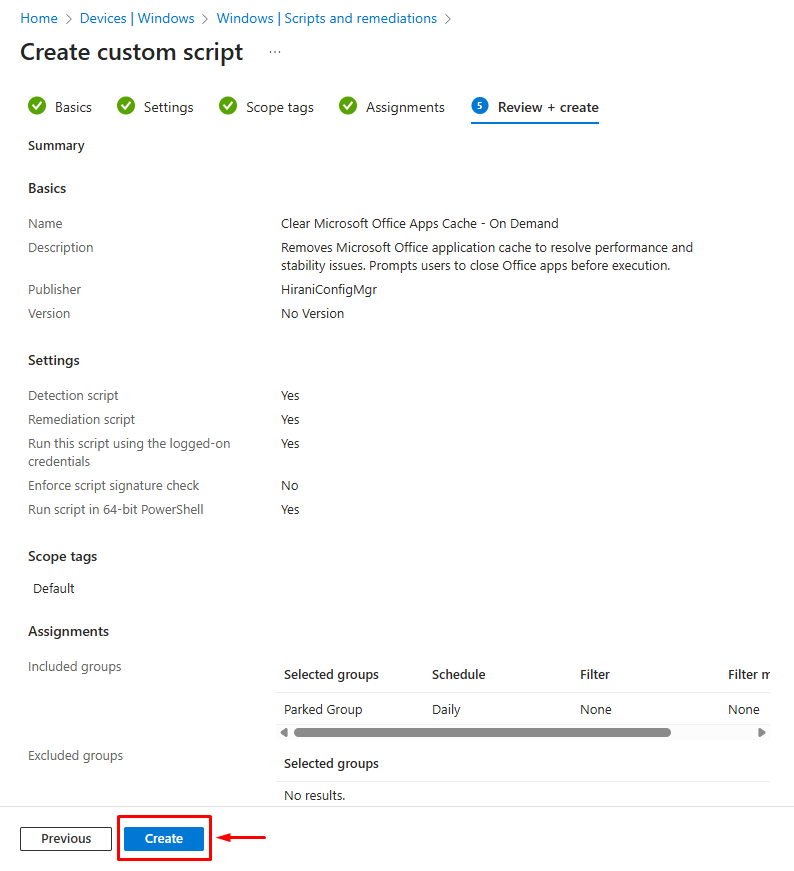
Step 6: Review and Create
- Review all settings and click Create to finalize the remediation package.
Phase 3: Execution and Monitoring
Running the Remediation On-Demand
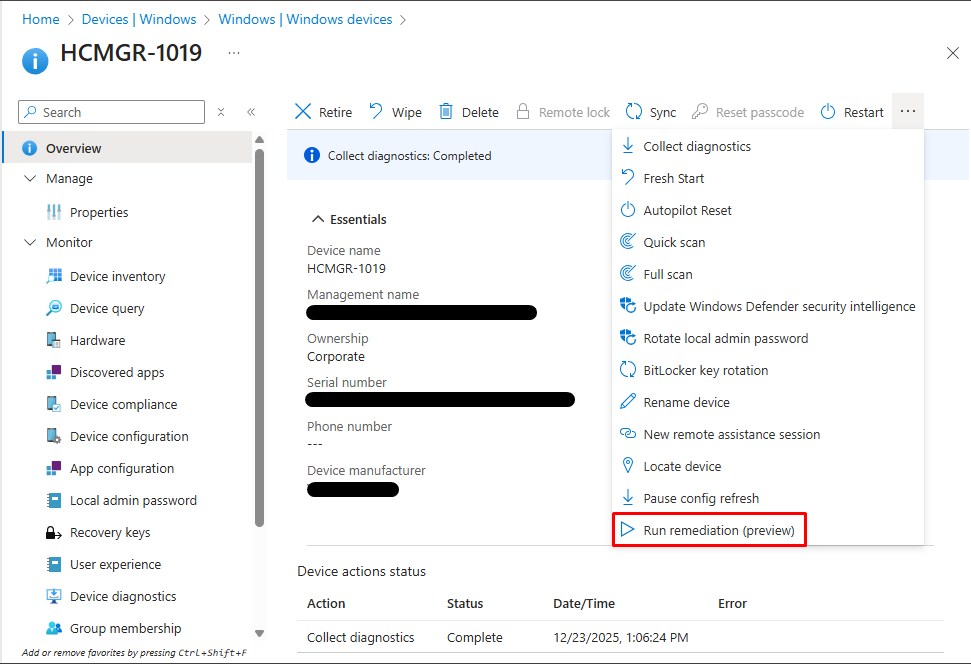
- In Intune admin center, navigate to Devices > All devices
- Select the target device requiring cache cleanup
- Click Run remediation (preview) in the (
...) device actions
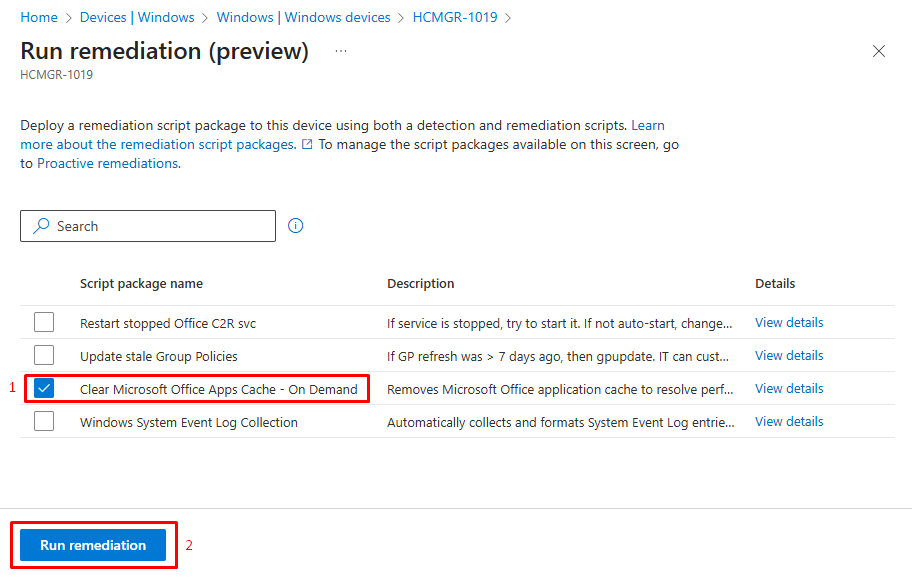
4. Select your “Clear Microsoft Office Apps Cache – On Demand” remediation
5. Click Run remediation to execute immediately
User Experience During Execution
When executed, users will experience:
- A Windows notification or dialog appears (if Office apps are running)
- User is prompted to close all Office applications
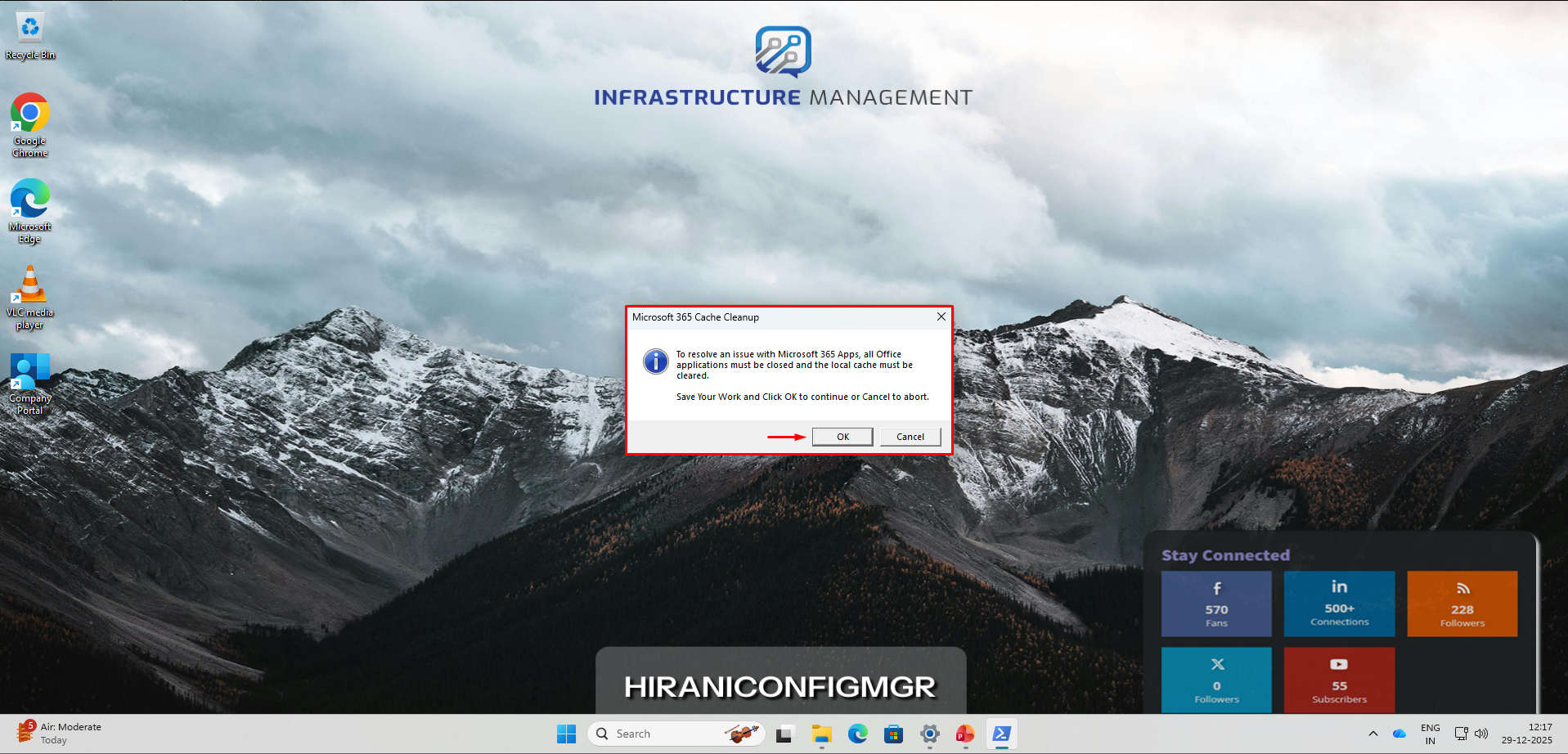
3. After confirmation, Office apps close automatically
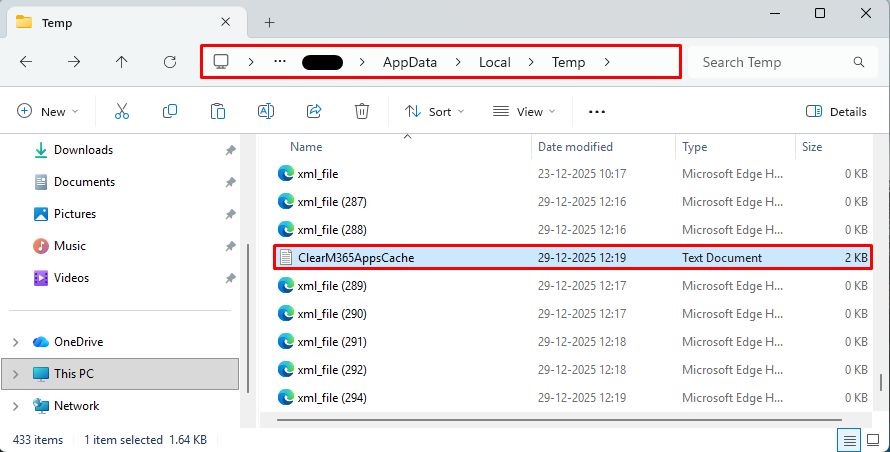
4. Cache cleanup occurs silently in the background
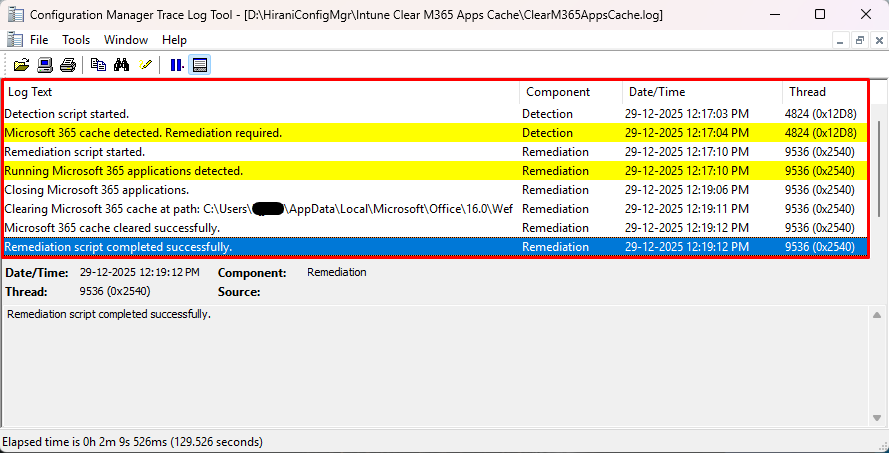
5. Remediation Log file is saved at <span lang="EN-US" xml:lang="EN-US" data-contrast="auto">C:\Users\</span><span lang="EN-US" xml:lang="EN-US" data-contrast="auto">[Username]</span><span lang="EN-US" xml:lang="EN-US" data-contrast="auto">\AppData\Local\Temp\</span><span lang="EN-US" xml:lang="EN-US" data-contrast="auto">ClearM365AppsCache.log</span>
Monitoring Execution Results
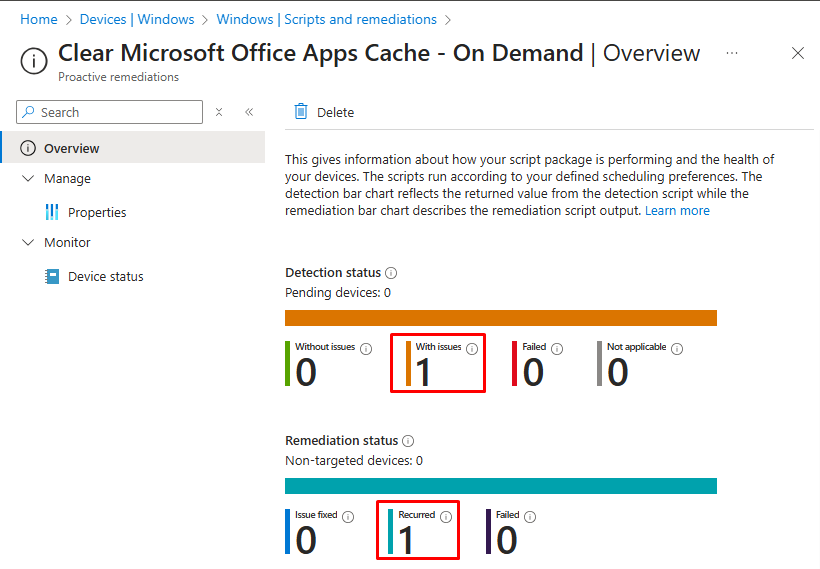
Track remediation execution:
- Navigate to Devices > Scripts & remediations
- Select your cache cleanup remediation
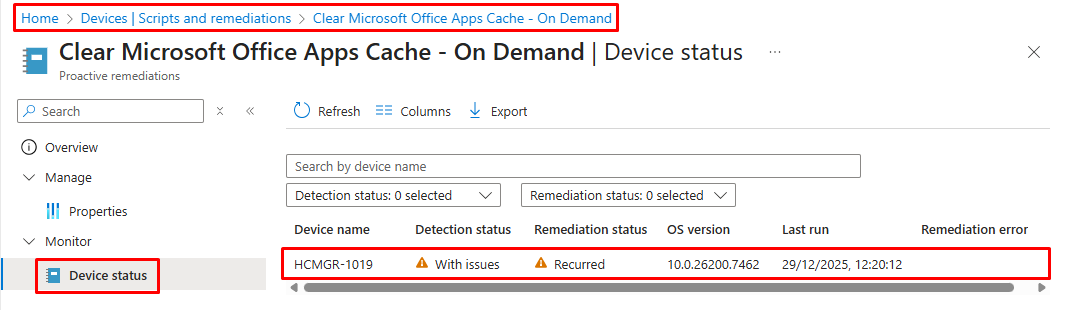
- Review the Overview tab showing:
-
- Number of devices with issues detected
- Successfully remediated devices
- Failed executions
4. Drill into individual device results for detailed logs
Benefits of This Approach
✔ Centralized remediation via Intune instead of local steps
✔ Proactive troubleshooting without help desk calls
✔ Reusable and on-demand cleanup for users experiencing issues
✔ Scripts run under user context for proper access rights
Alternative and Troubleshooting Options
If automated cache clearing doesn’t resolve the issue, consider:
- Reinstalling the affected Office application
- Running Office Repair from Settings > Apps
- Advanced troubleshooting, such as resetting profiles
Conclusion
Using Intune Remediation Scripts to clear Microsoft Office Apps cache is a powerful, scalable way to fix common application issues across end-user environments. Whether you’re troubleshooting a slow user machine or proactively maintaining device health, this approach gives admins flexibility and control – all within the Intune ecosystem.
Let your users get back to productive work faster!