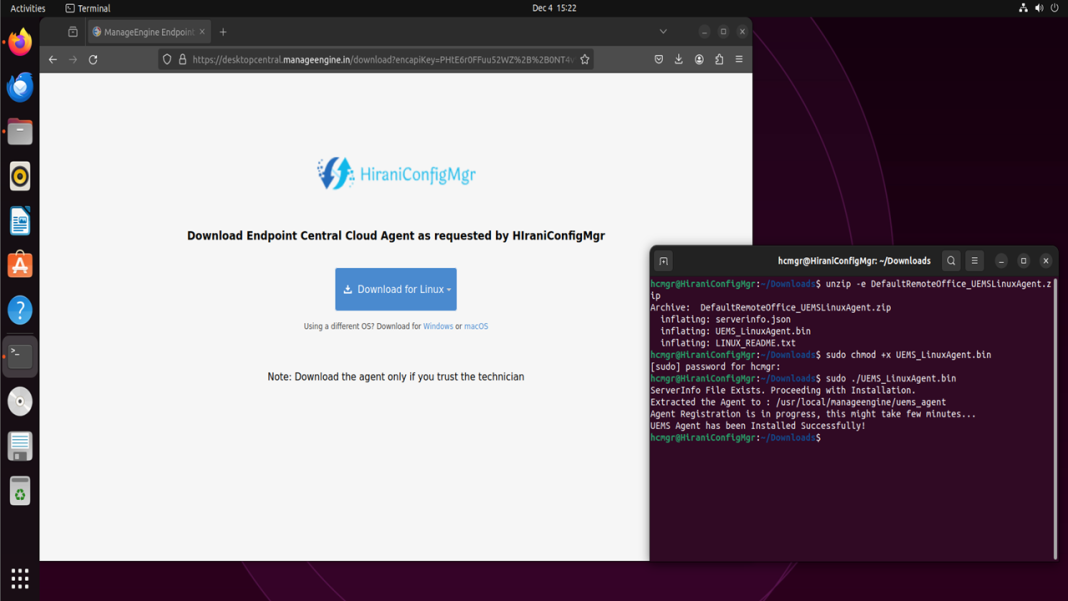
Managing Linux devices is vital for organizations with diverse operating systems. ManageEngine Endpoint Central streamlines this process, providing a unified platform for patch management, software deployment, and remote support. This guide outlines the steps to enroll Linux devices, from downloading the agent to managing them effectively.
Steps to Enroll Linux Devices Using ManageEngine Endpoint Central
1. Preparing for Enrollment
- Verify Compatibility:
- Ensure the Linux distribution is supported by checking here. Endpoint Central supports Ubuntu, CentOS, Red Hat, Debian, and others.
- Access the Endpoint Central Console:
- Log in using your admin credentials and navigate to Agent > Download Agent.
2. Downloading the Linux Agent
- Option 1: Download to a Local Machine and Transfer to the Linux Device
-
- Select Platform as Linux, Select domain/workgroup from the dropdown.
- Choose Processor INTEL/AMD or ARM.
- In the Endpoint Central console, download the Linux agent installer (UEMS_LinuxAgent.zip).
- Transfer the file to the target Linux machine via USB, SCP, or any file transfer method.
- Option 2: Download Directly on the Linux Device
-
- Copy the agent download link from the Endpoint Central console.
- On the target Linux machine, paste the copied URL into a browser
OR
-
-
- run:
-
- wget <download-link>
- wget <download-link>
-
- Replace <download-link> with the copied URL.
- run:
-
3. Installing the Linux Agent
-
- Log in as the root user. If not logged in as root, use the sudo command and enter the password when prompted to perform each operation.
- Go to the directory where the agent has been downloaded.
- Unzip the (remoteoffice_name)_UEMSLinuxAgent.zip file using the command:
- unzip -e (remoteoffice_name)_UEMSLinuxAgent.zip
- unzip -e (remoteoffice_name)_UEMSLinuxAgent.zip
- Confirm that both UEMS_LinuxAgent.bin and serverinfo.json are in the same directory.
- As a root user, make UEMS_LinuxAgent.bin executable with the following command:
- chmod +x UEMS_LinuxAgent.bin
- chmod +x UEMS_LinuxAgent.bin
- Execute the installation command as follows:
- ./UEMS_LinuxAgent.bin
- ./UEMS_LinuxAgent.bin
- By default, the agent will be installed in the /usr/local/manageengine/uems_agent/ directory.
- To install the agent in a different folder, use the -d argument with the installer and enter your preferred path eg: ./UEMS_LinuxAgent.bin -d /opt
- Log in as the root user. If not logged in as root, use the sudo command and enter the password when prompted to perform each operation.
- Now agent will install on /opt/manageengine/uems_agent/ path.
Best Practices for Linux Device Management
-
Regular Agent Updates: Keep agents updated for optimal performance.
-
Automate Patching: Schedule automatic patch deployments to reduce vulnerabilities.
-
Monitor Device Health: Use real-time reports to ensure compliance and system health.
Conclusion
ManageEngine Endpoint Central simplifies Linux device management, allowing IT administrators to streamline operations and enhance security. Whether you’re managing a few Linux endpoints or an extensive network, these steps will ensure a smooth enrollment process and effective ongoing management.